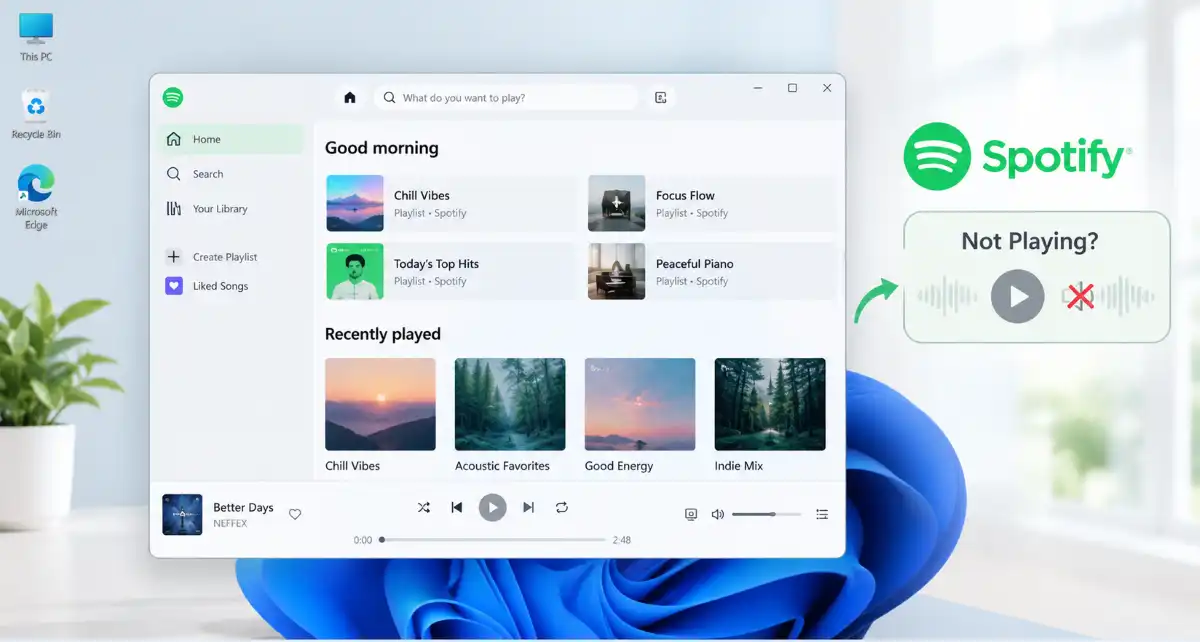
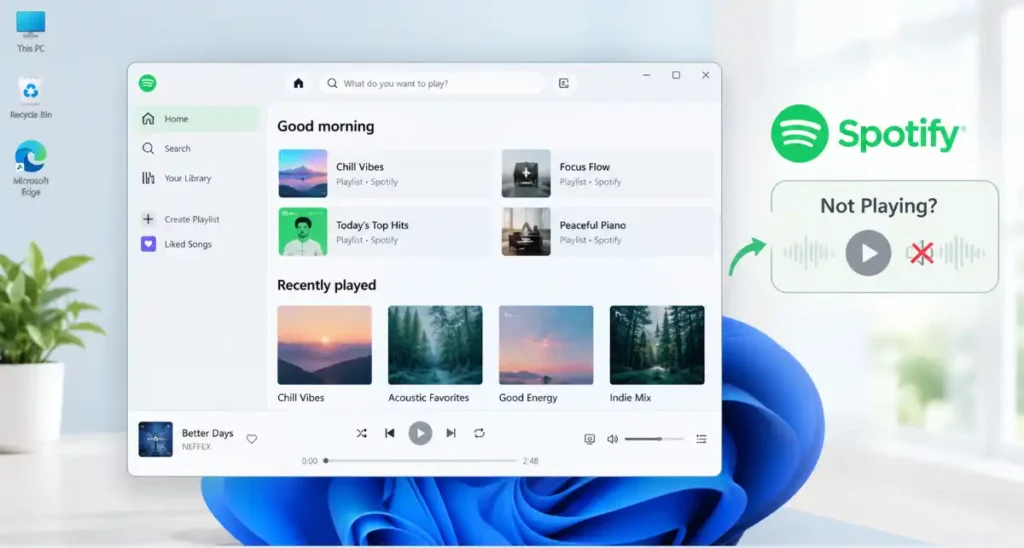
Does Spotify fail to play songs on your Windows 11 computer? This can happen when you click on a song and nothing works, there is an error while trying to play, no sound at all or the Spotify software skips songs. There is nothing more annoying than not being able to enjoy your favorite songs due to Spotify issues.
Spotify audio glitches can easily be fixed using some basic troubleshooting techniques. The reasons behind such a behavior include bad internet connection, out-of-date Spotify application, Windows sound settings issue or Spotify cache corruption.
Here is a detailed article on 10 ways to fix Spotify not playing in Windows 11. Just follow the listed tips step-by-step and test the Spotify service after each one.
Why Is Spotify Not Playing in Windows 11?
There are various reasons why Spotify may cease playing songs. Some of the common reasons include:
- Connection issues: Internet connection instability can cause Spotify difficulties in loading songs.
- App temporary issues: There can be some issues within the Spotify application itself.
- Wrong sound settings: Windows can route Spotify’s audio through the wrong device.
- Older app version: Outdated application version may cause playback problems.
- Cache corruption: Spotify’s temporary files can become corrupted causing unexpected errors.
- Offline mode: Spotify can’t stream songs in offline mode.
- Spotify service issues: Spotify’s temporary service problem can hinder playback.
- Corrupted application: Problems within Spotify’s application installation.
The proper fix largely depends on the specific problem at hand. Before meddling with advanced Windows settings try out the following solutions.
10 Easy Ways to Fix Spotify Not Playing in Windows 11
1. Restart the Spotify App
Refreshing your Spotify application will fix all the problems that you might be facing while playing music. If the app has frozen or become unresponsive, the above method should work in solving the issue.
Here is what you need to do:
- Close Spotify through the X at the top right.
- Press Ctrl + Shift + Esc to open Task Manager.
- Look for Spotify in the list of active processes.
- Select Spotify and choose End process. If there are multiple Spotify processes in the list, end other Spotify processes as well.
- Open Spotify from the start menu.
- Listen to a song to check if everything is working fine.
If everything works well, then this issue is temporary. If problem continue then follow the next steps.
2. Check Your Internet Connection
For Spotify to work, it needs a consistent internet connection. If you have an inconsistent or slow connection, the music might not load or it will take longtime to buffer.
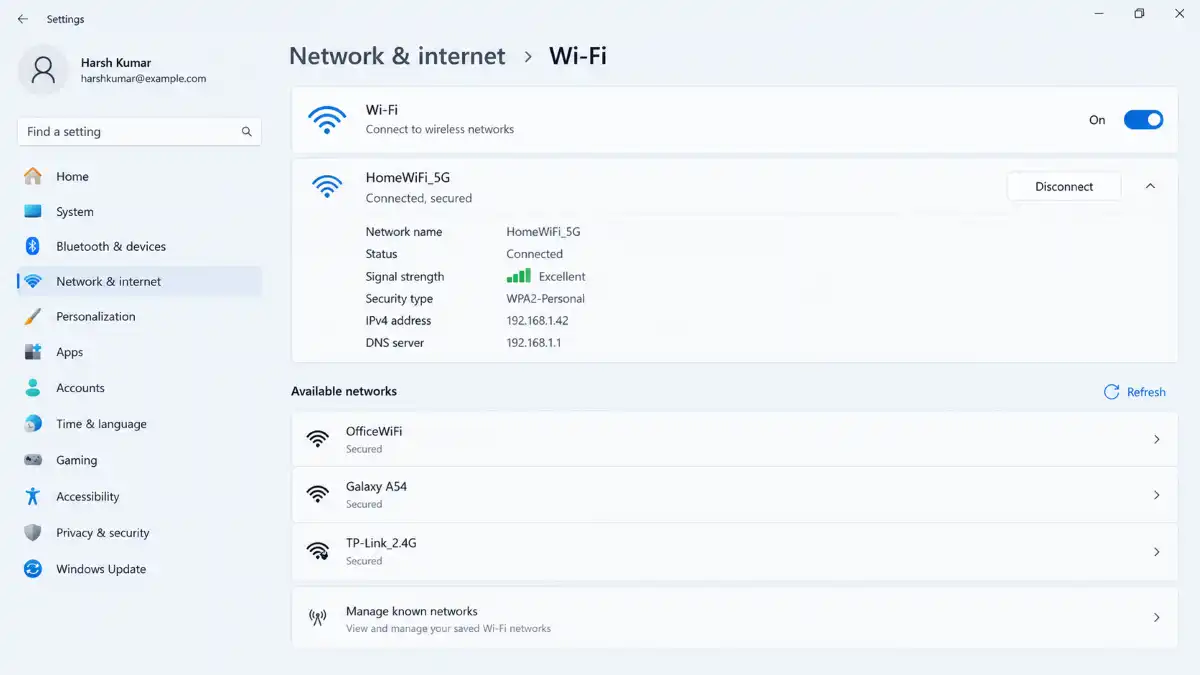
Follow these steps to solve the problem:
- Go to the web browser in your computer.
- Open a website that you frequently use in order to check your internet connection.
- If the websites are opening slowly, you might want to reset your WiFi router if you have access to it.
- Disconnect and reconnect your PC from Wi-Fi.
- In case of possibility, connect to an alternate WiFi network.
- Start the Spotify application and play the same song.
In order to test the performance of Spotify using its web player, go to Spotify Web Player and sign in to your account and play a song.
If the Spotify application is not functioning on your computer but works with the use of the web player, then the problem is with the application.
3. Turn Off Spotify Offline Mode
Spotify Offline mode can stop any song from being streamed when the song is unavailable for offline playing. If you have mistakenly turned on this feature, some songs might not be available to play.
To check this:
- Launch the Spotify application on the computer.
- Find the three dots in the menu bar at the top of the application.
- The Offline mode feature will be listed in the File menu of the Spotify application.
- If the Offline mode is active, disable it.
- Allow a few seconds for Spotify to establish a new connection.
- Please try playing the song again.
The menu bar structure may depend on the version of Spotify that you use. In case you fail to see the Offline mode option, please proceed to the next step.
Hint: In case the songs are greyed out, it might also depend on your internet connection or availability of these songs in your area.
4. Check Spotify’s Volume in Windows 11
Spotify sometimes plays music; however, you can’t listen to anything. This might be due to Spotify being muted or having low volume on Windows 11.
Windows provides the user with an option to adjust the volume of an app independently of the system volume level.
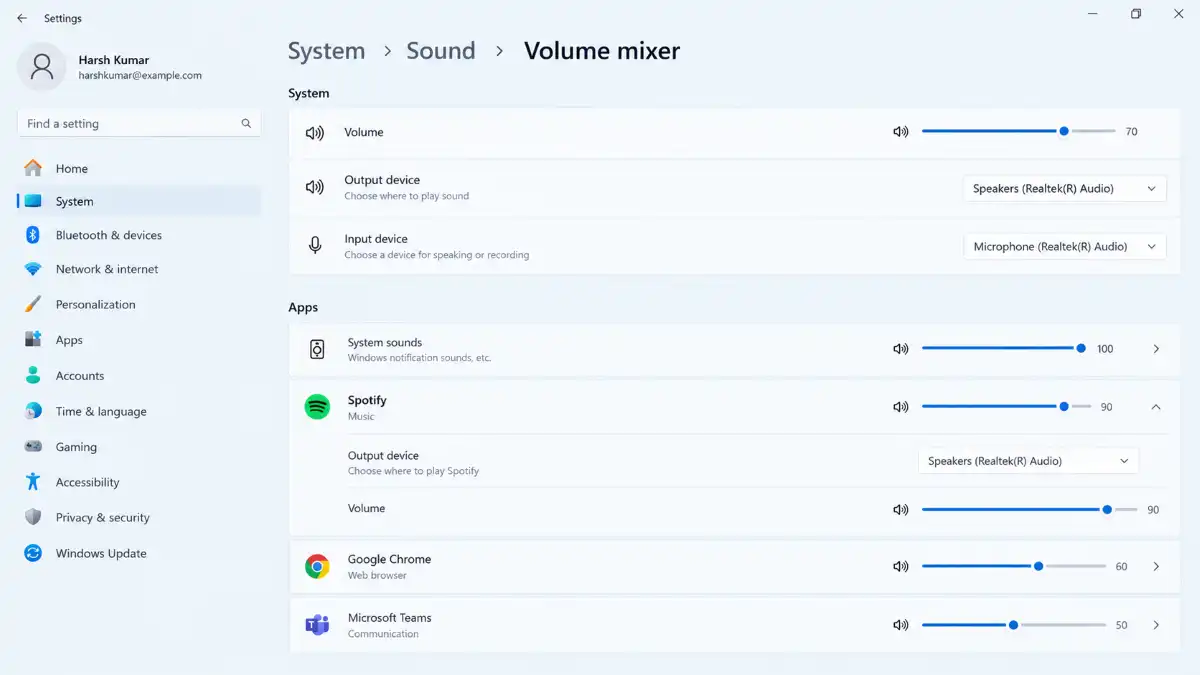
The following are the steps to be taken:
- Click on Windows + I to open settings.
- Go to System.
- Choose Sound.
- Then scroll down and open Volume mixer.
- Locate Spotify among Apps.
- Ensure that Spotify isn’t muted and its volume bar is up.
- Ensure that Spotify is set to the right output device, for example, your speakers or headphones.
If Spotify does not show up in the list, launch the application and play a track while the Volume mixer is still open.
Come back to Spotify and check the sound.
If other apps have sound but not Spotify, then the following solution would be especially helpful.
5. Select the Correct Audio Output Device
Are you using Bluetooth headphones, speakers or monitor with integrated speakers? Windows may play audio from Spotify on another device than the one you are using.
Your PC may be paired with Bluetooth headphones, at the same time when Windows is feeding audio to the monitor.
To check the output device,
- Press Windows + I keys for opening the settings.
- Navigate to System > Sound.
- From Output section, select speakers or headphones.
- Launch Spotify and play music.
- If there is still no sound, open Volume mixer and determine whether Spotify has an output device.
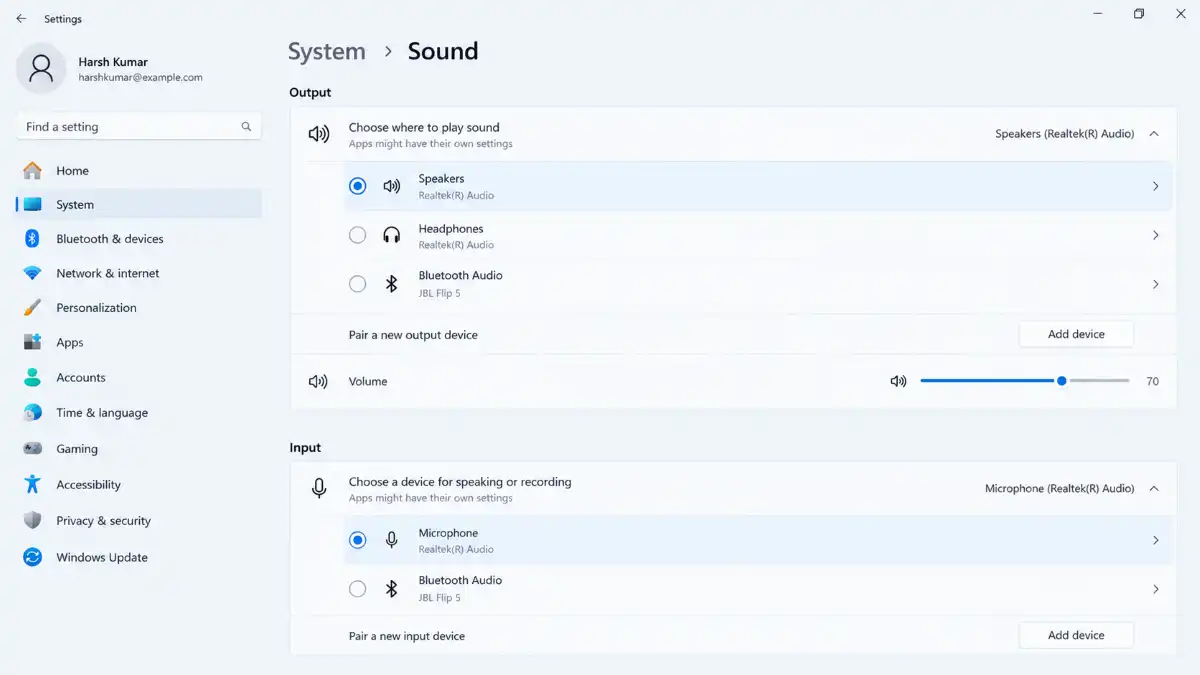
Also, try to disconnect and reconnect Bluetooth headphones.
If Spotify plays the audio via the right device, then you know where the problem lies. If other applications do not have sound either, follow the guide for Microsoft Windows audio troubleshooting.
6. Clear Spotify’s Cache
Temporary data kept in the cache makes Spotify work properly. Over time, the data in the cache can get corrupted and influence the ability to play audio.
The cache should be cleared in case Spotify constantly freezes, the music doesn’t play, or there are any other problems.
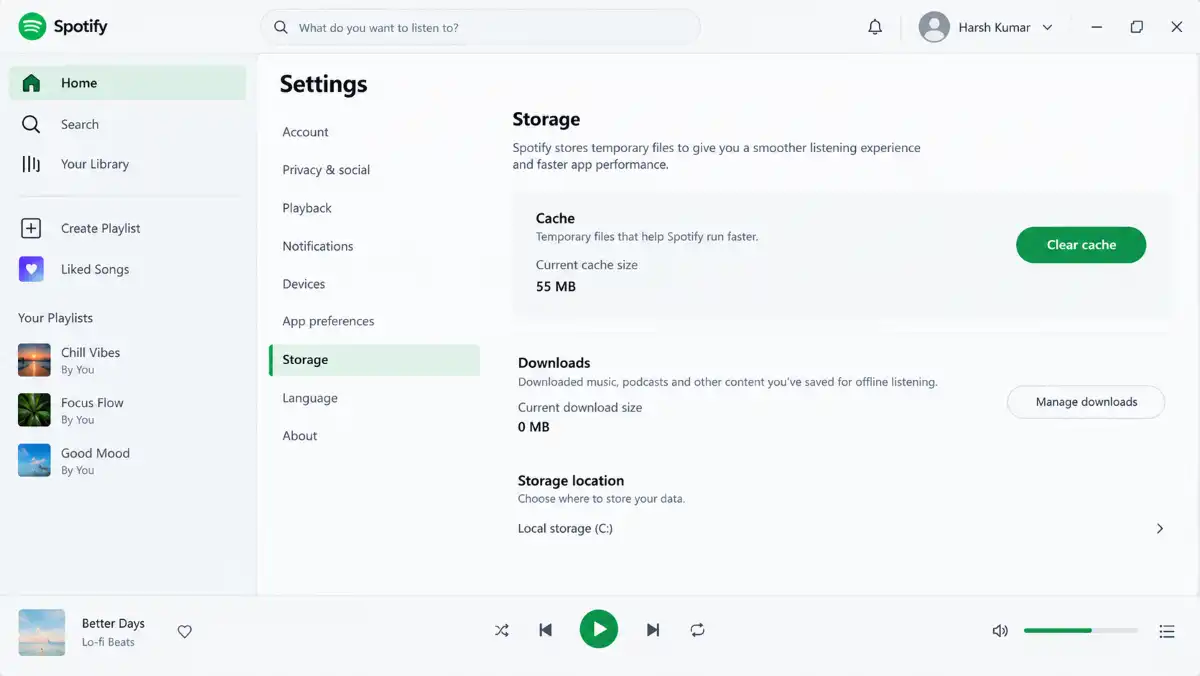
Here is how you can do it:
- Start Spotify.
- Press the profile picture and access the Settings menu.
- Find the Storage category or the possibility to clear the cache.
- In case the possibility is there, press Clear cache.
- Wait for the operation to be completed.
- Launch Spotify again and test playback.
Settings may vary depending on the Spotify version.
Note: Clear the cache instead of deleting random folders from your Windows computer. In case you cannot access the cache, go directly to the next solution instead of deleting files.
7. Update Spotify to the Latest Version
The old version of the Spotify software may have bugs. Upgrading may help get rid of those bugs that have already been addressed in the current version of the software.
To update Spotify:
- Open the Spotify desktop application.
- Click on your user icon or the three-dot menu button.
- Find the option that will tell you that you need to update the application.
- Update Spotify according to the instructions.
- Restart the Spotify application.
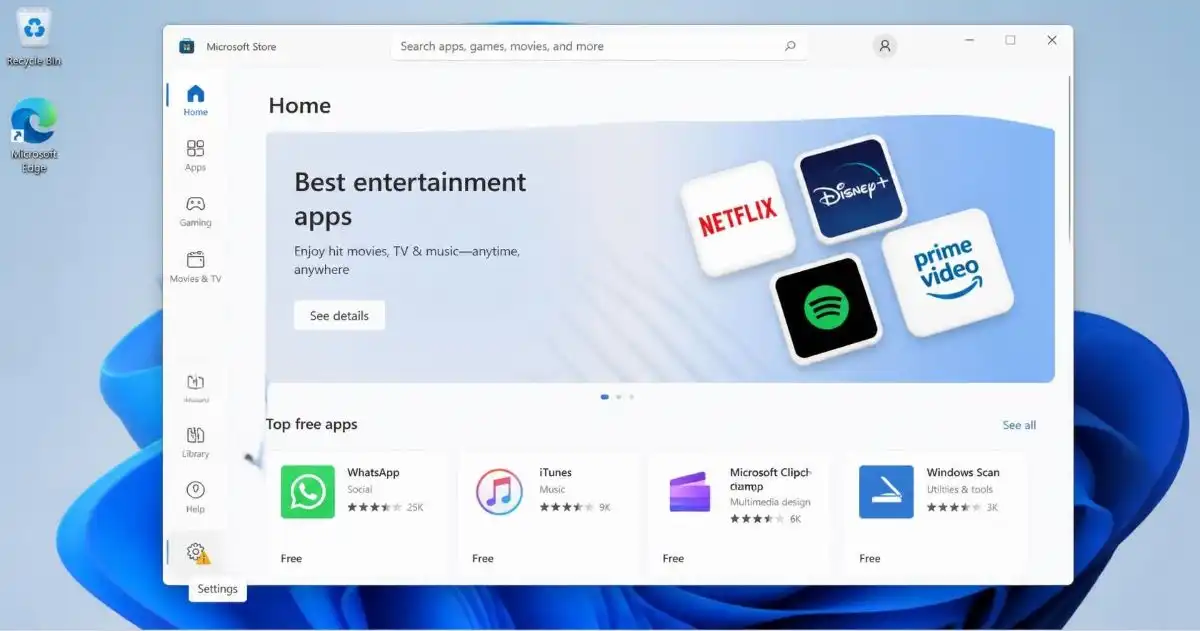
Alternatively, if you have downloaded Spotify from the Microsoft Store, then try updating from there:
- Open the Microsoft Store from the Start menu.
- Click on the Downloads/Libraries tab.
- Choose Get updates if it is available.
- Install the Spotify update.
- Open Spotify and play a track.
If the Microsoft Store is not opening or updating apps properly, follow our guide on how to fix Microsoft Store not working in Windows 11.
8. Turn Off Audio Enhancements
Although windows audio enhancements help to improve the sound quality, sometimes it might prevent audio playback on some specific audio devices.
If Spotify start and play music but you still do not get any sound or hear the distorted one, you will have to disable the audio enhancements.
Follow these steps:
- Press Windows + I keys to enter Settings menu.
- Then go to System> Sound.
- Select your output device that you are currently using under Output heading.
- Look for Audio enhancements option.
- Switch it off if possible.
- After that, you may launch Spotify and check audio again.
The location of the setting might be a bit different for you, based on your audio device and the version of Windows you are using.
If disabling enhancements doesn’t solve the problem, you can re-enable them. This is most helpful in case of Spotify’s issue with sounds and not songs failing to play.
9. Repair or Reset Spotify in Windows 11
If the problem persists, it indicates that there is a problem with app files or configurations. The operating system Windows 11 has such options as Repair and Reset for some applications.
Begin with Repair since it will cause you less trouble.
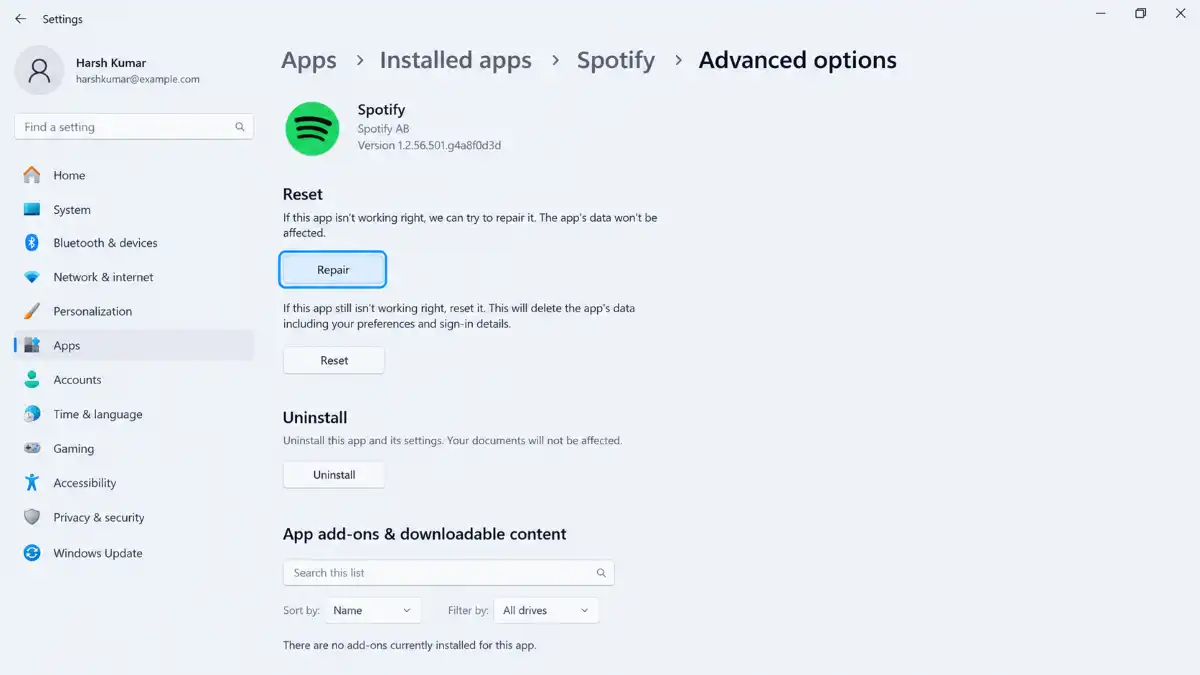
Repair Spotify
- Go to Settings using the hotkeys Windows + I.
- Navigate to Apps and then to Installed apps.
- Locate Spotify in the list.
- Click the three-dot menu button near Spotify.
- Choose Advanced options, if possible.
- Click Repair, if the option is present.
- Run Spotify and see if it plays music.
Repair will attempt to fix the app without resetting it.
Reset Spotify
If Repair does not help and Reset option is available, you can try Reset.
- Go back to Spotify’s Advanced options.
- Tap Reset.
- Proceed with your decision in case Windows requires you to do so.
- Open Spotify and sign in again.
- See whether the music works fine.
Note: The process of resetting will erase all local configuration of the application. You may need to login and download music offline.
If other applications on your computer are also failing to open, follow our guide on apps not opening in Windows 11 for more troubleshooting solutions.
10. Reinstall Spotify
If the above-stated options fail to help, uninstalling and then installing Spotify again can be a great solution. In this way, the old application will be replaced and all problems resulting from the corrupted installation files will be fixed.
First of all, prepare your Spotify login credentials.
Follow these steps:
- Press Windows + I keys to open Settings.
- Go to Apps > Installed apps.
- Look for Spotify.
- Click on three dots menu and click Uninstall.
- Follow the prompts to uninstall the app.
- Restart your computer if possible.
- Uninstall Spotify and reinstall it through the official Spotify download site or through the Microsoft Store.
- Open Spotify and sign in.
- Play a song.
If you had downloaded songs for offline listening in the past, you will need to download them all over again. Provided that you have signed in to the correct Spotify account, all your playlists will be available there.
Do not download Spotify installers from non-official sources.
What If Spotify Still Is Not Playing?
If Spotify fails even after attempting all the above 10 solutions, then these tests will help you determine the cause.
| Problem | What to try next |
| Spotify will not open | Restart the pc, update Spotify, or re-install it |
| Spotify will not start | Check your internet connection and offline mode. |
| Spotify has no sound | Check volume mixer and selected playback device |
| Songs keep skipping | Try a different network, and determine if there is an effect on other devices. |
| Spotify work in browser but not the app | Try repairing, resetting, or re-installing the desktop app. |
| Spotify not work on any device | Check the Spotify service status. |
You can also refer to Spotify’s official troubleshooting guide for further assistance.
Frequently Asked Questions
Q1. Why is Spotify not playing in Windows 11?
Ans. The problem may be caused by a weak internet connection or an issue with the application itself. You can try restarting Spotify and see if that helps.
Q2. Why is Spotify playing but there is no sound?
Ans. It is possible that you use wrong speakers or the volume is muted in Spotify. Check this by opening Settings > System > Sound > Volume mixer.
Q3. How do I fix Spotify skipping songs?
Ans. Check your internet connection and restart Spotify application. Then update Spotify and play other songs.
Q4. Why does Spotify say, “Can’t play this right now”?
Ans. The issue could be caused by either unavailability of the song or a temporary issue within Spotify. Try playing other songs, ensure your internet connection is working well, and restart the app.
Q5. Will reinstalling Spotify delete my playlists?
Ans. No. Your saved playlists are stored in your Spotify account. Reinstall Spotify, then log back into your Spotify account to have access to your saved playlists. You may need to download all offline music again.
Q6. How do I fix Spotify not opening on Windows 11?
Ans. First, restart your computer and try opening Spotify once more. If Spotify still fails to open, either update Spotify or uninstall and install it again from the official Spotify website.
Conclusion
As long as Spotify is not active in Windows 11, there will be no need to adjust any advanced settings straight away. First, try restarting the application, making sure your connection works and the app is not on mute or using a wrong output device.
If these basic troubleshooting techniques do not have an effect, clear the cache, update Spotify, repair the app, or even install it anew.
Always start with the easiest solution and test Spotify after implementing each of the above-mentioned steps to understand the source of the problem without changing anything in your PC settings.