The process of reading a lengthy PDF document may be very time-consuming. Be a student reading a research paper, a professional analyzing a report, or just a person who reads online guidelines, it is often difficult to extract necessary information from a lengthy PDF file.
However, one thing that can make the process easier is AI tools.
Currently, you can simply upload a PDF file and have it summarized, explained, highlighted, and answered by an AI tool.
What is more, there are several AI tools that provide their free services without charging users with any subscriptions.
In this guide, we will talk about the best free AI tools to summarize PDFs files in 2026.
What Is the Best Free AI Tool to Summarize PDFs?
Google NotebookLM turns out to be the most preferable tool for PDF summarization, particularly if you have to conduct research and study various sources of information.
However, there are other tools which will suit you better.
- Google NotebookLM: Most suited for research and learning.
- ChatGPT: Most suitable for flexible PDF summarization and explanations.
- Claude: Most suited for comprehension of long documents.
- Gemini: Most suitable for users of Google tools.
- ChatPDF: Most suitable for instant chat with PDF.
- PDFgear: Most suited for PDF summarization and editing.
- Smallpdf: Best for simple PDF operations online.
7 Best Free AI Tools to Summarize PDFs in 2026
This list contains seven powerful AI tools that can assist you in summarizing PDF documents. All these tools have unique features and hence you can select the one that suits you.
1. Google NotebookLM – Best for Research and Studying
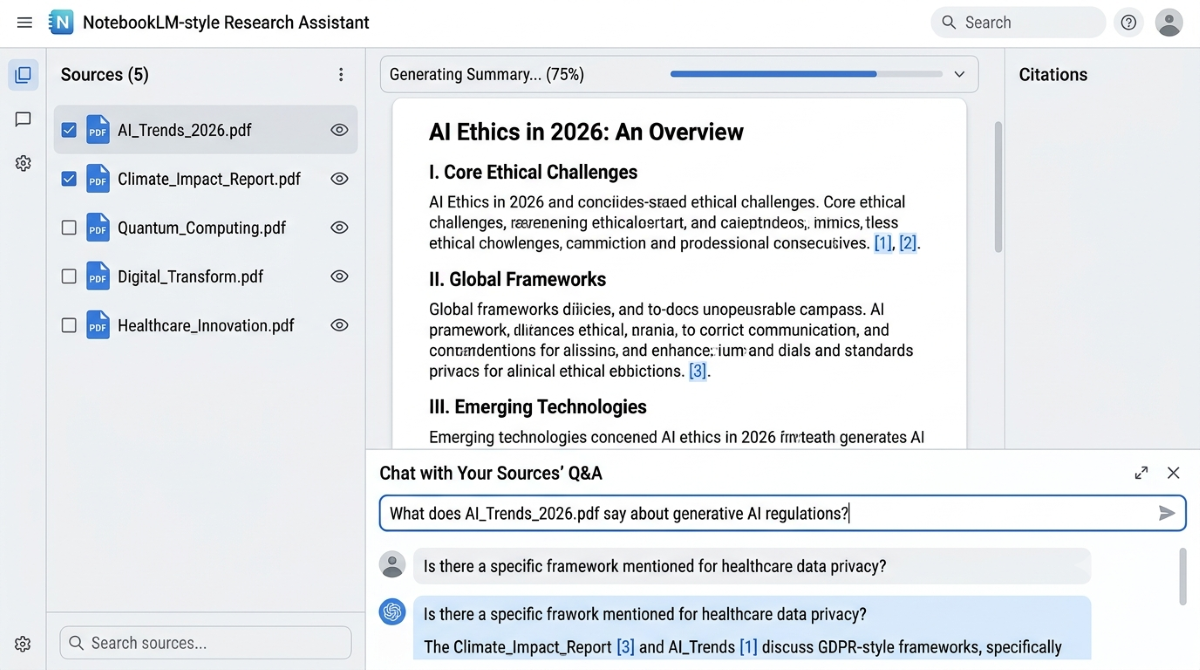
The Google NotebookLM is an AI research assistant, which helps you to understand information from the uploaded files.
It will be beneficial for students, researchers, and anyone having to go through multiple PDF files.
While other tools just create a brief summary, NotebookLM allows you to ask questions about the documents that you have uploaded and provides references to the relevant information check more on Google NotebookLM Help.
Features:
- It creates a summary of the document you upload.
- It answers any queries about the document you upload.
- Helps you understand complicated information.
- Supports multiple documents in a single notebook.
- Provides references to the source material.
- It creates learning aids from the documents.
Steps to use it:
- Navigate to Google NotebookLM.
- Login to Google NotebookLM using your Google account credentials.
- Create a new notebook.
- Upload your PDF document.
- Wait for the document to be analyzed.
- Simply click on the Chat button and upload the summarization task.
Example of your task:
“Provide a summary of the following PDF in simple words. Find out the top 10 points from it and also define complex terms.”
Free Version: There is a free version of Google NotebookLM. At present, the free user can utilize up to 50 sources in one notebook, and the limit on source size is 200 MB or 500,000 words.
Best For: This is best AI tools for students, researchers, and teachers working with multiple documents.
2. ChatGPT – Best for Flexible PDF Summaries
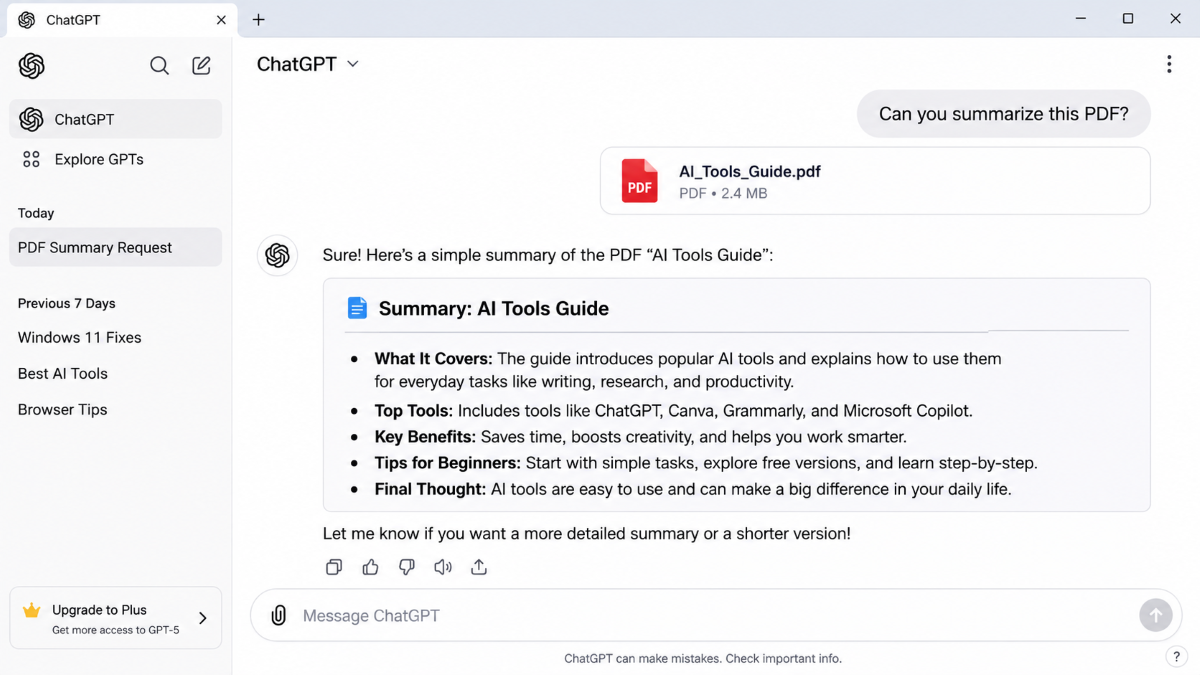
ChatGPT is one of the most versatile tools that help you summarize PDF files.
Upload a PDF file and request ChatGPT to explain it, give you bullet points, extract essential data from it, or rephrase difficult content into easy-to-understand content.
One of the greatest benefits is that it allows you to customize the summary depending on your requirements.
If you are a newbie, you can ask ChatGPT to simplify a complex research for you in terms of terminology and examples. It is also a best AI tools for content creators.
Features:
- Summarizes PDF files.
- Explanations of difficult concepts in simple language.
- Extracts key points and facts.
- Answer questions about uploaded PDF files.
- Converts information into notes and tabular form.
- Comparison of information from different sources.
How to use it?
- Go to ChatGPT.
- Sign into your account.
- Select the attachment button (+).
- Upload the PDF file.
- Provide a request for creating a summary.
- Ask for follow-up questions if more information is needed.
Sample Question:
“Please, go through the PDF document and prepare a summary for beginners, which should include the topic, main points, facts, and conclusion.”
Free Plan: ChatGPT supports uploading PDF files with its free plan; however, there are some limitations while uploading the files. As mentioned by the help center of OpenAI, there can be only three file uploads per day through the free plan.
Best For: Beginners, bloggers, students, office workers, and people needing customized summaries.
3. Claude – Best for Long and Detailed Documents
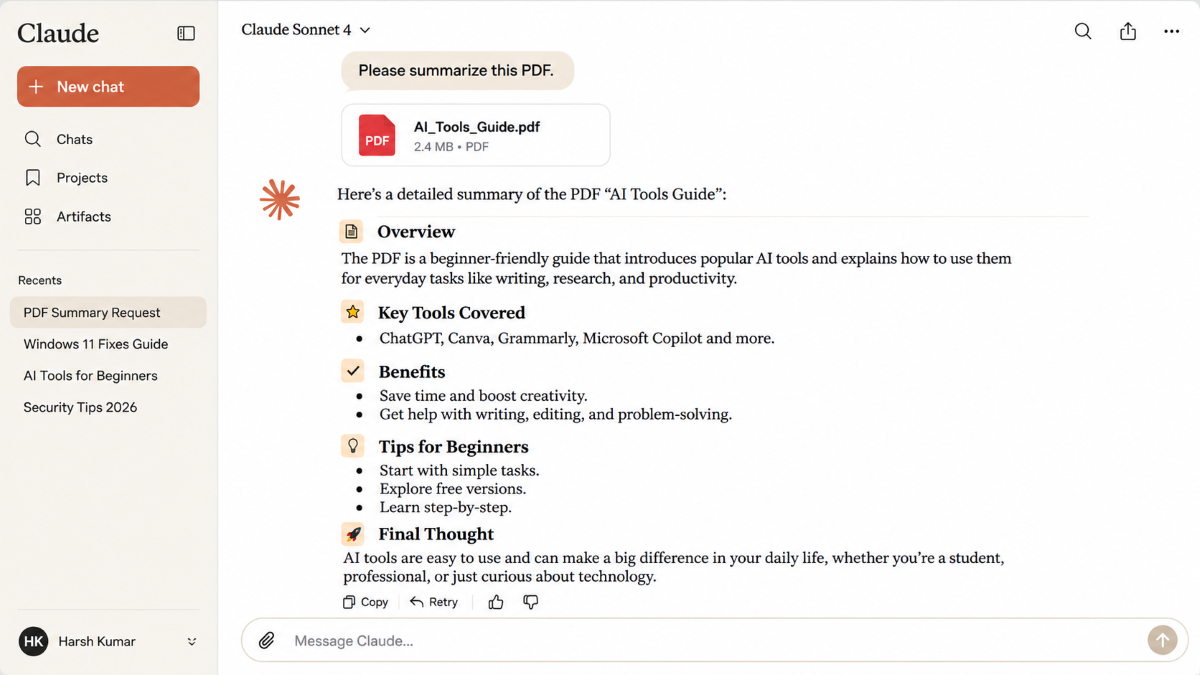
Claude is one of the best AI assistants that is highly valuable for understanding long and detail documents.
It contains features like analysis of PDF documents, explanation of complicated issues, document summarization, comparison of various sections in a document, and relation between different concepts.
Features of Claude:
- Summarization of long documents in PDF form.
- Simplification of complicated concepts.
- Picks out important ideas from the documents.
- Responds to questions regarding the documents.
- Helps in comparisons.
- Analyses visual aspects of some PDF documents.
How to use it:
- Go to Claude.
- Create an account or log in.
- Start a new chat.
- Upload your PDF file.
- Ask Claude to summarize the file for you.
- Request explanation if needed.
Example prompt:
“Please summarize each chapter of this document. Highlight the key points, examples, and conclusions. Use plain language.”
Free Plan: Claude provides a free plan with a restricted number of uses. The help center of the tool mentions that the maximum upload size is 30 MB per file and it supports visual analysis of PDF files with less than 100 pages.
Best For: Researchers, professionals, students, and readers of detailed documents.
4. Google Gemini – Best for Google Users
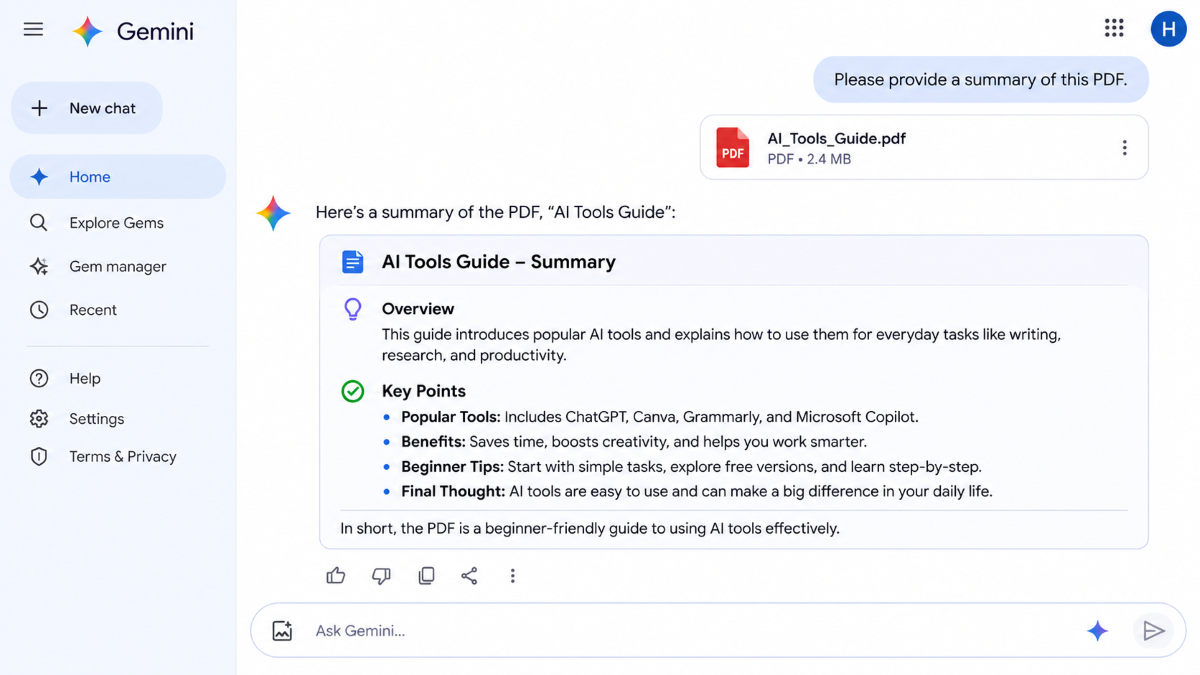
Google Gemini is a good choice for individuals who have been using Google services.
This will assist you to comprehend PDF files, extract information, provide summaries and answers regarding the uploaded file.
Gemini can even change the format of the summary according to your requirement.
For instance, you can request for an overview, a detailed explanation or a set of questions from the document of a study.
Key features:
- Summarizes uploaded documents.
- Provides explanations for difficult information.
- Provides answers to questions about PDFs.
- Extracts important information.
- Organizes information into bullet points.
How to Use It:
- Go to Google Gemini.
- Log in using your Google account.
- Create a new conversation.
- Upload your PDF document.
- Ask Gemini to summarize it.
- Analyze the reply and make inquiries where needed.
Example prompt:
“Write a brief summary of this document. Describe its theme, state significant facts, and offer five significant insights.”
Free Plan: Gemini offers free access but with some restrictions on use. Available options for uploading files might depend on your account, location, and type of plan.
Best For: People using Google, students, professionals, and those looking for an all-purpose AI assistant.
5. ChatPDF – Best for Quick PDF Questions
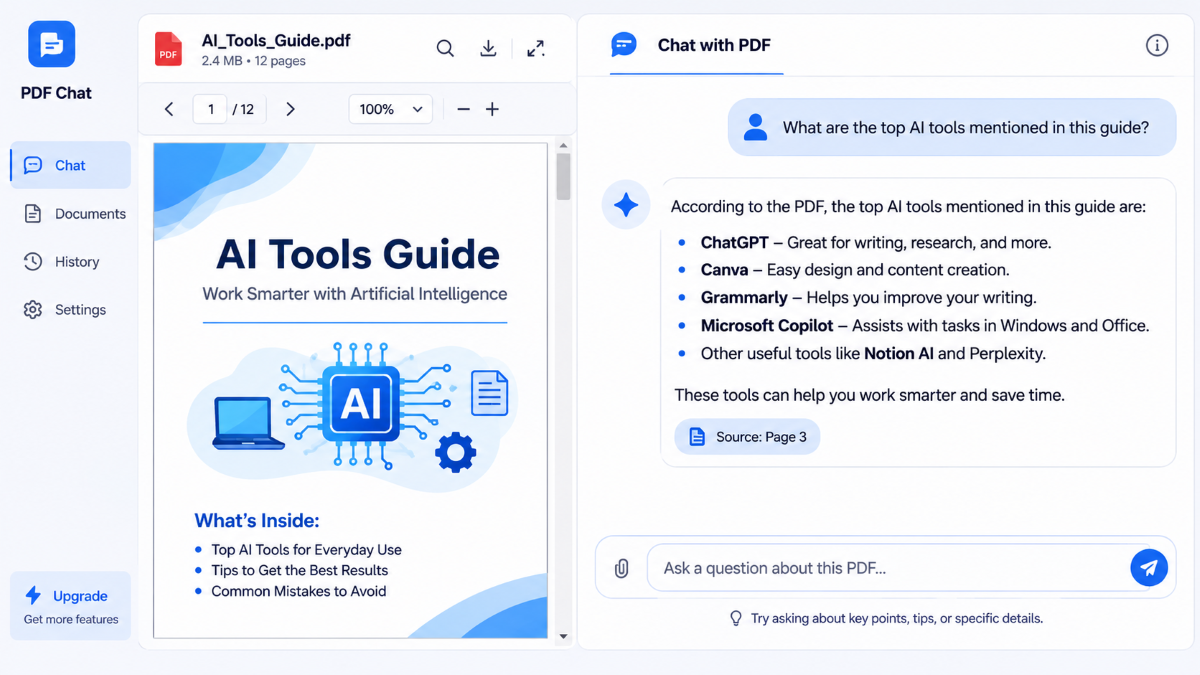
ChatPDF is a specialized application that is meant to facilitate interactions with PDF documents.
In contrast to other AI assistants, ChatPDF aims at making it convenient to ask questions regarding the uploaded document.
You are able to upload a PDF file, get its summary, and ask questions regarding particular parts of it without having to go through all pages by yourself.
It is especially handy when you need answers to be given quickly from one document.
Key features:
- Gives a summary of a PDF document.
- Enables asking questions about the content.
- Aids in finding particular information.
- Enables follow-up questions.
- Gives sources for answers.
- Facilitates document-chat interaction.
How to use it:
- Head to ChatPDF.
- Upload your PDF file.
- Give time to the document to be uploaded.
- Review the automatically created summary.
- Input your questions into the chat window.
- See the pages referenced for any crucial information.
Example prompt:
“What are the five most important concepts mentioned in this document? Provide their definition in two or three concise sentences.”
Free Plan: ChatPDF gives free access but has restrictions in terms of number of documents that can be used and their features. Visit its pricing page for exact details.
Best For: Students and all other people requiring quick answers to questions from a PDF.
6. PDFgear – Best for PDF Summarization and Editing
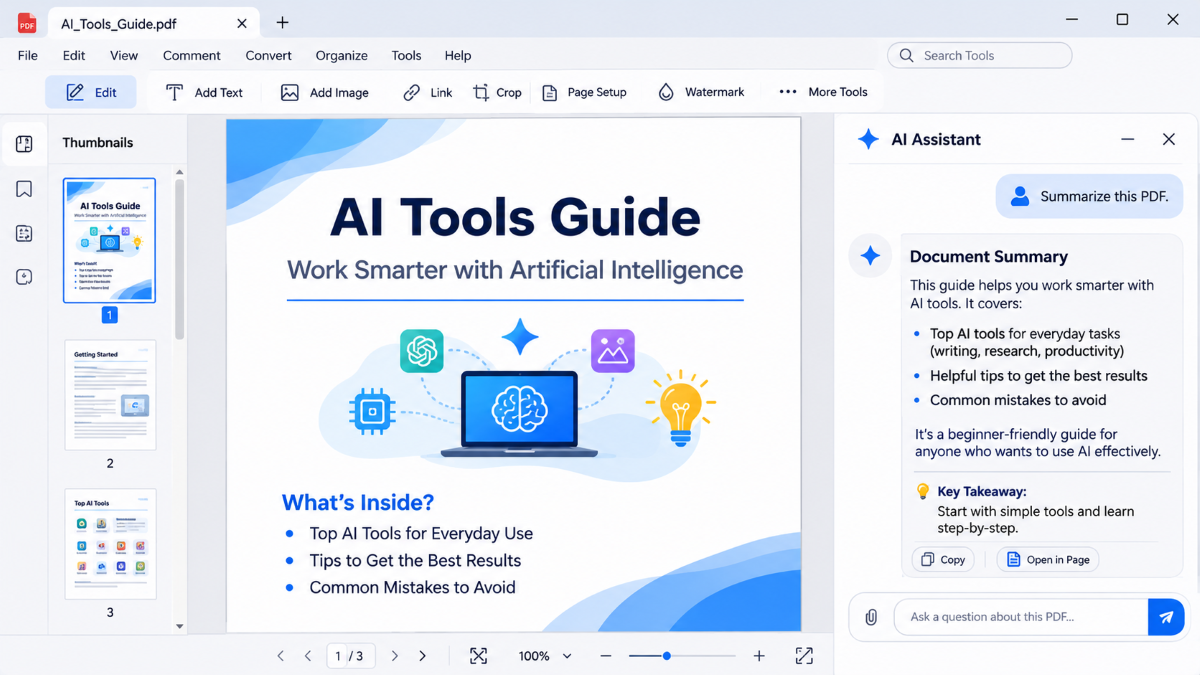
PDFgear is a PDF tool that integrates document management functionalities with AI.
It may be used when you wish to perform tasks other than summarizing a document.
Besides the PDF assistance offered by AI, PDFgear also provides functionalities to edit, convert, organize and manage PDF documents.
It thus becomes a convenient tool for anyone working on PDF documents on a regular basis.
Main Features:
- Assistance with summarizing of PDF documents.
- Questioning of document content by the users.
- PDF editing functionalities.
- PDF conversion functionalities.
- Document management functionalities.
- OCR functionalities for certain workflow scenarios.
How to use it:
- Go to PDFgear.
- Install the corresponding desktop application or use their services online.
- Launch the PDF document.
- Find the AI assistant/Copilot.
- Ask it to create a summary of your document.
- Utilize other PDF services if you want to edit the document.
Free Plan: PDFgear provides free PDF tools and AI assistant. Check out the latest services offered before you start using it regularly.
Best For: Users who require all PDF services along with AI assistant.
7. Smallpdf – Best for Simple Online PDF Tasks
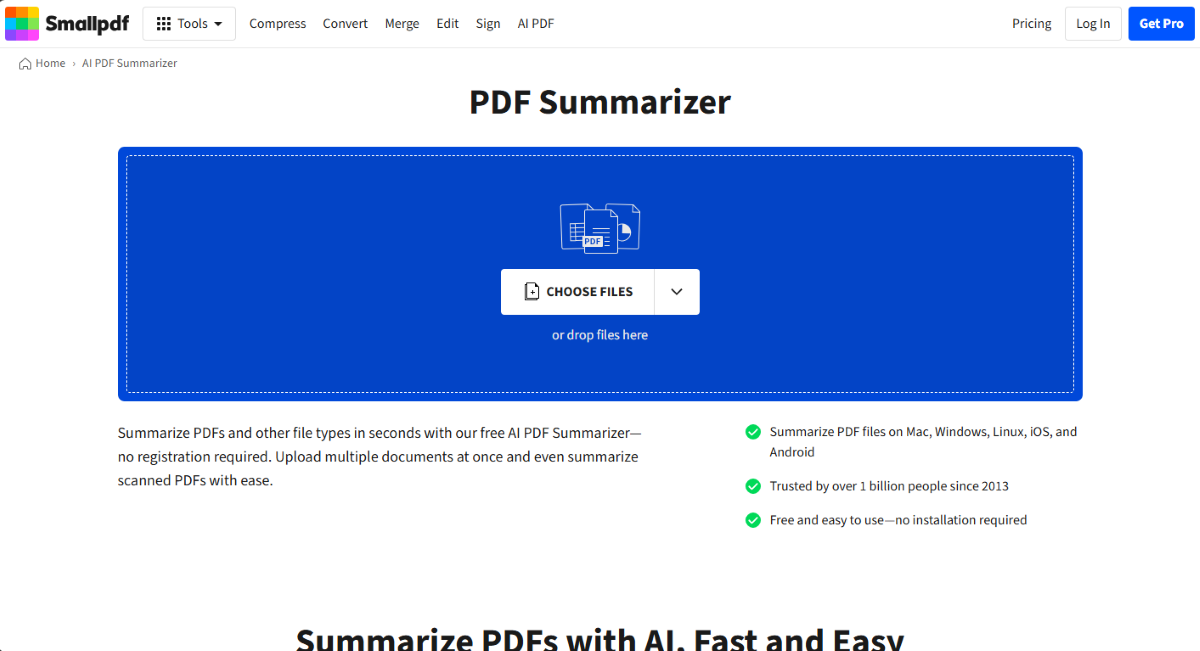
Smallpdf is a website that offers many features related to PDF.
AI PDF Assistant lets users make a summary of a document, ask questions, and understand important information without reading all the pages.
It is easy to use and operates through a web browser.
Features:
- Summarize PDF documents.
- Answer questions about documents.
- Understand complex information.
- Compress and convert PDF documents.
- Provides PDF editing tools.
- Works via a web browser.
How to use it:
- Go to Smallpdf.
- Look for its AI PDF Assistant.
- Upload your PDF file.
- Choose the option of summarizing or chatting.
- Read the summary that is generated.
- Ask further queries if required.
Free Plan: The free plan provides access to few AI services as well as some PDF services that are offered by Smallpdf.
Good For: Beginners, employees, and people looking for simple online PDF tool.
How to Choose the Best AI Tool to Summarize PDFs?
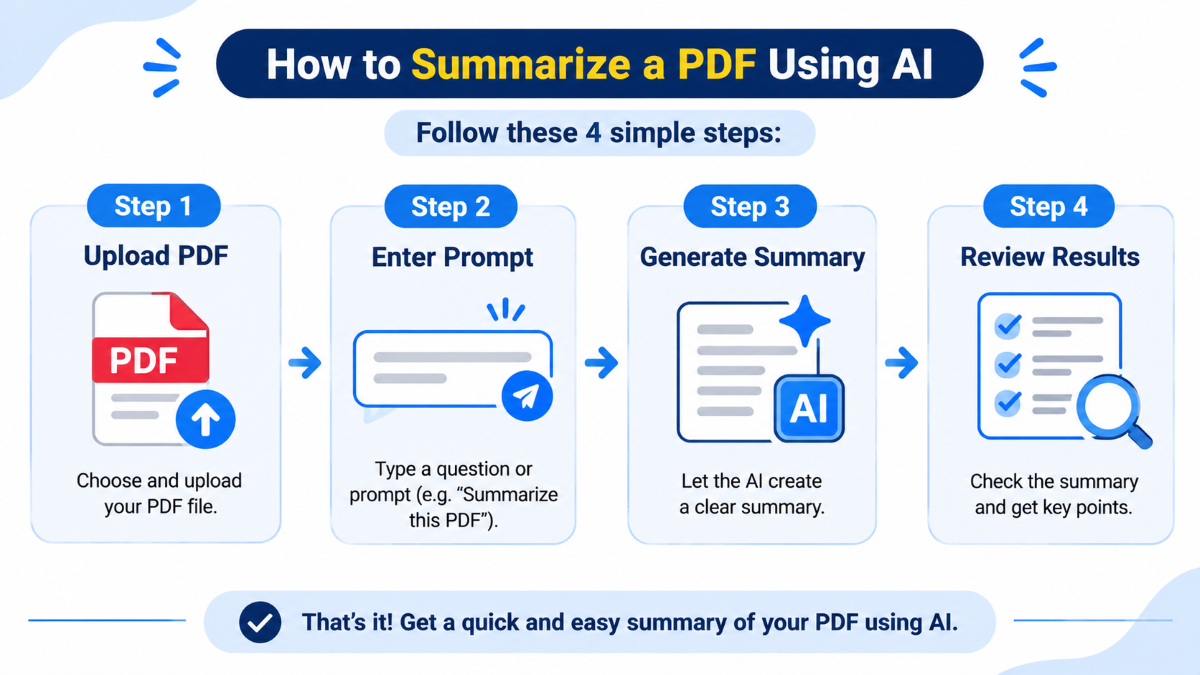
Not all PDF summary AI-based generators are suitable for any tasks. The most suitable generator depends on the nature of the document and its purpose.
The following are the elements to consider when choosing an AI-based generator.
1. See If It Works With Your PDF
Firstly, one must make sure that the software works well with the kind of document being processed.
There might be restrictions in terms of the size of the file, length of the document or number of uploaded documents.
If you constantly deal with big PDF files, then check such limitations before uploading.
2. Look for Source References
If you are making summaries from research papers, reports, or academic documents, then look for a tool that gives references to the source data.
It will help you easily verify if the summary reflects the document correctly.
NotepadLM and ChatPDF are two good programs for this purpose.
3. Choose User-Friendly Interface
If you are a beginner when it comes to using AI software, choose a program that is user-friendly and allows easy uploading and summarizing.
A complex interface will make the whole procedure complicated.
4. Check for Free Limitations
The majority of AI software comes with a free package that includes some limitations regarding the number of documents, questions, or files that can be uploaded.
Make sure you have looked at the free package prior to using the application on a daily basis.
5. Consider Document Privacy
Never upload any confidential documents or any other private information until you are familiar with the policies of the service provider.
In case you deal with confidential documents, follow the regulations of your organization.
Frequently Asked Questions (FAQs)
Q1. What is the best free AI tool to summarize PDFs?
Ans. Google NotebookLM is amongst the best free options that can be used for the purpose of summarizing PDFs for research and studying purposes. The second option is ChatGPT.
Q2. Can ChatGPT summarize a PDF for free?
Ans. Yes, ChatGPT allows free users to upload PDF files and ask questions about the uploaded file. There are some restrictions on file uploads and advanced features.
Q3. Is Google NotebookLM free to use?
Ans. Yes. Google NotebookLM provides a free version where users can upload files, get summaries and also ask questions. There are some usage limitations.
Q4. Can AI summarize a 100-page PDF?
Ans. Yes. There are different types of AI-based tools that allow processing large PDF files depending on their sizes and document-length limits. One of such examples is the tool called NotebookLM which allows inputs of up to 500,000 words.
Q5. Can AI summarize scanned PDF documents?
Ans. Yes, but the tool should be able to extract text from images. This is usually done using OCR technology. It would be good if you check whether your tool has this functionality because some PDFs are scans.
Conclusion
AI PDF summarizers are very helpful for everyone who seeks to save time and understand long documents in a better way.
If you are a student or researcher, then Google NotebookLM is a great choice since it will help you study the information provided by your uploaded sources.
If you seek some more flexible summaries and explanations, then ChatGPT should be your choice. For comprehensive documents, you may also consider trying Claude.
You do not have to purchase an expensive subscription to try out these tools. Give their free versions a try and find out which one suits you.
Remember, AI will help you to grasp the document quickly, but you still should check important information in the original PDF.