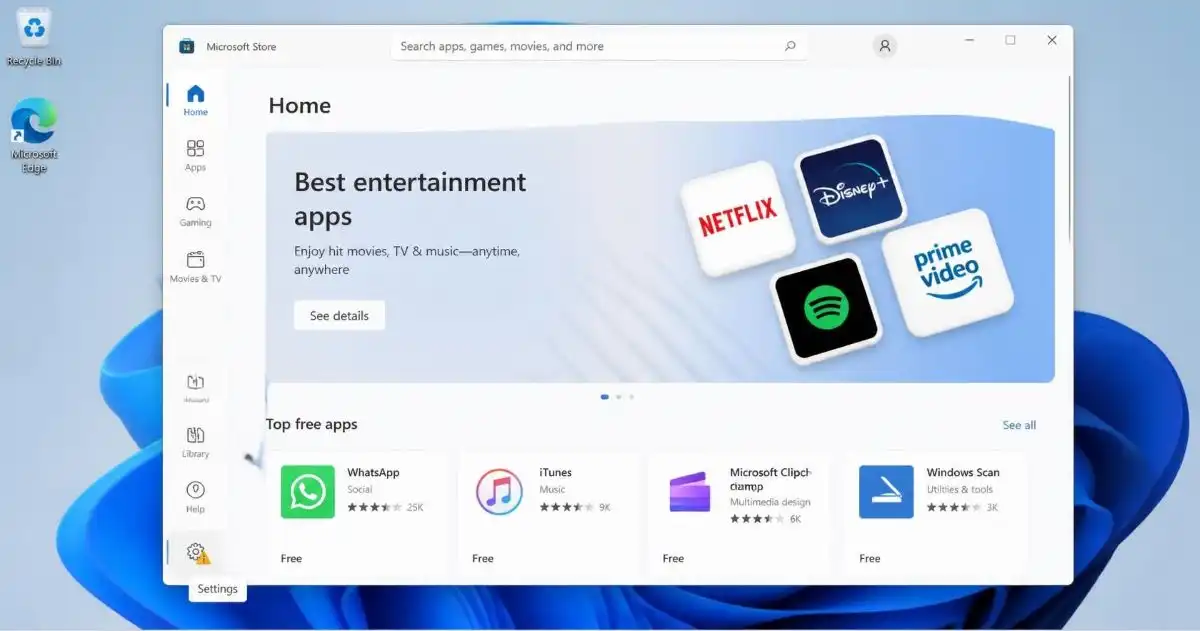
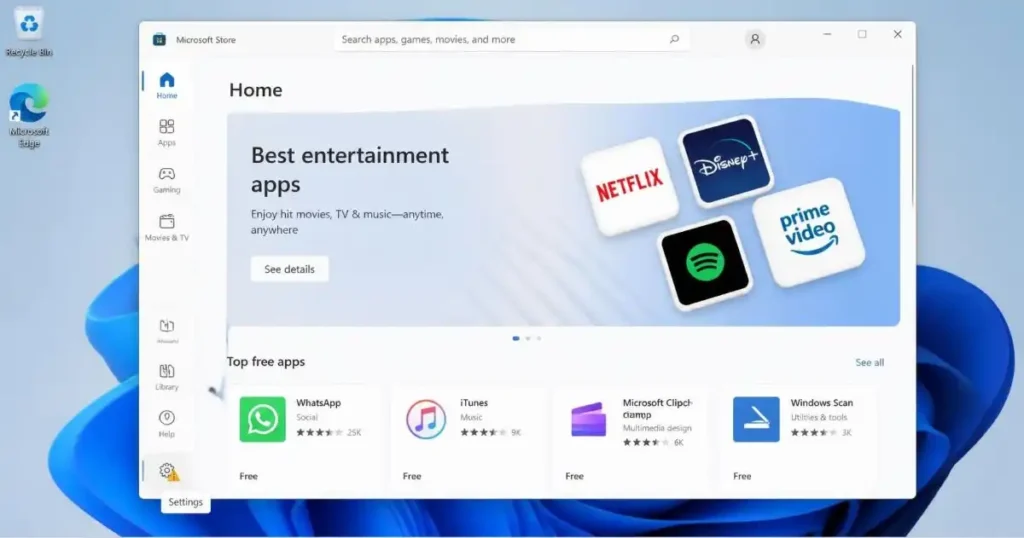
If Microsoft Store is not working in Windows 11, you are not able to access the Store, download apps, install updates, or use the apps you need. This problem can be arise due to a temporary issues in Windows, corrupted Store files, network issues, wrong system settings, or outdated Windows components.
Best thing is you don’t need to reinstall Windows to fix this problem.
In this tutorial, you’ll learn 10 different ways to fix Microsoft Store not working on Windows 11.
Why Is Microsoft Store Not Working in Windows 11?
There is no exact cause of the malfunction of Microsoft Store all the time. The possible causes may include:
- Windows or Microsoft Store temporary errors
- Microsoft Store corrupt cache
- Incorrect date or time settings
- Microsoft Store app files issues
- Outdated Windows 11 files
- Microsoft account issue
- Connection or network issues
- Corrupt Microsoft Store registration
In order to start troubleshooting Microsoft Store, you need to start with the following simple solutions first.
10 Ways to Fix Microsoft Store Not Working in Windows 11
1. Check Your Internet Connection
Microsoft Store work properly, when you have an active internet connection to download applications, content, and check updates.
First, open your browser and visit couple of sites. If other sites don’t open correctly, there might be problems with your internet connection and not with Microsoft Store.
Do these simple steps:
- Disconnect and connect to the Wi-Fi network.
- If required, restart your router.
- Try another network, if possible.
- Disable any virtual private network (VPN).
- Try connecting other apps to the Internet.
Since your connection is working now, try launching the Microsoft Store app.
If the problem remains, move to the next method.
2. Restart Your Windows 11 PC
A simple restart can solve all temporary problems with Windows processes and background services, which can affect Microsoft Store.
For restarting your Windows 11:
- Click Start.
- Then click the Power button.
- Click Restart.
- Wait until Windows starts.
- Test Microsoft Store.
If Microsoft Store works fine after restarting, then it means that the problem was temporary.
If not, go ahead with the following solution.
3. Check Your Date, Time, and Region Settings
Due to incorrect date, time, and regional settings Microsoft services are affected.
Check for the following settings:
- Windows key + I.
- Select Time & language.
- Go to Date & time.
- Enable Set time automatically.
- Ensure your time zone is correct.
- Go back to Time & language.
- Choose Language & region.
- Ensure your country or region setting is correct.
Now you should restart Microsoft Store.
You can now attempt to launch the Store or an application.
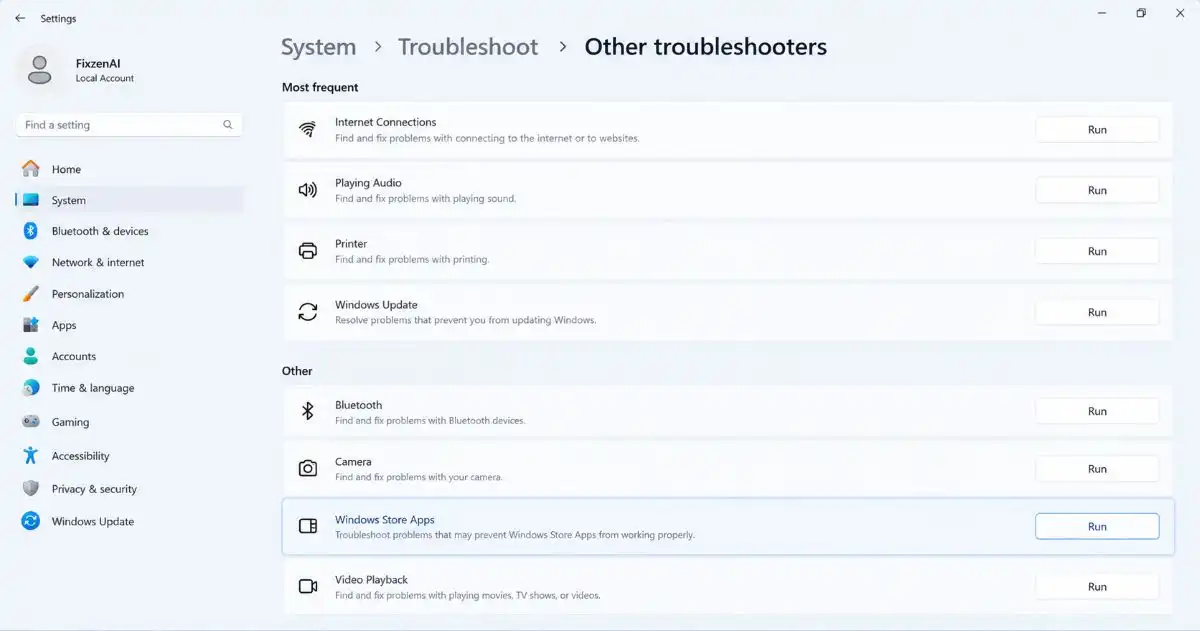
4. Run the Windows Store Apps Troubleshooter
There are various troubleshooting tools in Windows, which will assist you to detect certain issues with applications downloaded from Microsoft Store.
Depending on your Windows 11 edition, the troubleshooting options available under Settings may differ.
In order to find out if Windows Store Apps troubleshooter is available, please follow the following steps:
- Press Windows key+I.
- Click on System.
- Click on Troubleshoot.
- Choose Other troubleshooters.
- Find Windows Store Apps.
- If it is available, click Run.
- Please follow the on-screen instructions.
Allow Windows to diagnose and repair itself.
After that, simply restart Microsoft Store application and try it again.
5. Repair Microsoft Store
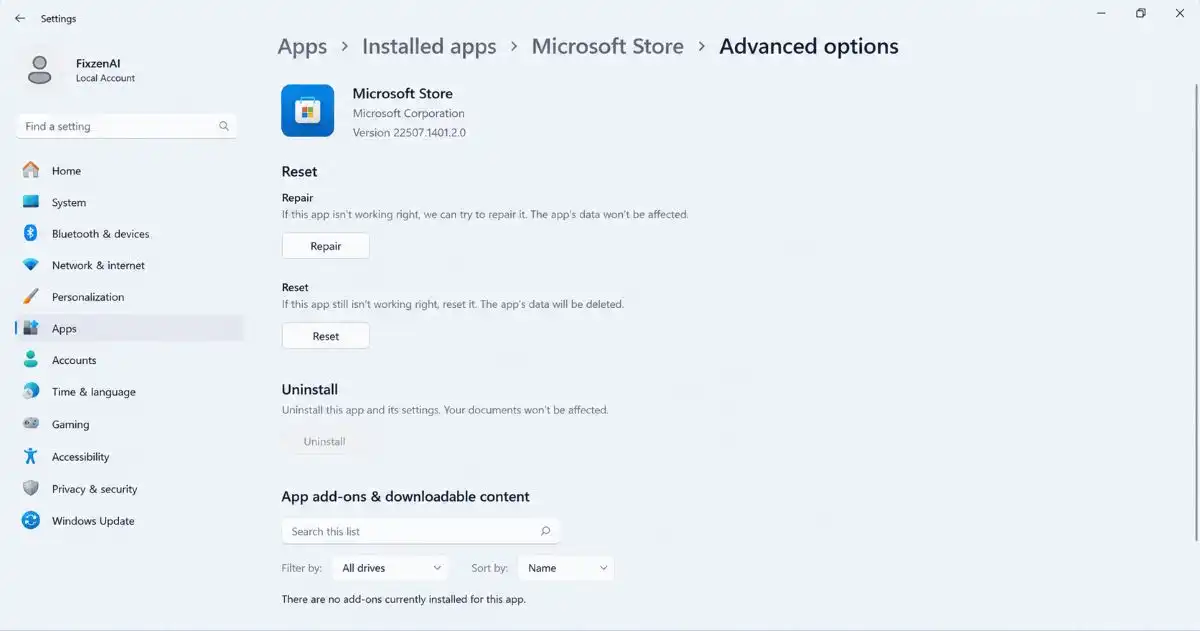
Windows 11 offers an inbuilt Repair feature that works for a number of installed applications. Some of the issues could be fixed through this procedure without deleting the application’s data.
Below is the procedure on how to fix Microsoft Store:
- Open Settings by pressing Windows + I keys.
- Go to Apps.
- Select Installed apps.
- Find Microsoft Store.
- Click the three dots beside it.
- Click Advanced options.
- Click on Reset under Reset.
- Click Repair.
Windows will try to repair the Microsoft Store installation.
The above procedure will not delete your Store’s data. After completing the process, launch Microsoft Store and check if the problem persists.
Note: However, if the Repair fails to fix the issue, you should not panic since there is another solution using the Reset.
6. Reset Microsoft Store
If Microsoft Store repair doesn’t help, reset can remove app data from your store and fix it.
Perform the following actions:
- Go to the settings.
- Go to Apps > Installed apps.
- Find Microsoft Store.
- Click the three-dot menu.
- Select Advanced options.
- Scroll down to Reset.
- Click Reset.
- Confirm the action if Windows asks you to.
Once the reset completes, launch Microsoft Store.
Log into your account and modify some settings of the application.
Now check the problem is solved by installing/downloading an application.
7. Clear the Microsoft Store Cache
A corrupt Store cache could sometimes result in improper functioning of Microsoft Store.
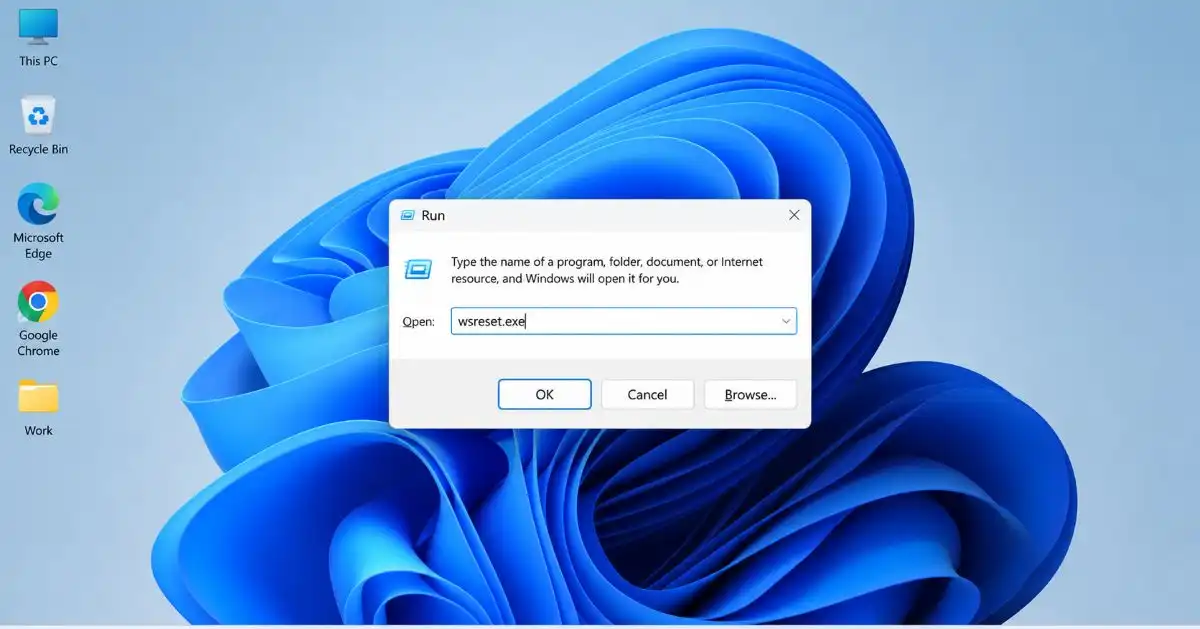
Fortunately, there is an easy command in Windows to clear the Microsoft Store cache.
To do so:
- Press Windows + R.
- Type: wsreset.exe
- Press Enter.
- Wait until Windows resets the Store cache.
- Then, the Microsoft Store would launch automatically upon completion of the process.
This may take a little while, so you shouldn’t immediately close the window.
Then, try searching for an application in the Microsoft Store and see if downloads are working.
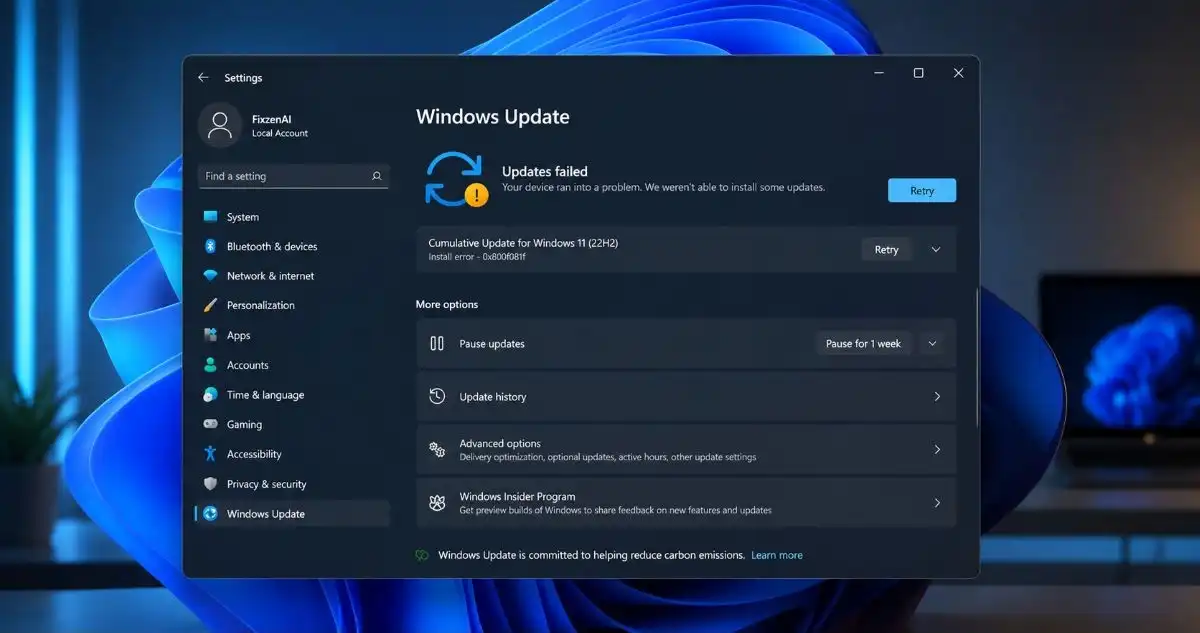
8. Install Pending Windows 11 Updates
Outdated Windows software may be the source of the problem.
Before going to further troubleshooting steps, it is important to check whether your system has any updates.
- Windows + I.
- Click Windows Update.
- Check for updates.
- Allow Windows to download available updates.
- Restart your computer when prompted by Windows.
Then open Microsoft Store again.
If you have other issues related to Windows Update, please try our step-by-step guide How to Fix Windows 11 Update Problems – 10 Easy & Proven Solutions.
Updates for Windows will also protect you from Microsoft app issues.
9. Sign Out and Sign Back Into Microsoft Store
Microsoft Store makes use of the Microsoft account for a lot of download and purchasing activities.
If the Store is working fine but downloads or account features do not work properly, then sign in and sign out will help.
To do this:
- Open Microsoft Store.
- Click on the profile icon.
- Click Sign out.
- Close Microsoft Store.
- Open Microsoft Store.
- Click the profile icon.
- Click Sign in.
- Sign in with your Microsoft account.
Try now to download or update any Microsoft app.
If it does not work, move to the last step.
10. Re-register Microsoft Store Using PowerShell
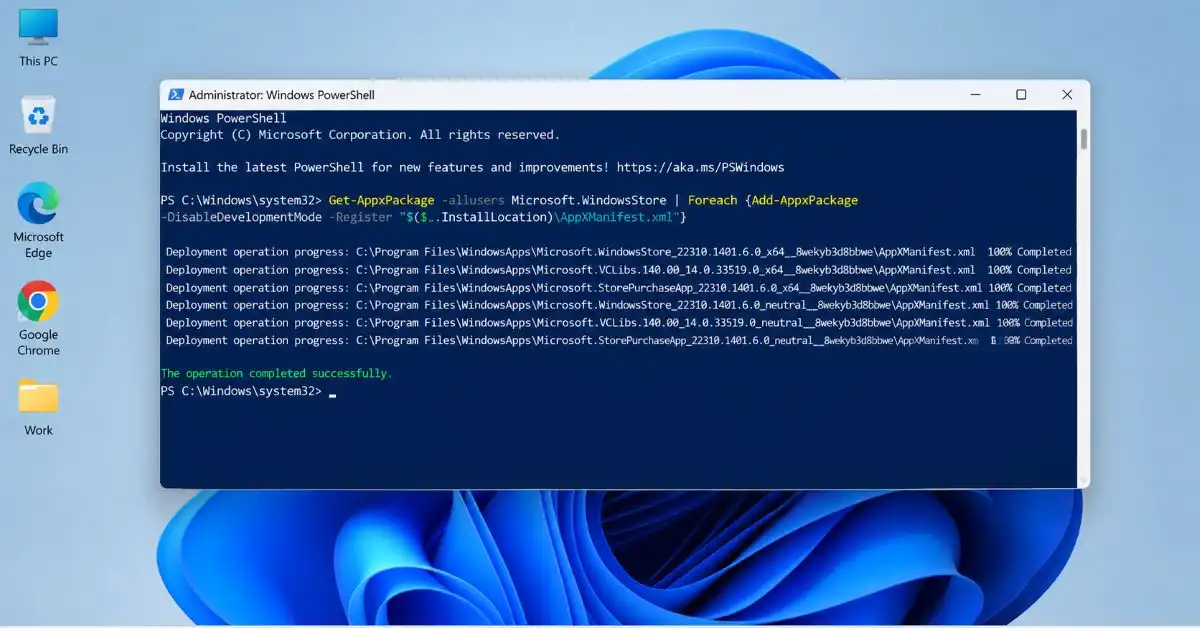
If all of the above attempts have failed, there is an option of re-registering Microsoft Store with the help of Windows PowerShell.
Remember, this approach is quite complex, so follow all instructions carefully.
- Tap on the Start button.
- Look for PowerShell.
- Right-click on Windows PowerShell or PowerShell.
- Choose the “Run as administrator” option.
- If a window pops up because of User Account Control, choose “Yes”.
- Execute the command below: Get-AppxPackage -allusers Microsoft.WindowsStore | ForEach {Add-AppxPackage -DisableDevelopmentMode -Register “$($_.InstallLocation)\AppXManifest.xml”}
- Hit enter key.
- Wait until PowerShell processes the command.
- Restart your computer.
- Again, open Microsoft Store.
If there is an error message in PowerShell, do not keep running the command without knowing about it. Instead, identify the error message and then solve it.
Microsoft Store Still Not Working? Try These Additional Checks
If Microsoft Store doesn’t work even after trying all 10 techniques, see the following steps:
Check Microsoft’s Service Status
Sometimes it happens that Microsoft is down or not working at the moment. If you have no issues with your computer, look at the current information about Microsoft services.
Temporarily Disable Third-Party Security Software
Some third-party antimalware and firewall software may prevent applications from working properly.
When using third-party security software, ensure that it is not preventing access to Microsoft Store. Do not leave your PC vulnerable simply because you are performing troubleshooting; use the troubleshooting tools provided by the software when possible.
Check Your Microsoft Account
If you can’t get apps through the Store, please check if you have logged in to your Microsoft account and if it works properly.
Check Whether Other Windows Apps Are Affected
If there are problems opening various Windows applications, then the problem is bigger than Microsoft Store.
In this situation, check out the solution from our article on How to Fix Apps Not Opening in Windows 11: 10 Proven Solutions for additional troubleshooting steps.
Frequently Asked Questions
Q1. Why is Microsoft Store not opening in Windows 11?
Ans. There is the possibility that the problem with the Microsoft Store is due to corrupt cache data, application file corruption, Windows error, account error or any other possible cause. First of all, you should try restarting your computer and checking your internet connection.
Q2. How do I reset Microsoft Store in Windows 11?
Ans. Click Settings > Apps > Installed apps, locate Microsoft Store and click Advanced options, then choose Reset. It deletes data of all applications from the Store.
Q3. Why is Microsoft Store not downloading apps?
Ans. Please ensure that your device is online, has a Microsoft account, has enough space, Windows update and Microsoft Store settings are enabled. You may need to repair and reset Microsoft Store too.
Q4. How to remove cache from Microsoft Store?
Ans. Go to Windows + R, type wsreset.exe, and press the Enter button. This will help you flush the cache of the Microsoft Store and after that it open normally.
Q5. Can I reinstall Microsoft Store in Windows 11?
Ans. In many cases, there is no need for you to reinstall Microsoft Store. All you have to do is repair, reset, clear the cache of the store or register it again. You should consider finding out what causes the problem before making any changes.
Conclusion
It is quite annoying that your Microsoft Store is not functioning on your Windows 11 operating system. There are many troubleshooting methods available in Windows, which you can try to solve this problem.
First of all, you can start from checking your Internet connection and rebooting your computer. If it fails, then there is also a possibility to repair Microsoft Store, clear its cache, install Windows updates, and re-register the application via PowerShell.
If other applications cannot be opened too, then this problem might be associated with the functioning of Windows but not with Microsoft Store.