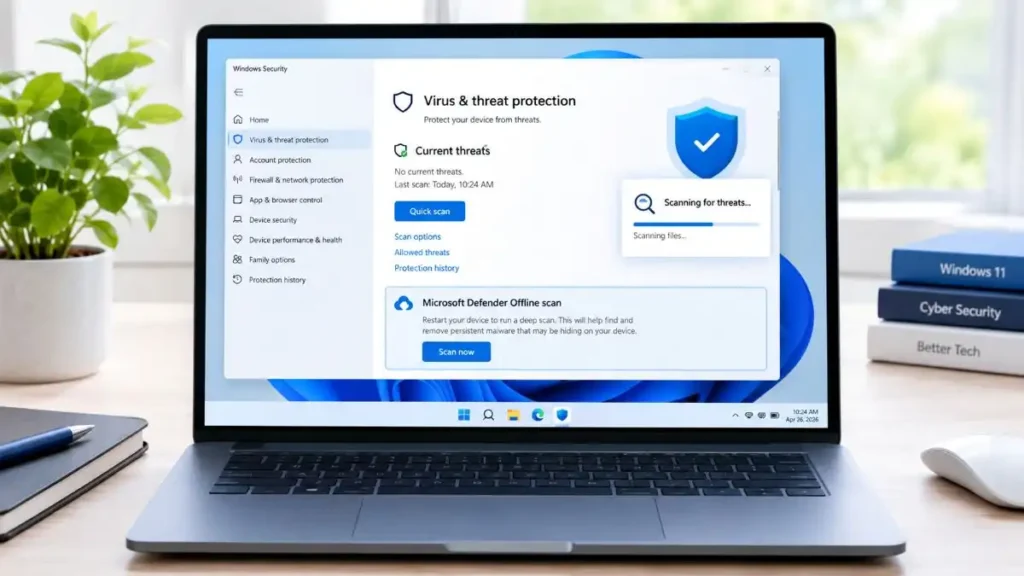
Sometimes, if you think that your Windows 11 PC has some malware in its system, the standard antivirus scan cannot find out whether there is one or not.
In such cases, Microsoft Defender Offline Scan will be useful.
This feature gives Microsoft Defender Antivirus an opportunity to start up your computer in a special recovery environment to check your computer without loading the standard Windows environment.
In this guide, you will learn how to run Microsoft Defender Offline Scan in Windows 11, when you should do that, how to check the results, and how to fix the problem if the scan does not work.
What Is Microsoft Defender Offline Scan?
The Microsoft Defender Offline Scan is an inbuilt feature of the Windows Security for malware scanning purposes.
Unlike the standard Quick or Full Scans, this one performs a scan after restarting your computer and outside the standard Windows environment.
It may come in handy if you think that there is a persistent threat that hinders your virus protection.
For example, you may want to use it if:
- Malware keeps returning after a regular scan.
- Windows Security detects a threat but fails to remove it.
- Your computer keeps displaying suspicious behavior.
- You think that there is a persistent or hard to remove infection.
- You need to perform deep scan without opening the standard Windows environment.
According to Microsoft, the Offline Scan is performed in the Windows Recovery Environment, and it automatically restarts your computer at the end of the scan process.
Microsoft Defender Offline Scan vs. Normal Scan
There are many types of scans that Windows Security offers, and each has different purpose.
| Scan Type | Best for |
| Quick Scan | Checking common locations for threats |
| Full Scan | Checking all files and programs |
| Custom Scan | Checking selected files or folders |
| Microsoft Defender Offline Scan | Checking for persistent threats outside normal Windows |
Offline Scan is not necessary every time you want to check your computer.
If you want to do a regular security check, Quick Scan would work best.
When you have a problem with some malware and usual scans won’t help, then you can choose Offline Scan.
Before You Start the Offline Scan
There is one thing that you need to keep in mind: Your computer will reboot.
Before proceeding:
- Save all your active documents.
- Close all the applications running.
- Ensure that you have saved all your browser tabs and work.
- If you are using a laptop, plug it in.
- Be prepared to allow Windows to restart.
- Do not initiate the scan if you still have unsaved work.
If your system drive has BitLocker turned on, then Windows may ask for the BitLocker recovery key while initiating the offline scan under certain circumstances.
How to Run Microsoft Defender Offline Scan in Windows 11
Follow these seven steps.
Step 1: Open Windows Security
Open Windows Security which is already installed in your PC.
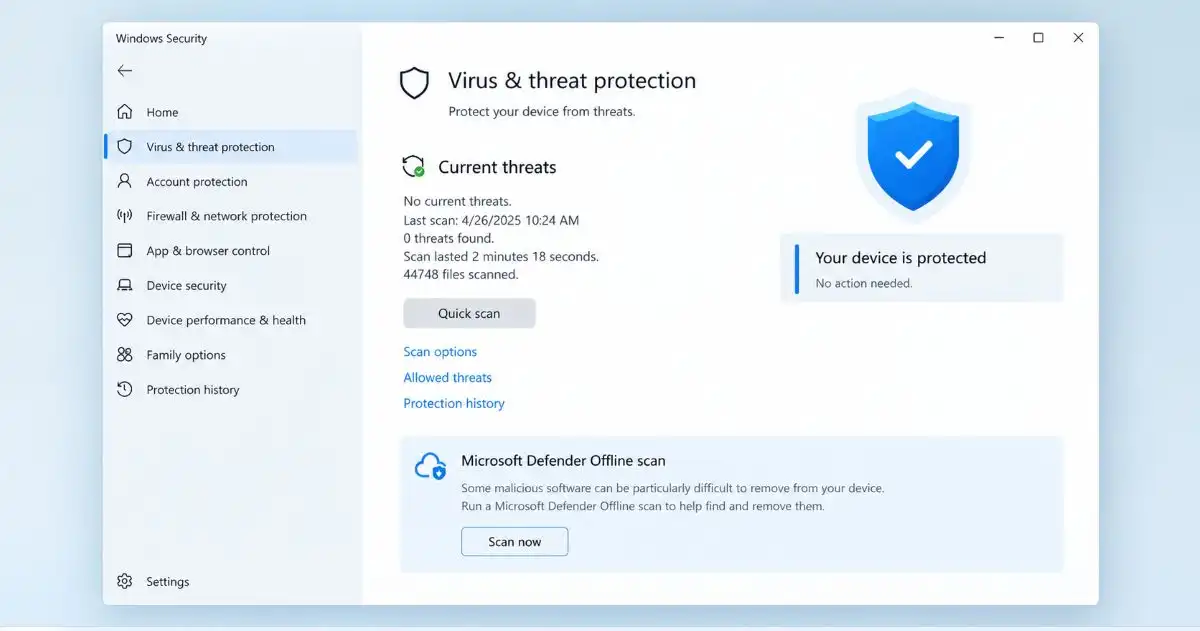
Press Windows key and type:
Windows Security
Click on Windows Security option appearing on screen.
Alternatively, you can open it from:
Settings > Privacy & Security > Windows Security
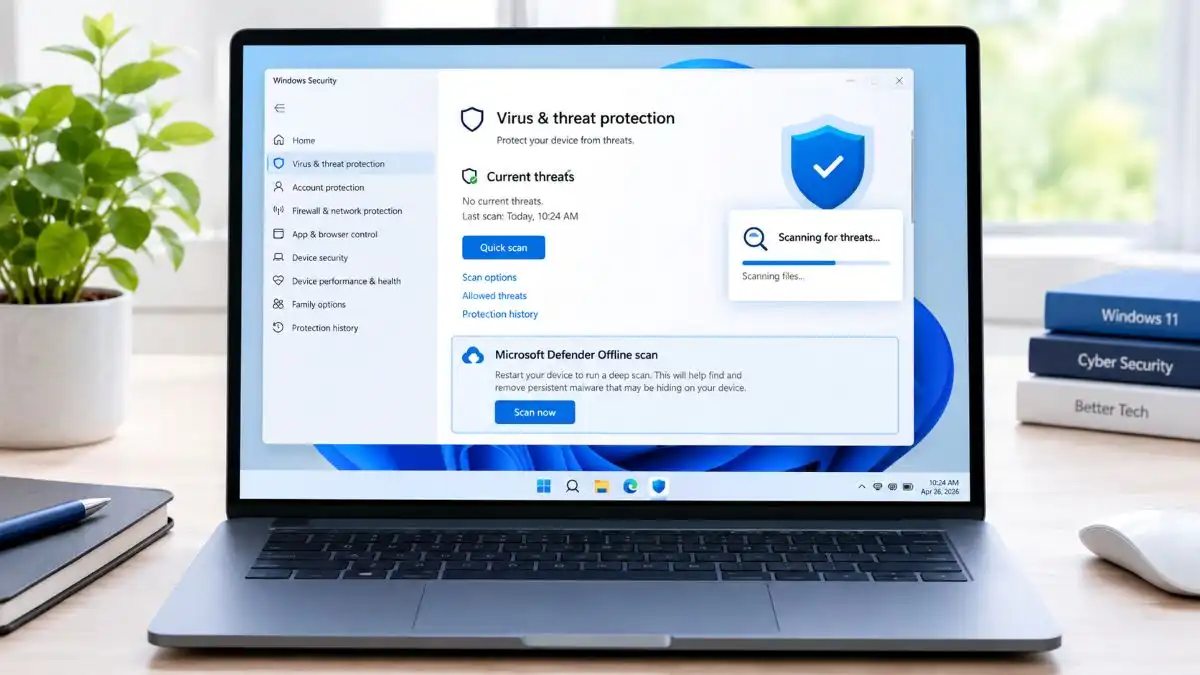
Then click on Virus & Threat Protection.
Step 2: Open Virus & Threat Protection
In Windows Security go to the Virus & threat protection section.
This section provides details of the security status you have at present, some recent threats, and scanning options.
Go to the Current threats option.
Step 3: Select Scan Options
under the current threat section, choose:
Scanning options
You will have a number of options available.
According to your windows configuration yo may see options like:
- Quick scan
- Full scan
- Custom scan
- Microsoft Defender Offline scan
Choose Microsoft Defender Offline scan.
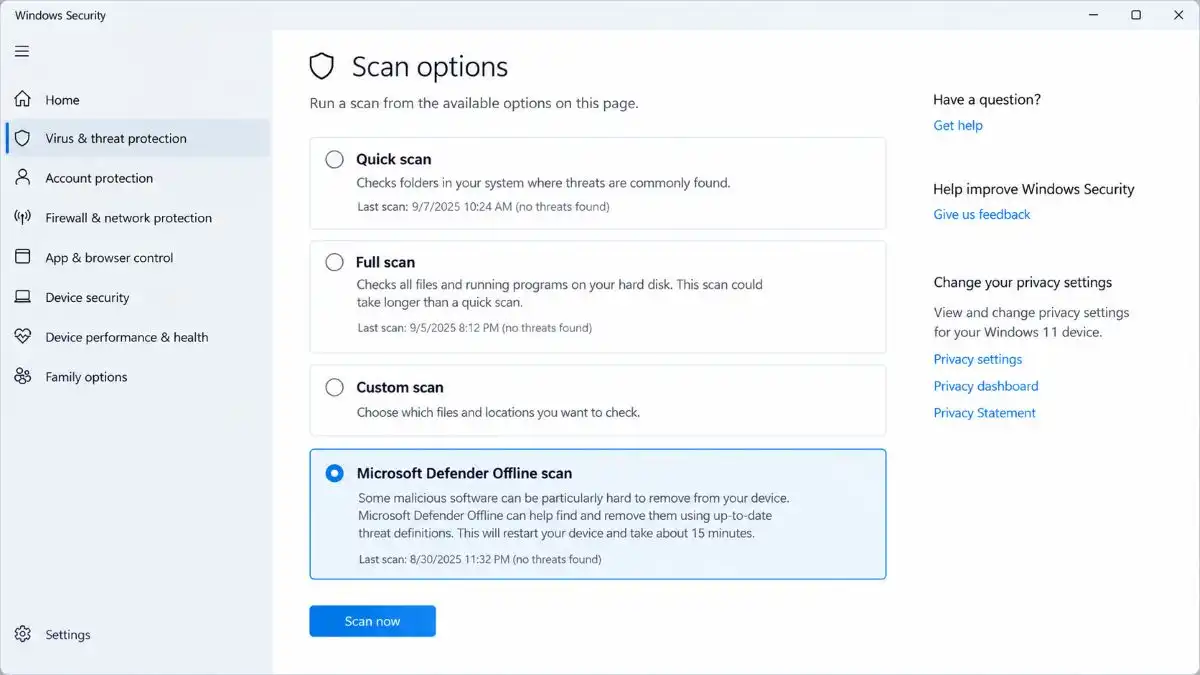
Step 4: Choose Microsoft Defender Offline Scan
Once you have selected Offline Scan, click:
Scan now
You will be warned by the Windows that you need to restart your computer.
This is normal.
Offline Scan can’t be executed on the normal Windows environment because the primary task of this scan is to scan the system before the normal Windows environment starts up.
Step 5: Save Your Work and Confirm the Restart
Before proceeding, ensure that all important things have been saved.
Windows will automatically restart your PC.
Once the restart takes place, you will notice a new screen appearing because Microsoft Defender is conducting an offline scan.
Do not force shutdown of the computer during this process.
The scan will take place before Windows loads.
Step 6: Let Microsoft Defender Complete the Scan
After starting the Offline Scan, let it complete.
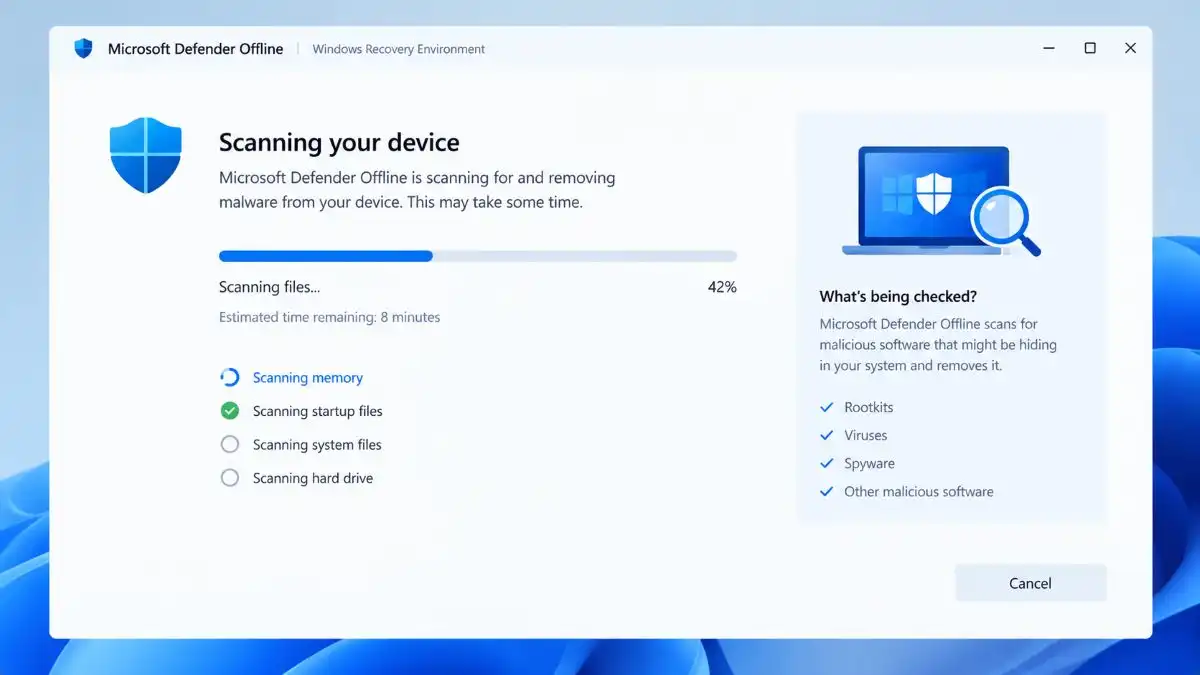
According to Microsoft, an Offline Scan normally takes about 15 minutes, but the time may differ according to your computer system.
Your computer may reboot once the scan is completed.
There is no action required of you during the scan process.
When Windows starts normally again, you can check whether the Defender has found any threats.
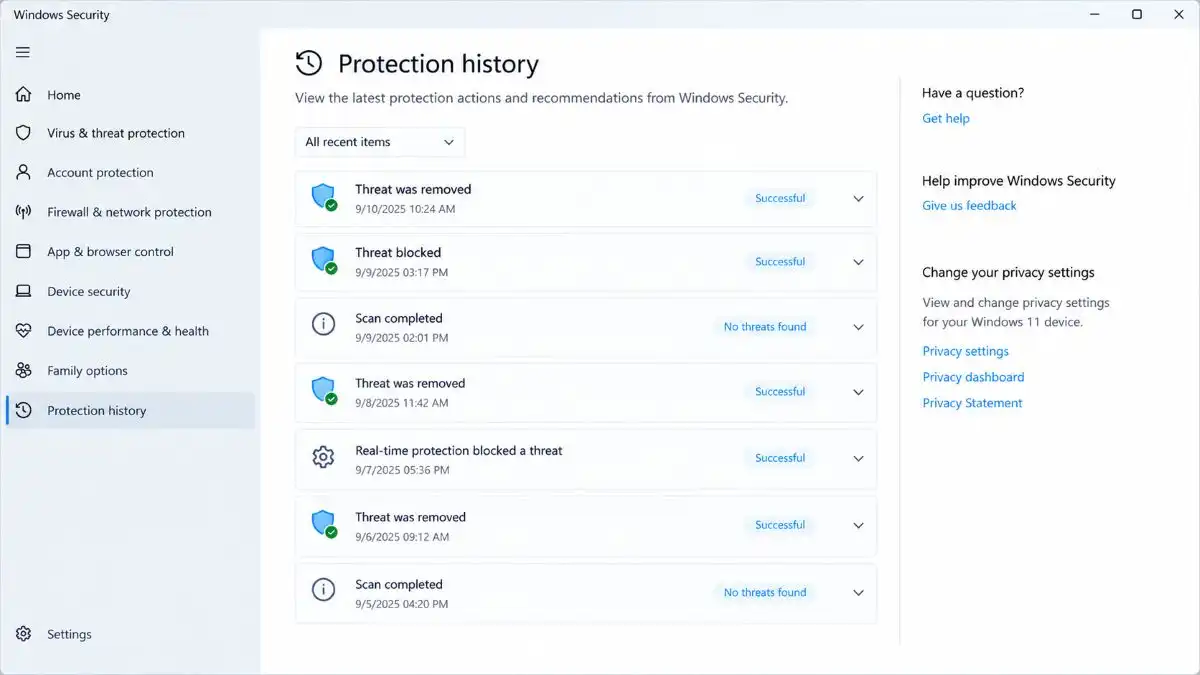
Step 7: Check the Scan Results
When Windows is started, access:
Windows Security → Virus & threat protection → Protection history
Here, you can get information regarding recent detections and actions taken by the Microsoft Defender.
If defender found any threat, you will need to examine the details of the detection carefully.
As per the detection, the Windows might have quarantined or removed the threat.
But if there has been no detection of threat, this does not mean that your computer has never been infected. It simply means the scan did not identify a threat.
What Does Microsoft Defender Offline Scan Actually Do?
The major difference is how the scan operates.
Normal antivirus scans are carried out when the computer is functioning normally.
Offline scans restart the computer and execute the scan in the Windows Recovery Environment.
It provides an opportunity for Microsoft Defender to scan the system without loading the normal Windows environment.
This is useful in dealing with malware that tries to stay active even when the computer runs the Windows operating system.
According to Microsoft, the purpose of Defender Offline is to handle malicious attacks like persistent malware and rootkits which try to bypass the normal Windows environment.
How to Tell If Defender Offline Scan Found Malware
Once Windows is restarted, go to:
Windows Security -> Virus & threat protection -> Protection history
Check for any recent detections.
It might show details like:
- The threat that has been detected
- The level of the threat
- The affected file
- The action that was taken
- Whether the affected file was quarantined or removed
If there is a serious detection, do not ignore it.
Follow Microsoft’s recommended action which will be displayed in the Windows Security.
If the infection seems to have affected any important files or settings, make sure you backup your personal files.
What If Microsoft Defender Offline Scan Doesn’t Work?
The Offline Scan could not be launched properly sometimes.
For instance, your computer may reboot but unable to enter the scanning environment or will go back to Windows without completing any scan..
Try these steps.
1. Restart Your PC
Begin by performing a regular restart.
Once Windows has been loaded successfully, try:
Windows Security → Virus & Threat Protection → Scan Options → Microsoft Defender Offline scan
Again, click on Scan Now.
Update Windows Security and Defender
It is important to ensure that Windows and Microsoft Defender are up-to-date.
Go to Windows Update to check for updates.
Also ensure that you have the latest security intelligence on your Windows Defender.
Outdated security components can result in unexpected issues during scans.
2. Check Windows Recovery Environment
Microsoft Defender Offline relies on the Windows Recovery Environment.
You can check its status with an elevated command prompt.
Launch the command prompt with administrator and run:
reagentc /info
Look for:
Windows RE status: Enabled
If Windows RE has been disabled, then the Offline Scan may not function effectively.
According to Microsoft, reagentc /enable is the command used for enabling Windows RE.
3. Try the PowerShell Method
If the offline scan is not initiated Windows Security, you may also perform it with the help of PowerShell.
Open the PowerShell with administrator and execute the following command:
Start-MpWDOScan
Please save all your work as the command initiates the Offline Scan procedure and reboots your computer.
If you feel uncomfortable executing the above PowerShell command, just follow the Windows Security method.
4. Check for Third-Party Antivirus Software
If there is any other antivirus installed and it is working as the primary antivirus, then Microsoft Defender will not behave in the same way that it behaves when it is working as the primary antivirus.
Before proceeding for troubleshooting, make sure you have checked the security software.
Avoid blindly uninstalling the security software. First, ensure which antivirus software is currently protected your PC.
5. Repair Windows System Files
If Windows Recovery or any part of Windows is corrupt, Windows security will not function properly.
The commands that can be used by Windows to fix this problem are:
sfc /scannow
Or if that does not work, try:
DISM /Online /Cleanup-Image /RestoreHealth
Reboot your computer and run the Offline Scan again.
Should You Run a Full Scan Before an Offline Scan?
It all depends on the situations.
If you just want to scan your PC for malware, do a Quick Scan first.
If you have some other reasons for thinking your computer is infected with malware, then a Full Scan will serve the purpose better
If nothing works out, you may try Microsoft Defender Offline.
The procedure can be:
Quick Scan → Full Scan → Offline Scan
But not all three each time.
Does Microsoft Defender Offline Scan Remove Malware?
Microsoft Defender Offline can identify the threat and also act against it.
But no security software can claim to identify all possible threats.
If your computer is still having serious signs of a breach after running a scan, do not consider yourself to be protected just because there are no infections found in the scan.
Think about:
- Running another trusted security scan.
- Updating windows
- Removing any suspicious applications.
- Checking browser extensions.
- Resetting your important account passwords from a known healthy device if you think the credentials may have been compromised.
- Restoring the computer from a healthy backup when necessary.
If Microsoft Defender finds a threat, follow our guide on how to remove malware from Windows 11 for additional cleanup steps.
If there is serious damage done to your system by the infection, then Windows repair or PC reset might be required.
When Should You Use Microsoft Defender Offline Scan?
You should consider using it when:
- A regular scan doesn’t fix the issue.
- The malware continues to reappear.
- Windows Security recommends an Offline Scan.
- You observe any suspicious activity in your computer following a malware detection.
- You suspect persistent malware infection.
- You wish to search for threats that could be hard to detect while your Windows is functioning.
It is not essential to use this feature every day.
For general protection, you must ensure that the real-time protection of Microsoft Defender is active.
If you’re unsure whether your PC is infected, check these signs that Windows 11 may have a virus before running a deeper scan.
Frequently Asked Questions
Q1. Is Microsoft Defender Offline Scan safe?
Ans. Yes. This is an in-built feature in Microsoft Defender that scans Windows outside the regular operating environment. The computer will be rebooted as soon as the scan begins.
Q2. Will Defender Offline Scan delete my personal files?
Ans. The purpose of the scan is to detect and respond to malware. It isn’t designed to delete normal personal files simply because they are personal files. If a file is identified as malicious, Defender may take action against it.
Q3. Can I use my computer during the Offline Scan?
Ans. No. Your PC restarts and enters the offline scanning environment. You can use the computer normally again after Windows starts.
Q4. What if Microsoft Defender Offline Scan doesn’t start?
Ans. Restart your computer, update Windows and Windows Defender, check the Windows Recovery Environment, and then scan again. You can also use the following PowerShell command Start-MpWDOScan
Q5. Is Offline Scan better than a Full Scan?
Ans. No.. A Full Scan checks files and programs while Windows is running, while Offline Scan runs outside the normal Windows environment and can be useful for persistent threats.
Conclusion
Microsoft Defender Offline Scan is one of the most helpful security utilities that come pre-installed in Windows 11.
It’s not always required to use for every malware check but will be very helpful if regular scan isn’t enough and you suspect that there might be some kind of threat present in hidden mode.
This is what you have to do:
Windows Security -> Virus & threat protection -> Scan options -> Microsoft Defender Offline scan -> Scan now
Please note that you will have to save your work before initiating the scan, because Windows need to restart.
If you’re worried about the fact that your Windows 11 computer could be infected with some malware, you can refer to our guides how to check Windows 11 for viruses and how to remove malware from Windows 11.