
Discord is one of the most popular communication platforms for gamers, communities, creators, and professionals. Still, like any Windows application, Discord can sometimes just not open , get stuck on that loading screen, crash right away, or run quietly in the background without showing screen.
If Discord not opening on Windows 11, it’s usually down to corrupted cache files, a Discord process that won’t quit, outdated drivers, antivirus limitations, broken updates, or installation files that are damaged in some way. The good part is that most Discord startup troubles can be solved without reinstalling Windows and without messing with anything too complicated. In this guide, we’ll walk through 12 proven fixes to make Discord work again on Windows 11 in 2026.
Why Is Discord Not Opening on Windows 11?
Before trying the solutions, it helps to get a grip on what could actually cause Discord to not start.
Some common reason that can stop Discord from loading properly.
- Discord is running in the background but not displaying
- Corrupted Discord cache files
- Failed update
- Windows permission issues
- Antivirus or firewall that blocks Discord
- Outdated graphics drivers,
- Hardware acceleration conflict.
- Damaged installation files
- Network connection problems
Go through the fixes below, one at a time, until Discord starts normally again.
12 Proven Fixes to Resolve Discord Not Opening on Windows 11
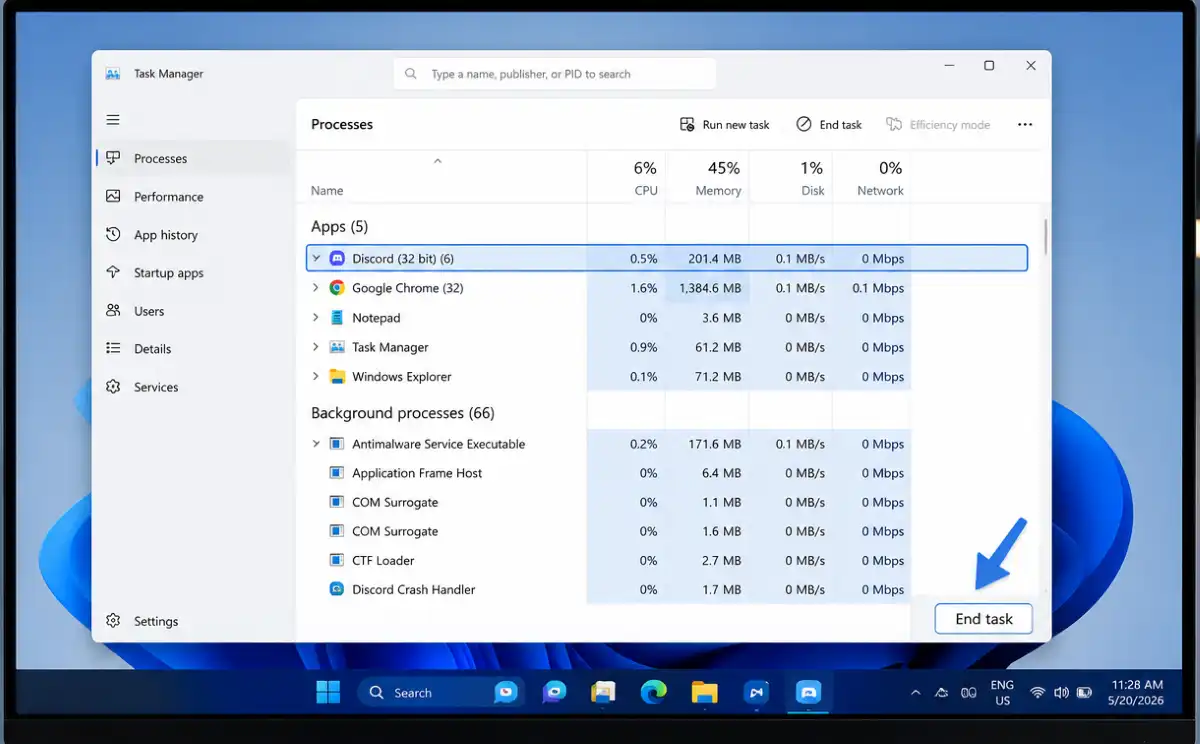
1. Close Discord from Task Manager
Sometimes Discord just keeps running in the background, it can block a fresh launch and you don’t even notice at first.
Try these steps:
- Press Ctrl + Shift + Esc
- Open Task Manager
- Look for every Discord process, there may be more than one
- Right click each of them and choose End Task
Many issues fixes instantly by these steps.
2. Restart Your Windows 11 PC
A simple restart clears a temporary bugs, memory conflicts, and also those locked processes that get stuck.
After restarting:
- Wait until Windows loads completely.
- Then launch Discord before opening any other applications.
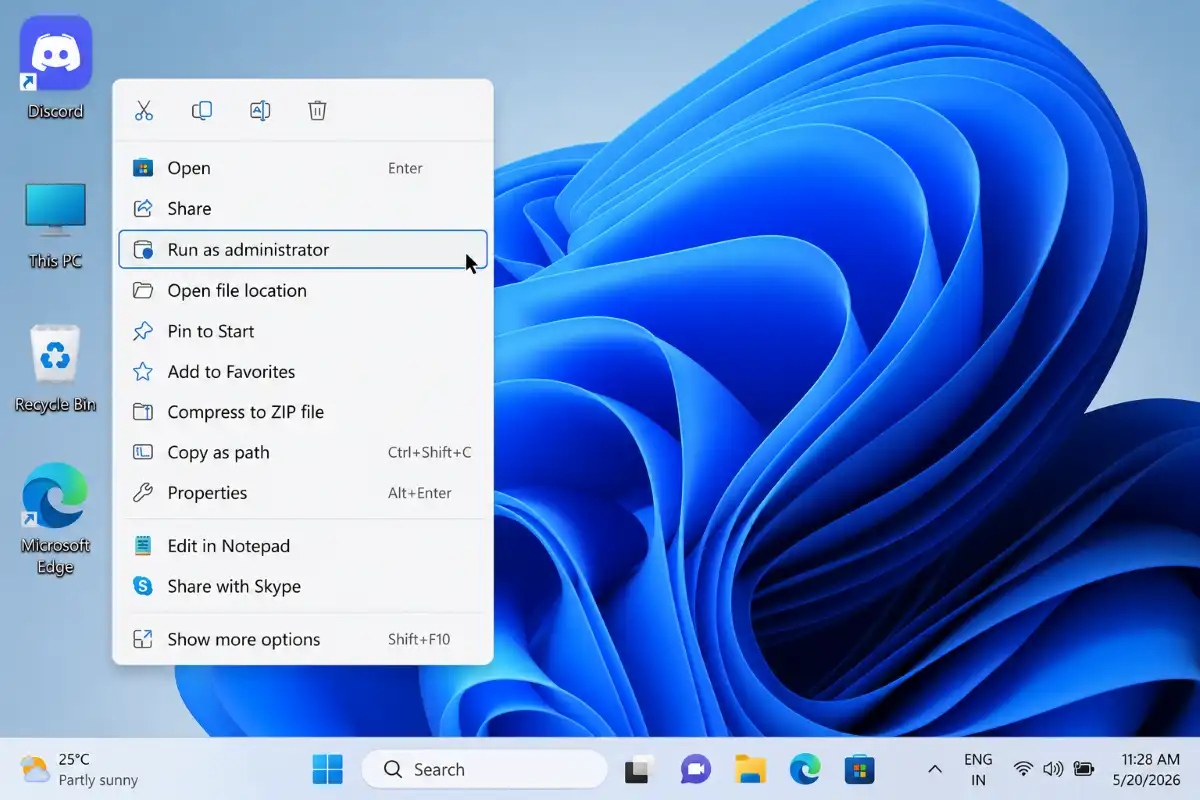
3. Run Discord as Administrator
Administrator permissions often resolves launch failures, like it should fix it right away.
Try these steps:
- Right click Discord
- Choose Run as administrator
- Click Yes
If Discord opens successfully , then configure it so it always runs with administrator privileges.
4. Delete Discord Cache Files
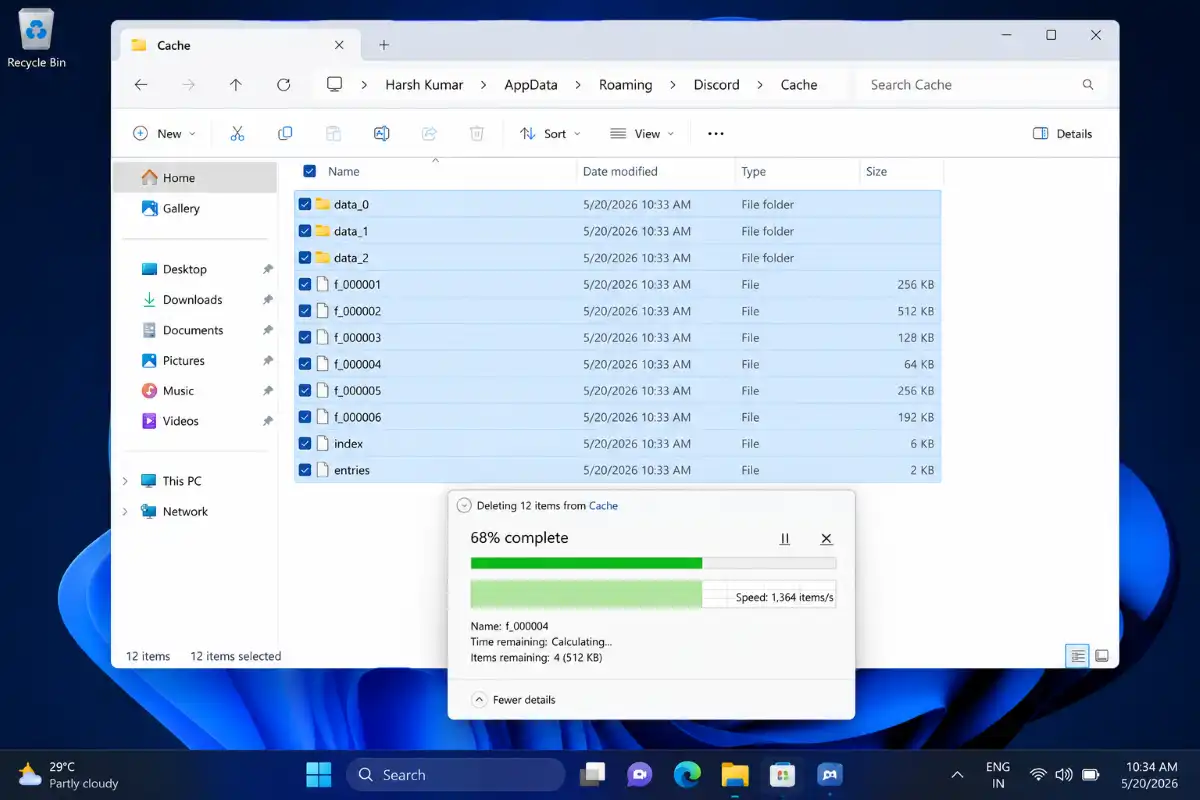
A corrupted cache is one of the important reasons that Discord won’t start or open, really.
- Delete the AppData Cache
- Press, Windows + R
- Type: %appdata%
- Then delete the Discord folder there.
- Next open: %localappdata%
- Delete the Discord folder again, just to be sure.
- After that restart your PC.
If it still doesn’t behave, install Discord again, if needed.
5. Check Windows Firewall Settings
Sometimes Windows Firewall can just block Discord from connecting or even from starting up.
To allow Discord through Windows Firewall:
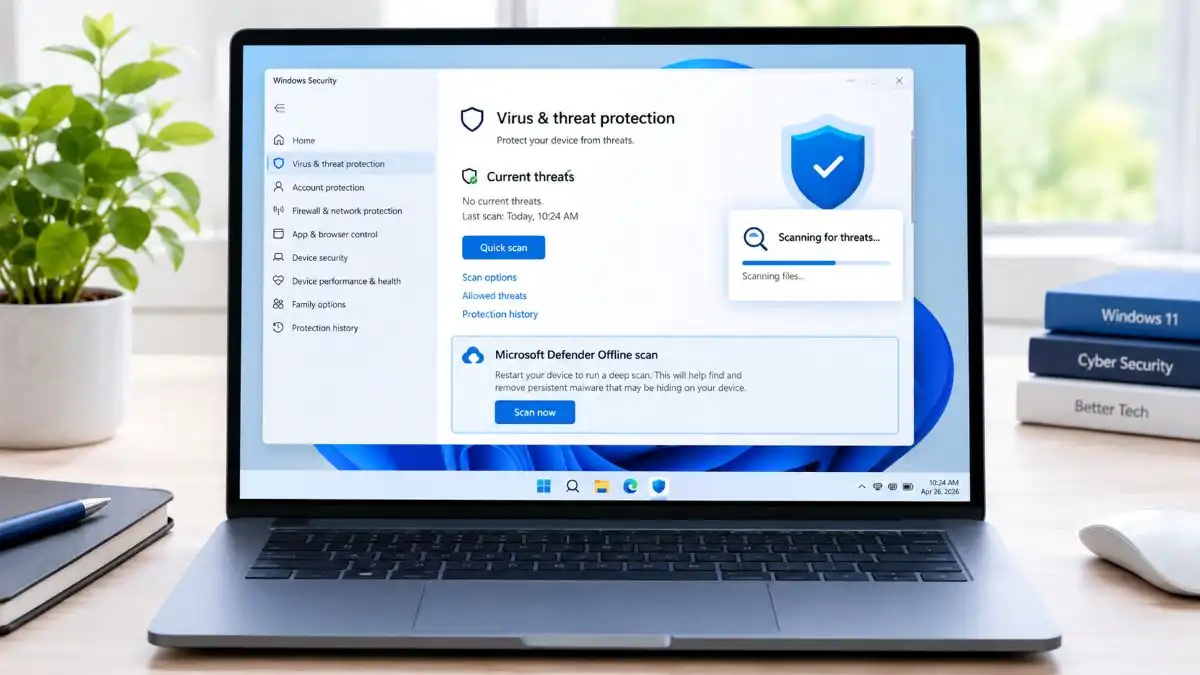
- Open Windows Security.
- Click Firewall & network protection.
- Tap Allow an app through firewall.
- Look for Discord in the list.
- Enable access for private networks and also public networks.
After you change the firewall settings, restart Discord so it loads with the new permissions.
6. Temporarily Disable Antivirus Software
Some security apps are incorrectly flag Discord files as potentially risky and stop them from running.
If you’re using a third party antivirus program, then try these, step one at a time-
- Temporarily turn off protection
- Then try opening Discord
- After that turn protection back on again
If Discord works while the antivirus is disabled, don’t keep it off. Instead add Discord as an exception, so it can run normally
7. Disable Discord Startup
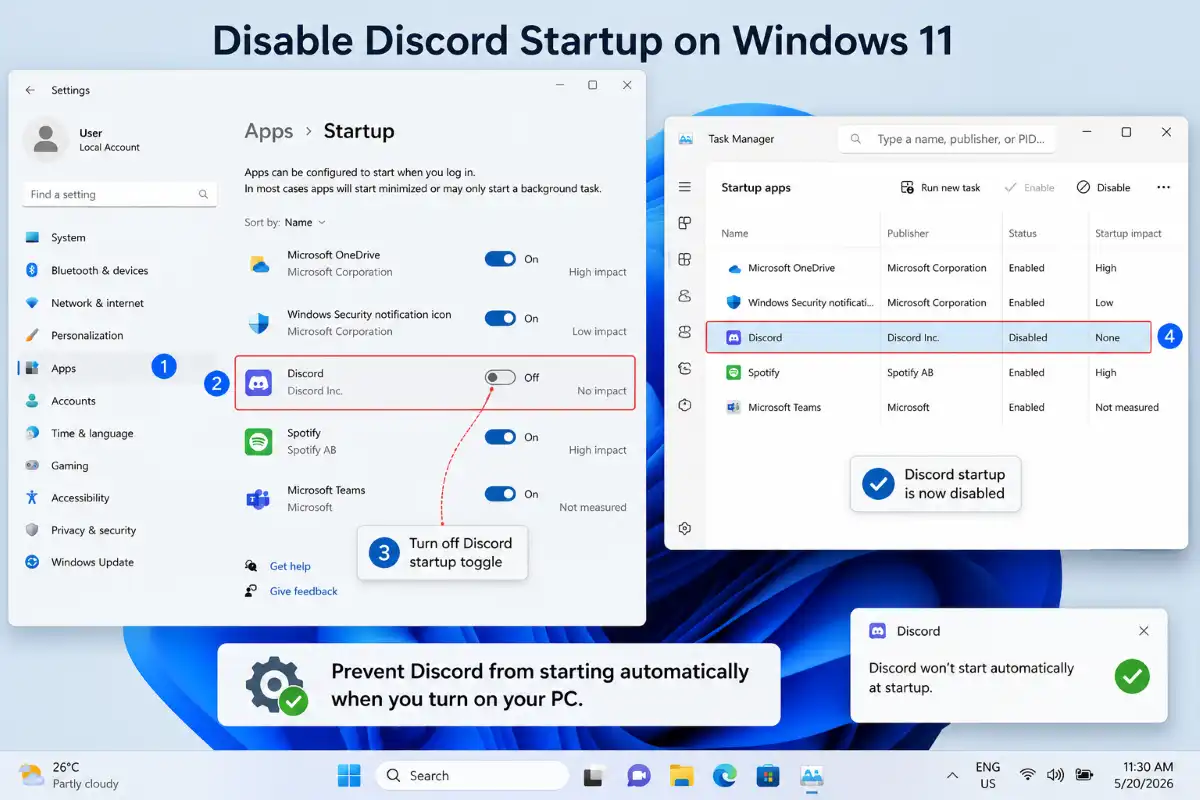
sometimes Discord start fail to launch correctly, when windows start. To stop Discord from starting up automatically:
- Press Ctrl + Shift + Esc.
- Open Startup apps .
- Look for Discord.
- Click Disable.
Then restart Windows, and open Discord yourself, see if it comes up normally.
8. Update Windows 11
Old Windows files, can cause a bit odd, like compatibility problems.
Check for updates:
- Open Settings.
- Then go to Windows Update
- Click Check for updates
- Install the updates that show up , and restart your computer.
Keeping Windows up to date helps with security, overall smoothness, and that app compatibility thing too.
9. Update Graphics Drivers
Discord uses hardware acceleration that rely on your graphics drivers. If those drivers are old or slightly damaged they can lead to things like, Discord opens and shuts right away,
- Try updating the drivers via:
- Windows Optional Updates
- NVIDIA software
- AMD software
- Intel driver tools
After you update everything , restart your PC.
10. Turn Off Discord Hardware Acceleration
Hardware acceleration can make Discord feel more smoother, but sometimes it cause to a bit of strange conflict.
If Discord opens for a second and then crashes:
- Open Discord
- Go into User Settings
- Pick Advanced
- Turn off Hardware Acceleration
After that restart Discord, and see if it behaves normally.
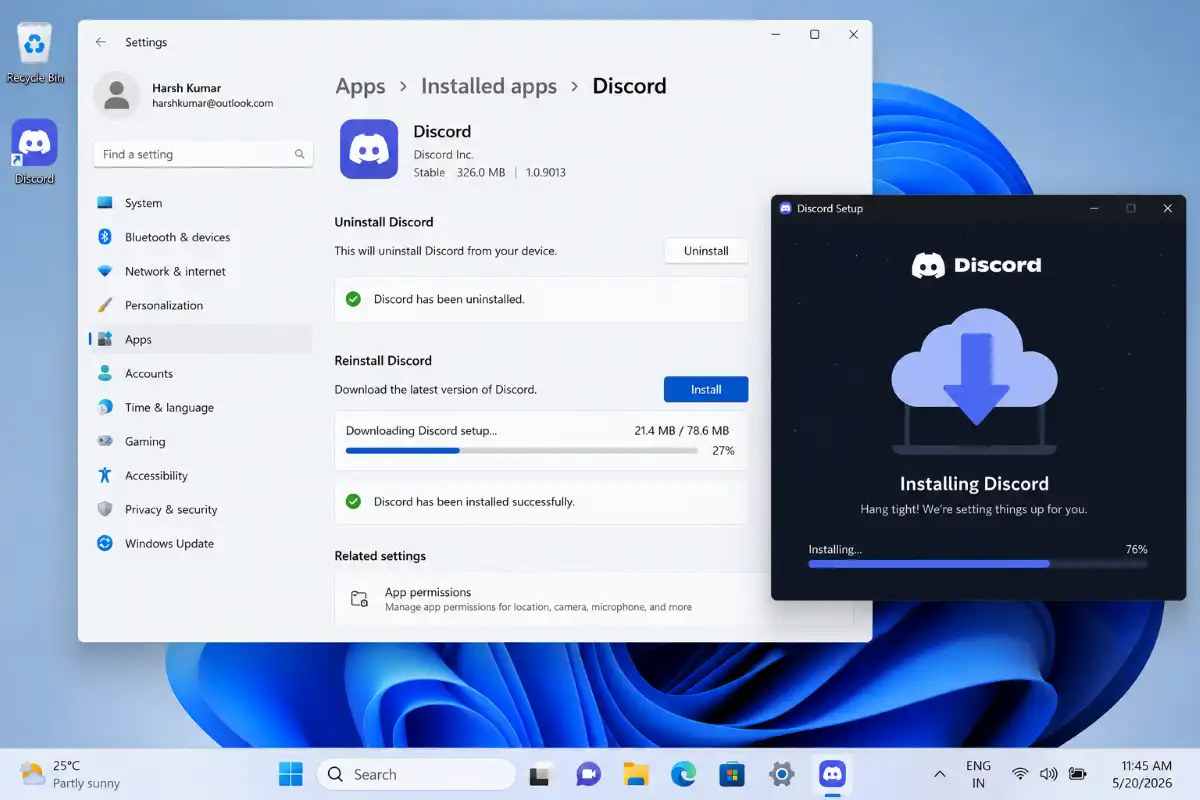
11. Reinstall Discord Completely
If the Discord installation files get damaged, honestly a clean reinstall is usually the best way to go.
- Start by uninstalling Discord.
- Press Windows + R.
- Type: appwiz.cpl
- Then press Enter.
- Look for Discord in the list.
- Click Uninstall.
- After that, remove any leftover things. Delete these folders:
- %appdata%\Discord, and also: %localappdata%\Discord
- Restart the PC.
Finally, go to the official website and download the newest Discord version then install it.
12. Check Discord Server Status
Sometimes Discord won’t open because the Discord services are having some kind of outage.
Before you troubleshoot your PC, try to make sure the Discord servers are actually working.
If Discord is down globally, then waiting until the services recover is the only way.
Bonus Fix: Reset Network Settings
If Discord opens but it hangs on the same stuff like
- Connecting
- Checking for updates
- Loading screen
then try these steps resetting your network settings, it usually helps, even when it feels like it should not.
- Open Windows Settings.
- Resetting the network
- Restart your computer, completely.
After that, Discord connection related issues go away and it loads normally again.
Common Discord Errors
Discord Stuck on Loading
Fixes:
- Clear cache
- End Discord processes
- Reinstall Discord
Discord Black Screen
Fixes:
- Update GPU drivers
- Disable Hardware Acceleration
- Reinstall Discord
Discord Opens Then Closes
Fixes:
- Delete cache
- Run as administrator
- Disable antivirus
Discord Update Failed
Fixes:
- Delete Update.exe
- Reinstall Discord
- Check internet connection
Frequently Asked Questions
Q1. Why is Discord not opening after updating Windows 11?
Answer: Windows updates can sometimes cause, compatibility issues with apps. Like for Discord, try updating it first. After that, clearing the cache files can help a lot, and then also make sure your drivers are updated too.
Q2. Why does Discord open in Task Manager but not appear?
Answer: Usually, it still running in the background but somehow it freezes there, like stuck. Try ending all Discord processes in Task Manager, then restart the app.
Q3. Will deleting Discord cache remove my account?
Answer: No. Clearing cache only removes temporary files. Your account details, friends list, servers, and messages are stored on Discord servers.
Q4. Should I reinstall Discord if it won’t open?
Answer: Sometimes, a clean reinstall is honestly one of the more effective remedies, when the Discord files get corrupted , or when the updates failed.
Conclusion
Discord not opening on Windows 11 is most often due to some little software issue , not a huge system disaster. In a lot of situations, shutting down Discord processes , wiping the cache files, making sure Windows is updated, or doing a reinstall of Discord pretty much fixes it fast.
- Stop Discord tasks in Task Manager.
- Clear the Discord cache.
- Restart Windows.
- If it still won’t work, try a clean reinstall or go for discord support.
With these 12 proven fixes, you should be able to get Discord back up and running on your Windows 11 PC again, without any problem. If Discord isn’t the only application that refuses to open, follow our guide on apps not opening in Windows 11 for additional system-wide fixes.
Looking for more Windows 11 troubleshooting guides? Check out these helpful articles to fix other common PC issues: