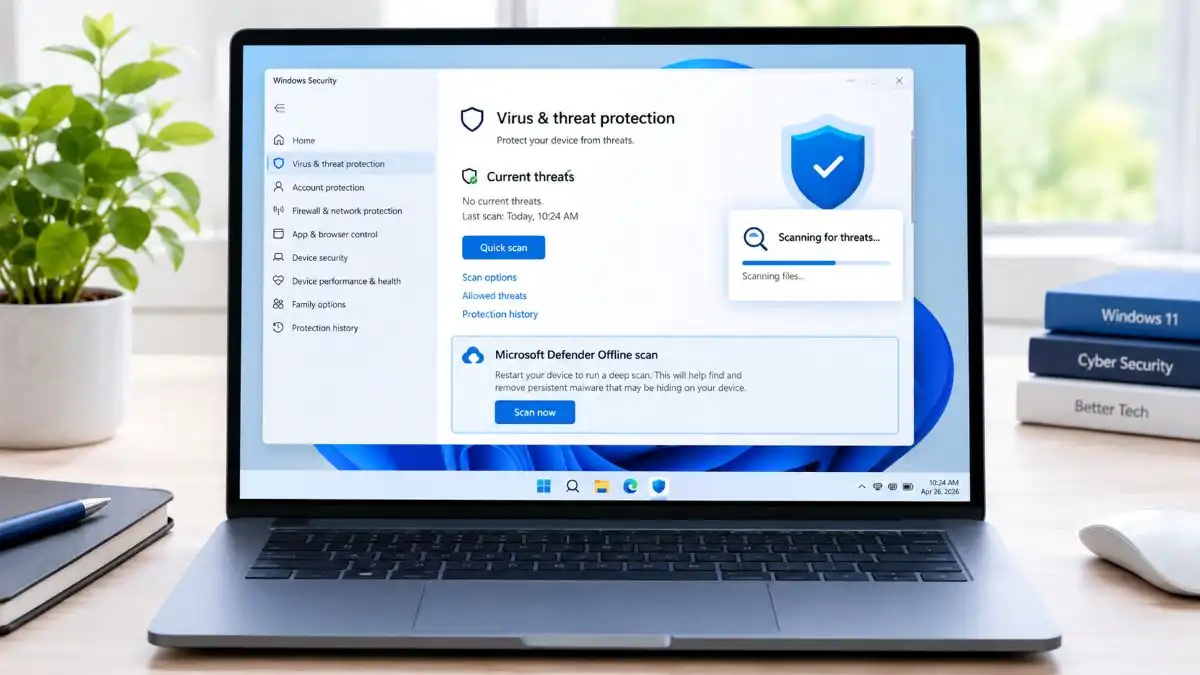

In windows computers malware is one of the most common threats. It can make your PC feel slower, take personal information, throw unwanted advertisements at you, or even lock your files with ransomware. Even if Windows 11 includes built-in security features, nothing is fully bulletproof, not really, so a system can still get hit by malware.
The good news is that most infections can be cleared, or at least pushed out, by using a few tested actions. In this guide I’ll learn how to remove malware from windows 11, and keep your system more protected against future attacks.
What Is Malware?
Malware is a malicious software. It designed purposely to harm your computer, grab your data, or end up getting unauthorized access to your system.
Some common kinds are:
- viruses
- Trojans
- Spyware
- Adware
- Worms
- Ransomware
- Rootkits.
Each one acts in its own way though, but they all bring real trouble for your privacy, your safety, and even your system performance.
Signs Your Windows 11 PC Has Malware
Before you try to remove malware, take a moment and spot these usual warning signs:
- Your computer suddenly feels much slower than usual.
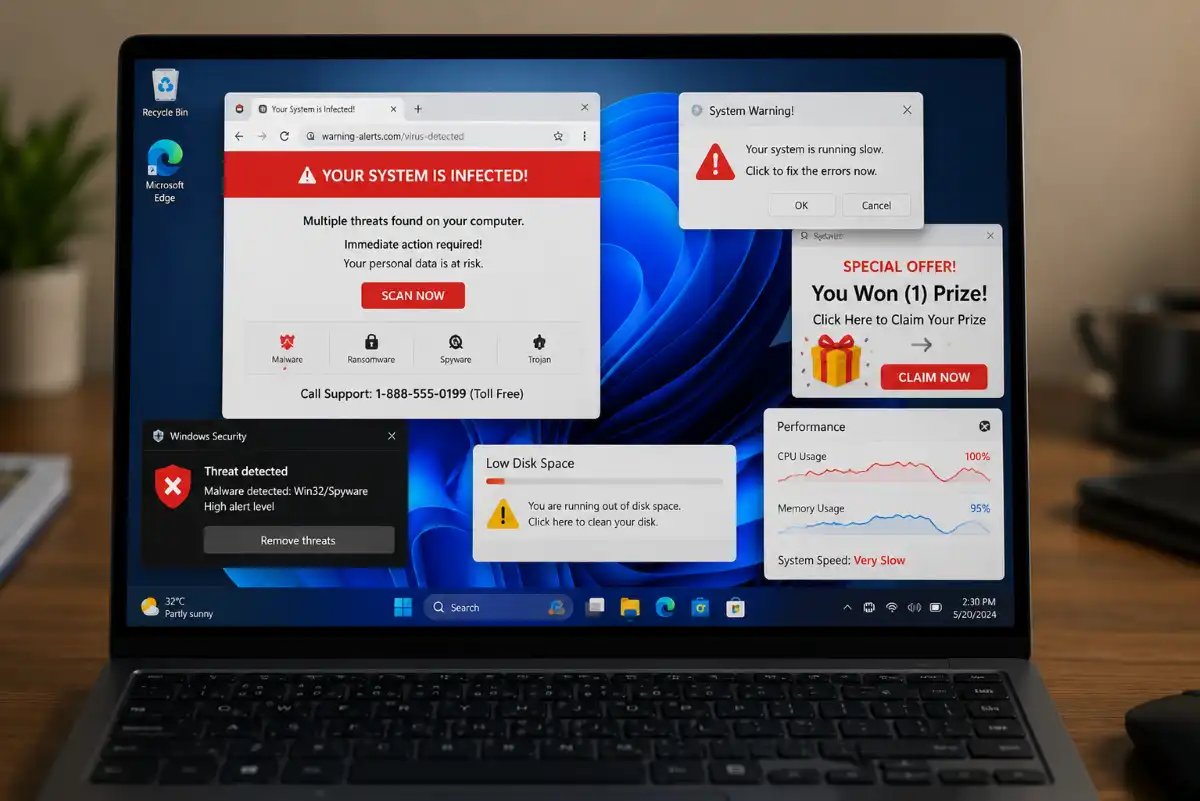
- Random pop-up ads show up even while you’re not browsing anything.
- Your web browser keeps sending you to unfamiliar web pages, not the ones you chose.
- Applications you never installed appear on your PC.
- Windows Security gets turned off , without your permission.
- Your fan run nonstop because CPU usage is high.
- Files become encrypted or disappeared.
If you see one or more of these issues then it’s probably time to scan your computer.
How to Remove Malware from Windows 11: 10 Steps
If you’ve confirmed that your Windows 11 PC is infected, follow these steps to safely detect and remove malware.
Step 1: Disconnect from the Internet
Some malware download additional threats or steal data, by connecting remote servers.
Before starting the process:
- Turn off the Wi-Fi, or just unplug the Ethernet cable .
- Keep the device off line until you finish the malware scan
During cleaning of your system, These simple steps avoid more damage.
Step 2: Open Windows Security Tool
Without requiring additional software windows 11 gives you real-time protection , with in-built Microsoft Defender Antivirus.
- Open Windows Security:
- Click on windows start button.
- Search for Windows Security.
- Open the app.
- Select Virus & threat protection.
This is a tool where you’ll find all malware scanning options.
Step 3: Run a Quick Scan
A Quick Scan checks the all common locations where malware is hidden.
To perform a Quick Scan:
- Open Windows Security.
- Click Virus & threat protection.
- Select Quick Scan.
- Wait for the scan to finish.
If Windows Defender found malware, then Remove or Quarantine when it ask you.
Step 4: Run a Full Scan
Go for a full scan, If your PC is still act weird after the Quick Scan.
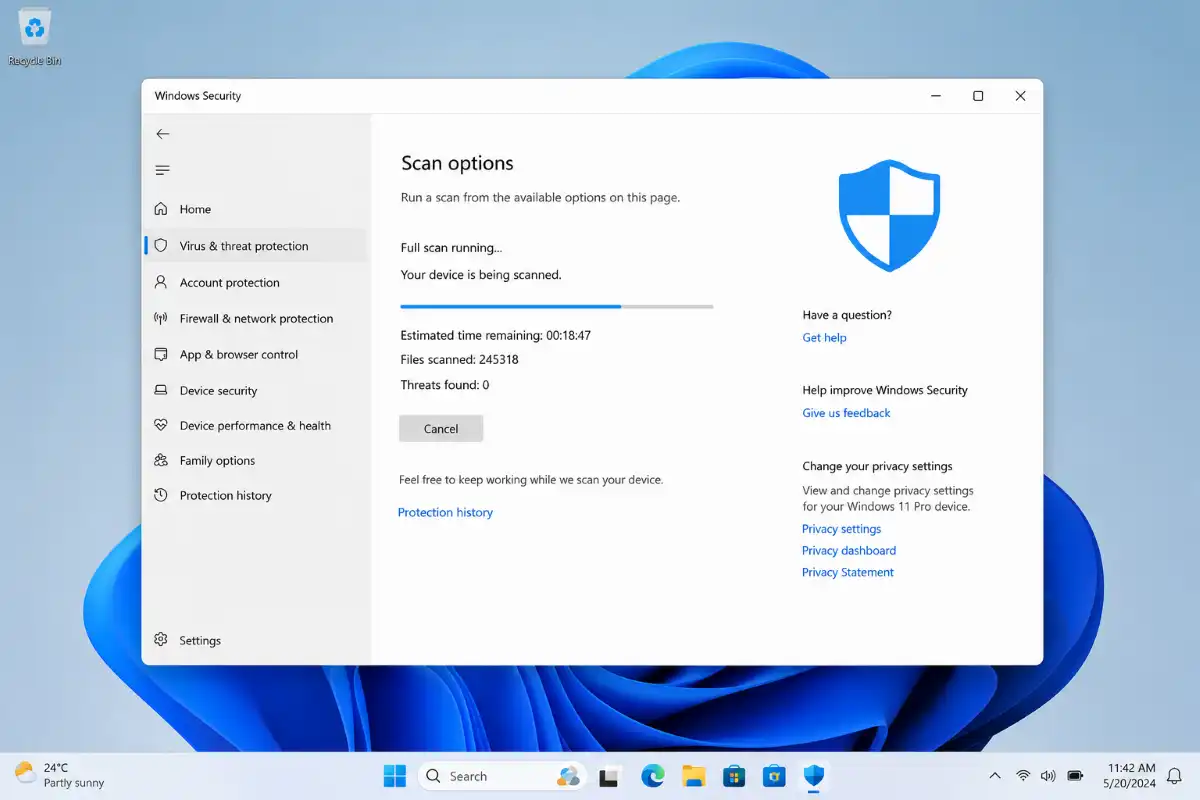
Here’s how to do a full scan :
- Open Virus & threat protection.
- Click Scan options.
- Select Full Scan.
- Click Scan now.
A Full Scan checks every file on your computer, so it may take an hour or more depending on your storage size.
Step 5: Use Microsoft Defender Offline Scan
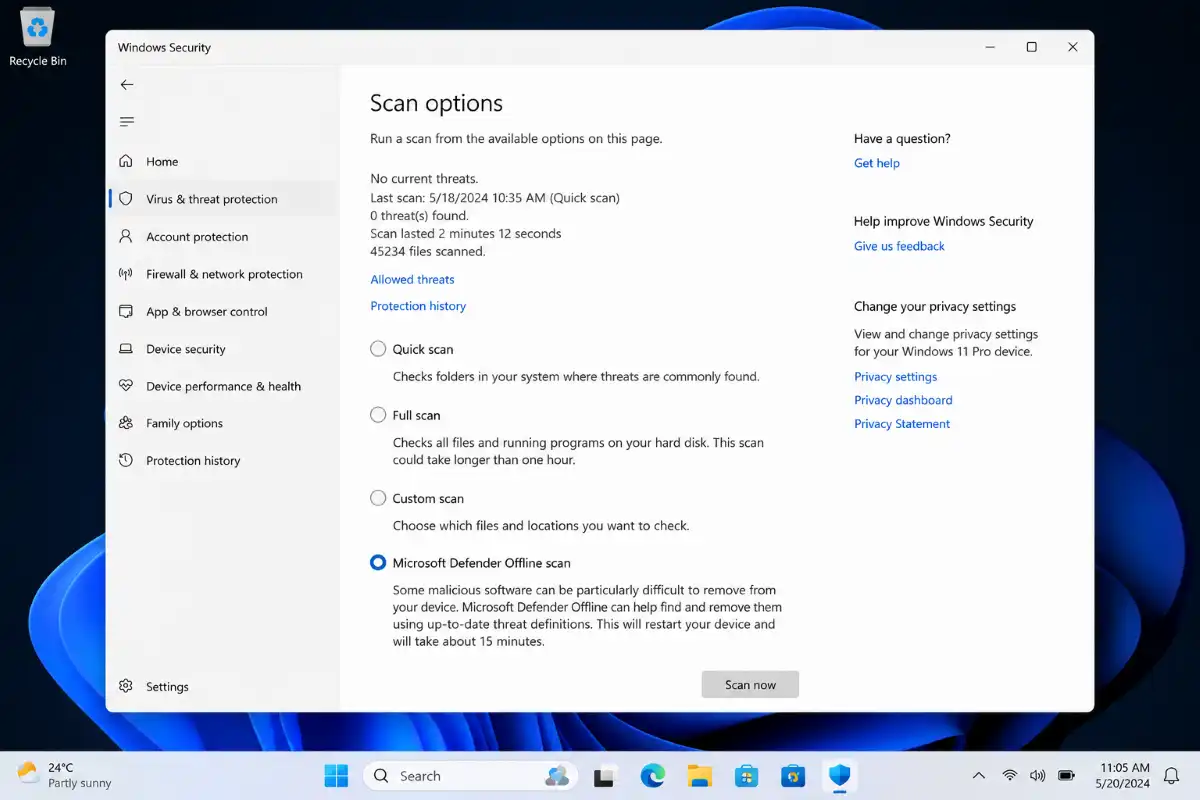
Some malware is difficult to remove while the operating system is running because it loads at startup. Microsoft Defender Offline Scan restarts your computer and scans it before Windows fully loads.
To use it:
- Open Windows Security.
- Go to Virus & threat protection.
- Select Scan options.
- Choose Microsoft Defender Offline Scan.
- Click Scan now.
Your PC will restart automatically and perform a deeper malware scan.
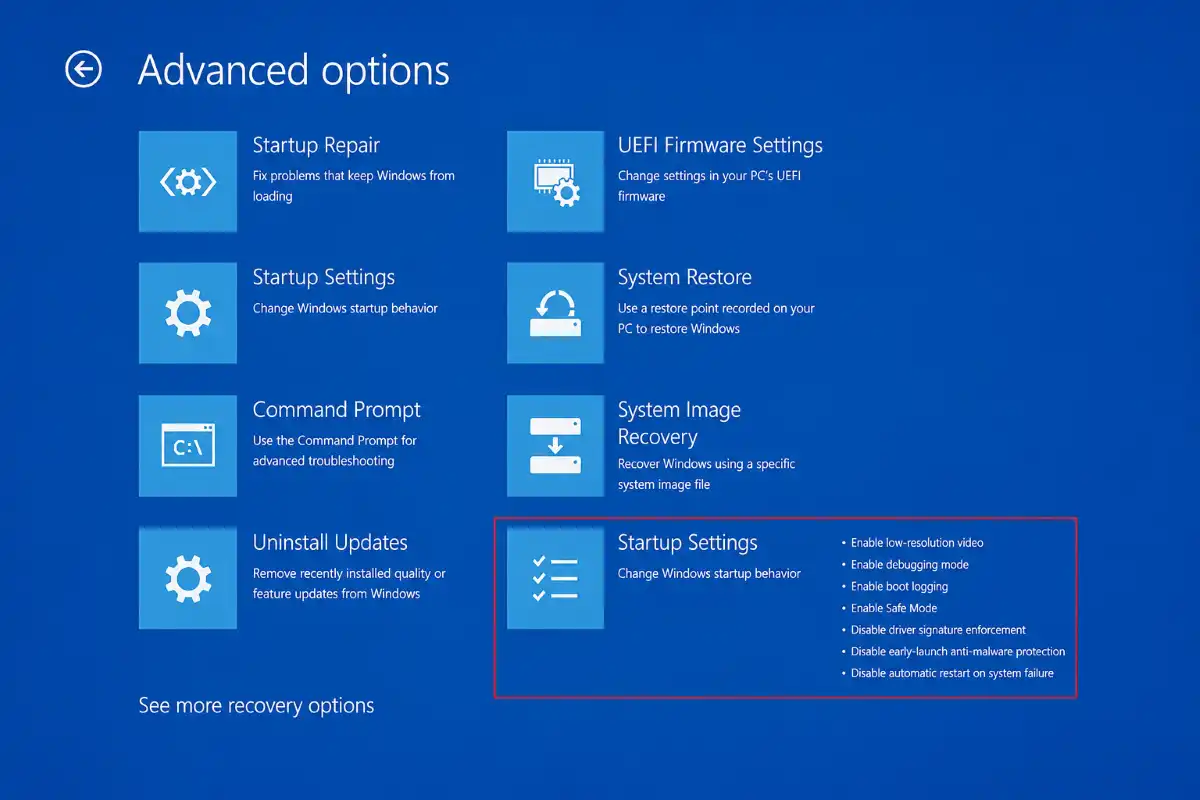
Step 6: Boot into Safe Mode
In Safe Mode, Windows boots up using just the absolutely needed drivers and background services, so a lot of nasty programs don’t get the chance to start.
To get into Safe Mode:
- Open Settings.
- Go to System > Recovery.
- Under Advanced startup, click Restart now.
- Choose Troubleshoot > Advanced options > Startup Settings.
- Restart your PC.
- Press 4 or F4 for Safe Mode.
In safe mode try Full scan using windows security tool.
Step 7: Remove Suspicious Programs
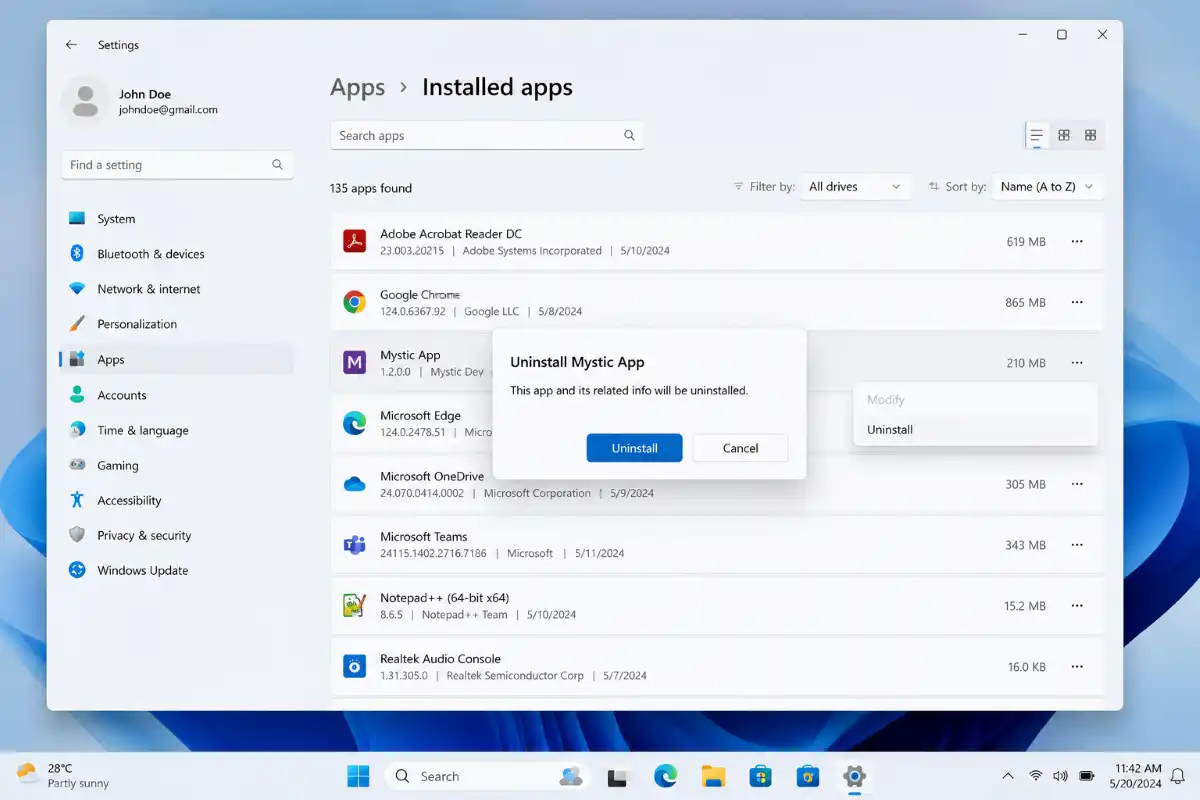
Sometimes a malware installed as it was just a normal application, nothing weird at first.
To uninstall suspicious software:
- Open Settings.
- Choose Apps > Installed apps.
- Scan for unfamiliar , or those that were recently installed .
- Tap the three-dot menu.
- Click Uninstall.
Only remove those programs you didn’t install or no longer need. If you feel unsure about any app, do a quick research first, before removing it.
Step 8: Check Browser Extensions
A lot of malware infections install unwanted browser extensions. For browsers like Microsoft Edge, Google Chrome, or Mozilla Firefox , do this:
- Open your browser.
- Go to the Extensions or Add-ons page.
- Remove the extension you did not install , or no longer use.
- If it continues redirect you to suspicious websites , then reset the browser.
This eliminate browser hijackers and unwanted adware stuff.
Step 9: Update Windows 11
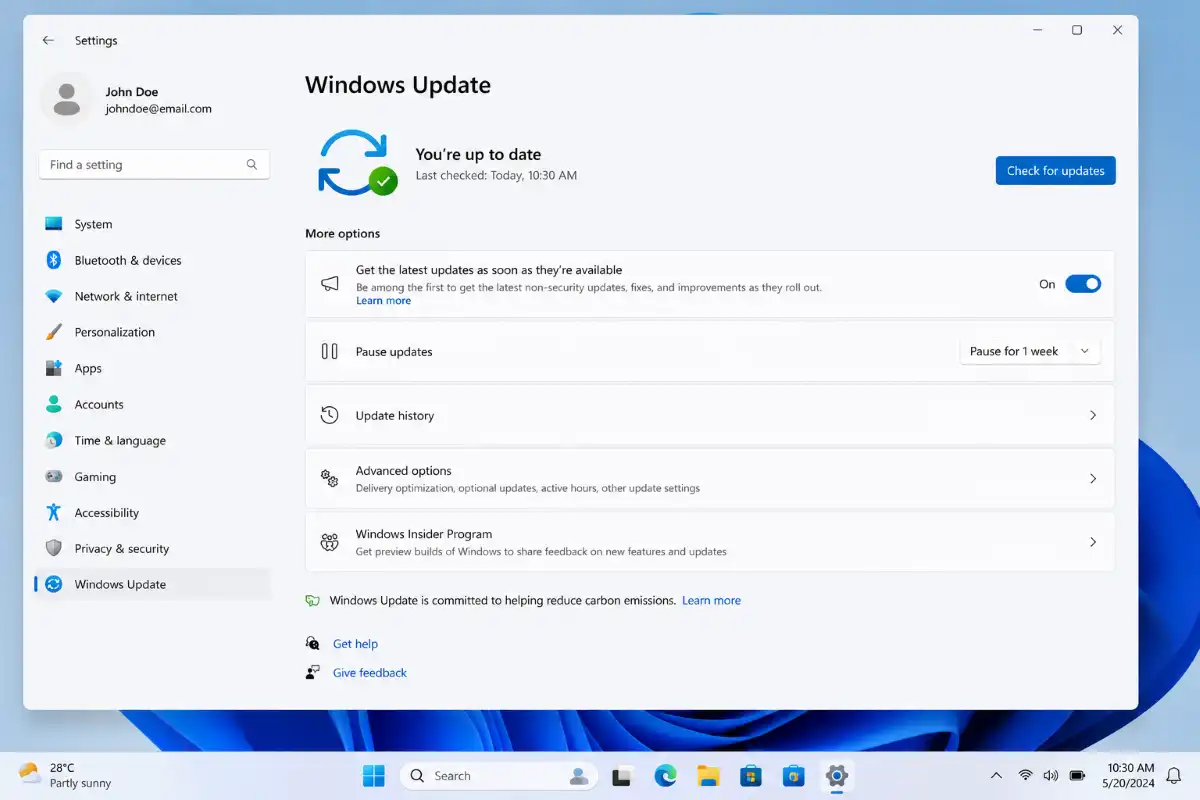
Keeping Windows updated helps close security vulnerabilities that malware can exploit.
To check for updates:
- Open Settings.
- Click Windows Update.
- Select Check for updates.
- Install any available updates.
- Restart your computer if required.
Regular updates improve both security and system stability.
Step 10: Use a Trusted Malware Removal Tool
If Microsoft Defender doesn’t manage to remove the infection, try going for a reputable malware scanner as second choice.
Some well known options are :
- Malwarebytes
- Bitdefender Antivirus Free
- ESET Online Scanner
- Norton Power Eraser
To avoid fake or malicious versions, download these tools from their official sites, not random pages.
What If Malware Still Won’t Go Away?
If your computer is still infected after a few scans:
- First, save your documents, pics, and other personal stuff.
- When making backups, avoid copying executable (.exe) files unless you are really confident they are safe.
- Then do a fresh install, or a full reset of Windows 11.
- After the reinstall , bring back only those files that you already checked.
How to Prevent Malware on Windows 11
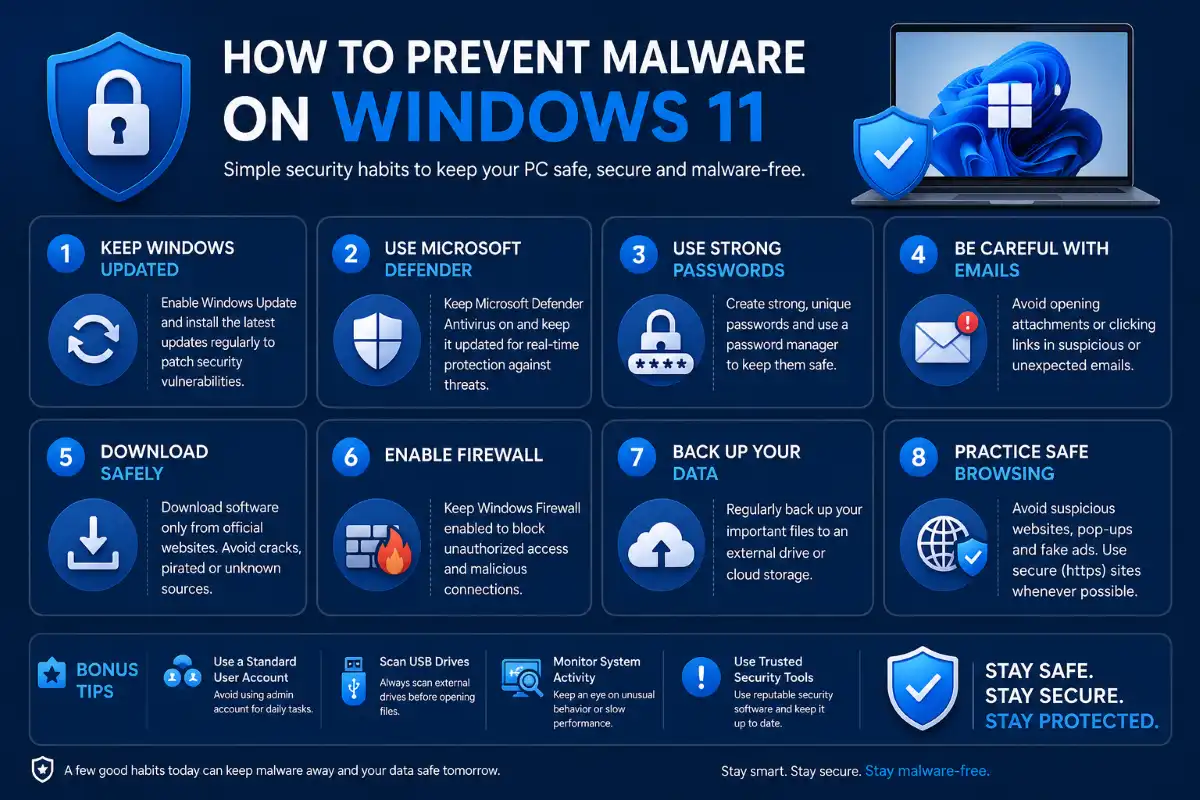
Prevention is easier than recovery. Follow these best practices:
- Keep Windows 11 updated all the time.
- Leave Microsoft Defender turned on.
- Only download software from trusted source.
- When an email looks odd, don’t click links or open attachments.
- Don’t disable User Account Control.
- Use strong and unique passwords for each online account.
- Back up your important files regularly.
- Avoid pirated software, and those cracked applications too.
- Scan USB drives before you even open them.
- In Windows Security, make sure real-time protection is enabled.
Frequently Asked Questions
Q1. Can Windows 11 remove malware without extra software?
Answer. Yes. Microsoft Defender Antivirus can detect and remove many common malware threats without requiring additional antivirus software.
Q2. Does resetting Windows 11 remove malware?
Answer. Yes, a full reset that removes all files and apps can eliminate most malware.
Q3. Is Windows Security enough?
Answer. For most home users, Windows Security is sufficient and provides excellent protection.
Q4. How often should I scan my PC?
Answer. Run a Quick Scan weekly and a Full Scan at least once a month. If you download files frequently or notice unusual behavior, scan your PC immediately.
Conclusion
It’s not difficult to remove malware from Windows 11. In most cases Microsoft Defender, Safe Mode, and a few steps can remove malware and restore your computer’s performance.
Honestly, the strongest defense is prevention. So keep Windows updated, don’t download files from unknown sources, and run regular scans with Windows Security. If you do those things, you’ll lower the risk of future problems, and your Windows 11 computer running safely and smoothly.
If malware has damaged important system files and your computer starts crashing with a blue screen,follow our guide on: