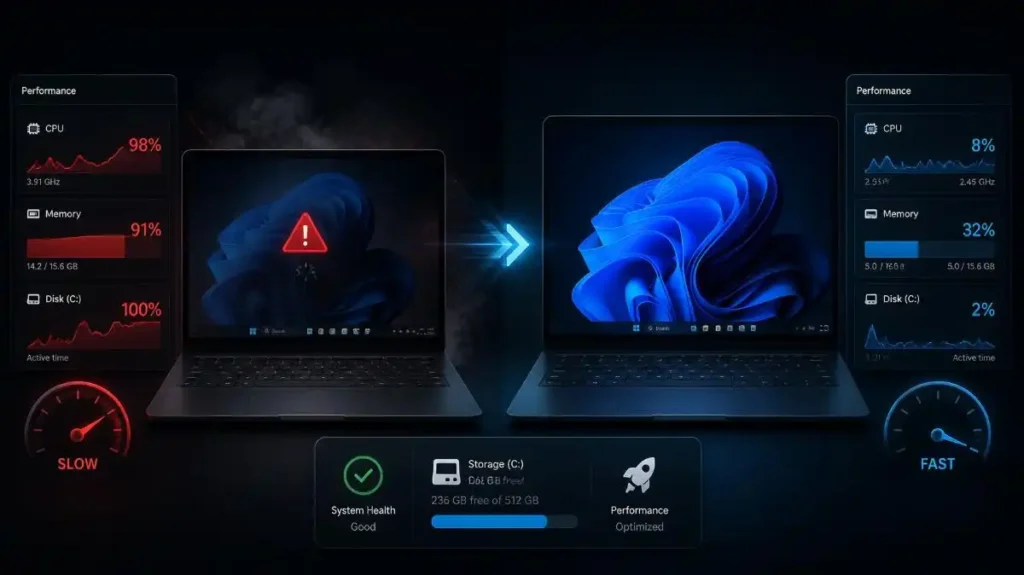
Is Windows 11 Running Slow?
Even a fast PC using Windows 11 can get slowly. It can be taking a long time to launch applications, the desktop may freeze for some seconds, File Explorer may be slow, or your computer may take much time to boot up.
But there’s no need to worry since there are plenty of reasons for slow performance of Windows 11 PCs and not all of them require changing the computer. Some background applications, too many startup applications, a lack of space, outdated drivers, malware, and high resource usage could impact the performance.
In this guide will show you 12 effective methods to improve Windows 11 slow performance. You should start from the easiest solution and move further until your PC starts responding faster.
Why Is Windows 11 Running Slow?
Before making any changes, it helps to know why the issue may be occurring.
Typical causes include:
- Too many applications opening at startup
- High CPU, RAM, or hard drive usage
- Almost full storage capacity
- Many applications running in the background
- Outdated Windows OS or driver software
- Unnecessary applications and files
- Malware or potentially unwanted programs
- Excessive visual effects
- Slow hard drive
- Low RAM
You may not have to do all of the following actions. In fact, if the Task Manager reveals that one application is using up your resources, handling that application will help solve your problem.
12 Easy Ways to Fix Windows 11 Slow Performance
1. Restart Your Windows 11 PC
However, it is a very easy solution that might solve temporary performance issues.
As Windows continues to operate for an extended period, some background processes, applications, and temporary files might build up. With a restart, all these processes are stopped by Windows and give a fresh start to the system.
How to restart Windows 11
- Click on Start.
- Click on the Power button.
- Select Restart.
- Wait until Windows starts.
- Now check the performance is improved or not.
In case your computer slows down after operating for a few hours or days, you may
determine the cause using regular restarts.
2. Check Task Manager for Resource-Heavy Apps
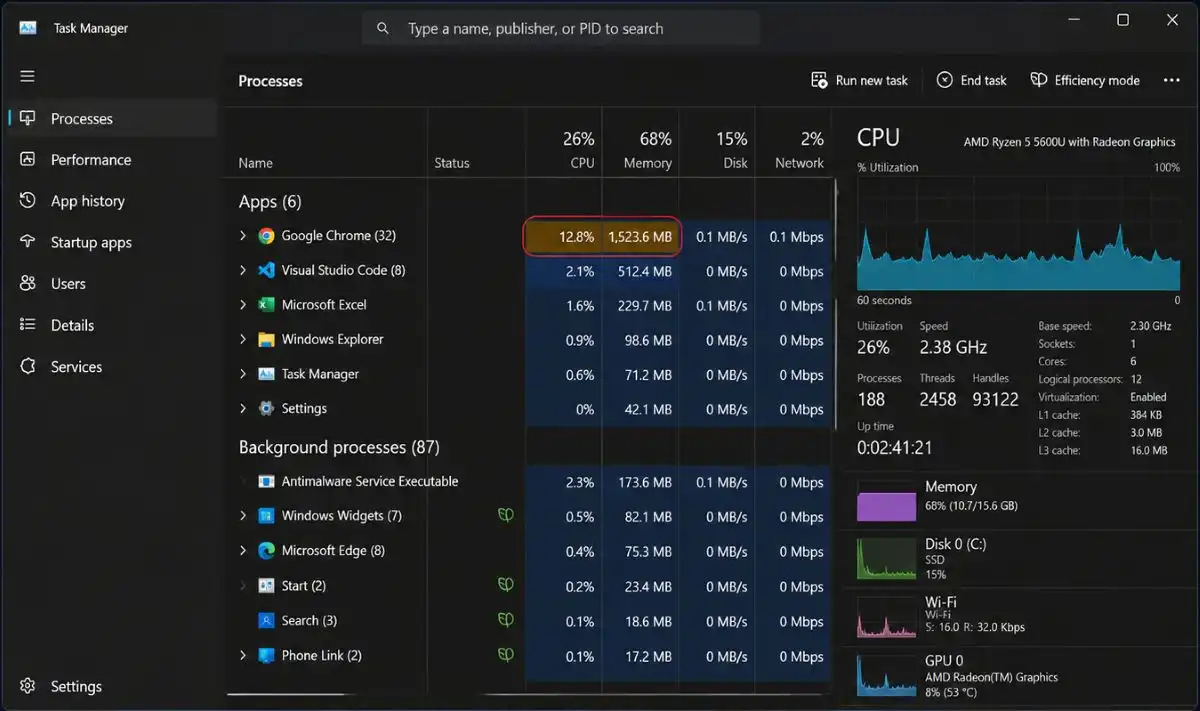
Task Manager is the best software tool to identify what causes slow performance of Windows 11.
Basically, it tells you which applications consume your computer’s CPU, RAM, hard drive, and network resources.
How to check Task Manager
- Select Ctrl + Shift + Esc.
- Open the Processes tab.
- Then look at the CPU, Memory, and Disk columns.
- See which applications are using oddly high amounts of resources.
- Close an application you recognize and that you don’t really need right now.
However, be cautious in closing processes. Don’t close windows system processes just because they are using a lot of resource.
Moreover, if there is a process that is continuously taking too much CPU or RAM, check whether it requires upgrading, otherwise uninstall it.
3. Disable Unnecessary Startup Apps
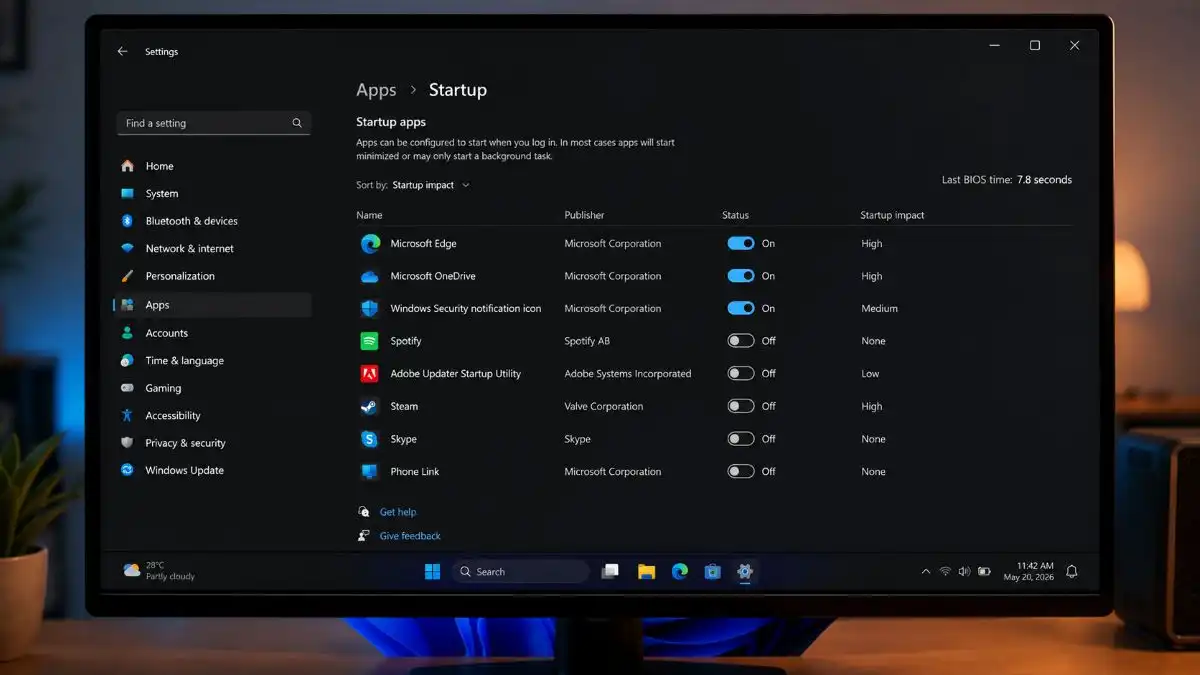
The presence of many programs starting while Windows is booting may slow down the process and use memory in the background.
There is no necessity for all programs to start automatically.
Disable startup applications
- Press Ctrl + Shift + Esc to open Task Manager.
- Choose Startup applications.
- Review the list of applications.
- Select a program that is not required at the time of startup.
- Click on Disable.
Take programs that you are aware of for sure such as launchers, messengers or other applications that can be run when required.
Avoid disabling drivers or security programs if you do not know the purpose of these programs go through Microsoft’s guide to managing startup applications.
4. Free Up Storage Space
Low storage capacity on the system drive may create problems with the performance of the operating system and make the daily activities difficult.
Check how much storage is free on your Windows drive.
For freeing up storage in Windows 11:
- Open Settings.
- Go to System → storage.
- Look through the storage categories and see what’s taking up space.
- Then remove unnecessary temporary files.
- Empty the recycle bin.
- Uninstall application you don’t needed.
It is recommended to leave some space on the system drive rather than letting it be
almost full.
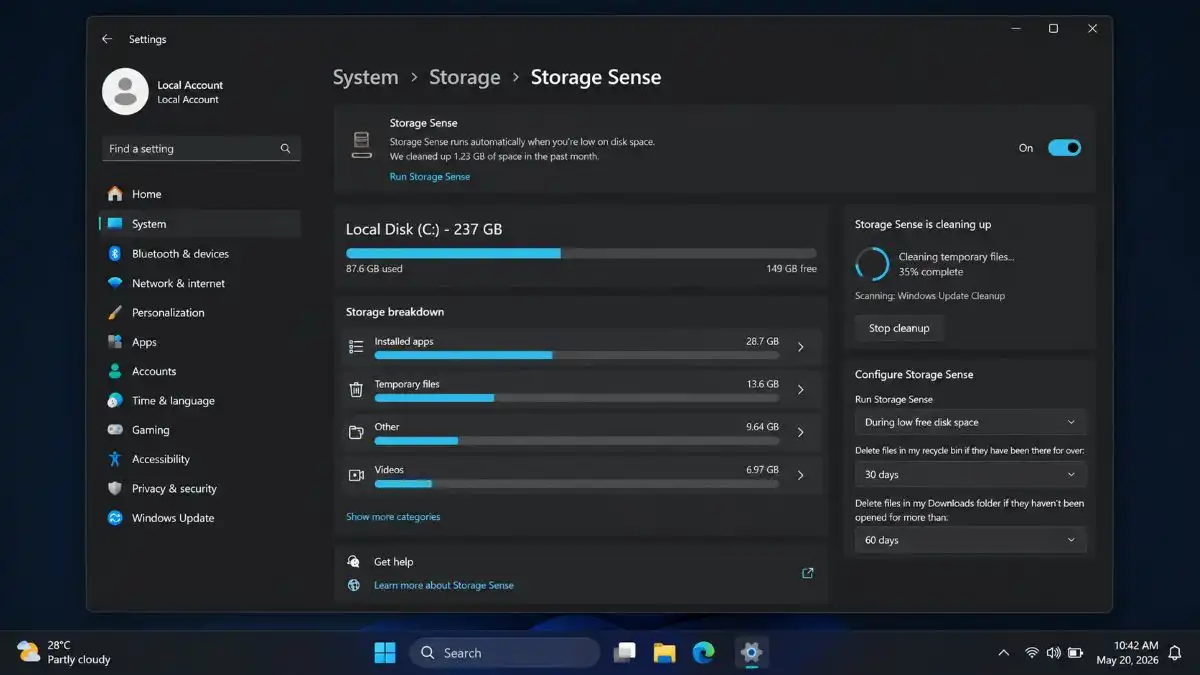
5. Turn On Storage Sense
Storage Sense feature has been included in Windows 11 that can help in cleaning some unnecessary files and avoid the storage from getting too messy.
How to activate Storage Sense?
- Open Settings.
- Navigate to System -> Storage.
- Click on Storage Sense.
- Switch on Automatic User Content Cleanup.
- Explore the options for cleanup.
Storage Sense is useful if temporary files and other removable data regularly consume your storage.
Before manually deleting anything, check Microsoft’s Storage Sense guide to see what to remove and what not to from Windows, so you don’t accidentally delete any important files.
6. Uninstall Programs You Don’t Use
Unused applications do not necessarily mean poor performance because some applications can perform background operations, startup activities, and scheduled operations.
Uninstallation of unnecessary applications can make your system clean and free up space.
Uninstall an app
- Go to Settings.
- Go to Apps → Installed apps.
- Choose an application that you do not need.
- Press the three dots menu next to it.
- Tap on Uninstall.
- Follow the instructions.
Never uninstall any application without understanding its purpose. If you are confused about any application, make sure to read its documentation before uninstallation.
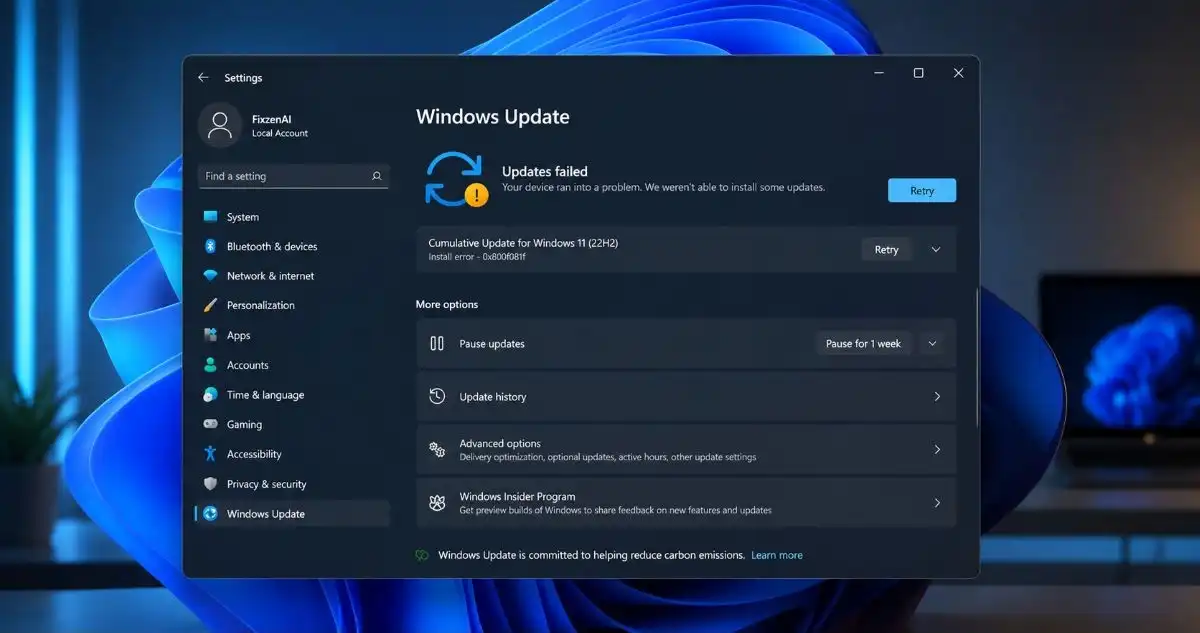
7. Install Windows 11 Updates
There are updates offered by Microsoft in Windows that consist of increased security, bug fixes, and increased reliability. Updating Windows could also help to fix certain performance issues.
Check for Updates
- Go to Settings.
- Click on Windows Update.
- Tap on Check for Updates.
- Install any updates available.
- Restart your computer if asked to by Windows.
In case your computer becomes slow right after installing a certain update, find out the problem rather than continuously updating or uninstalling updates.
8. Reduce Unnecessary Visual Effects
The Windows 11 operating system employs animation, transparency, and other visual effects to make the user interface smoother. For old machines and less powerful computers, turning off some visual effects will make the operating system more responsive.
Change visual effects
- Launch Settings.
- Click on Accessibility → Visual effects.
- Think about disabling Transparency effects.
- Think about disabling Animation effects.
You can alternatively look up for “Adjust the appearance and performance of Windows” in Windows.
This won’t be a magic solution for a lagging computer, but it will surely help old hardware be more responsive than visually appealing.
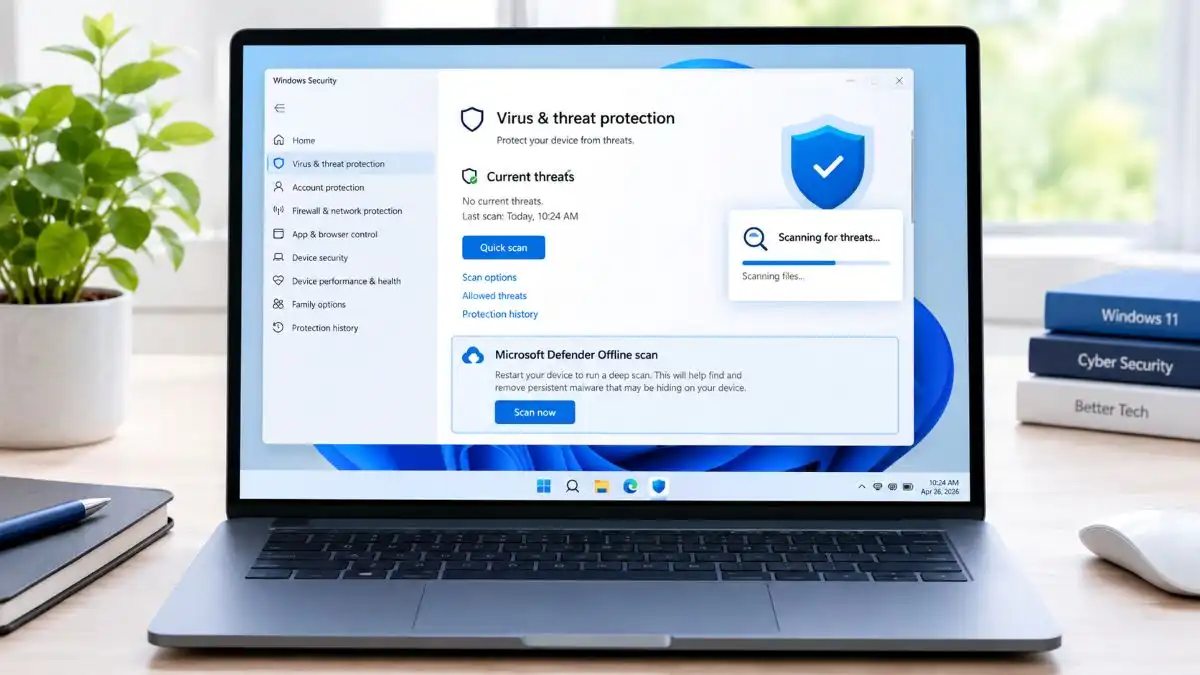
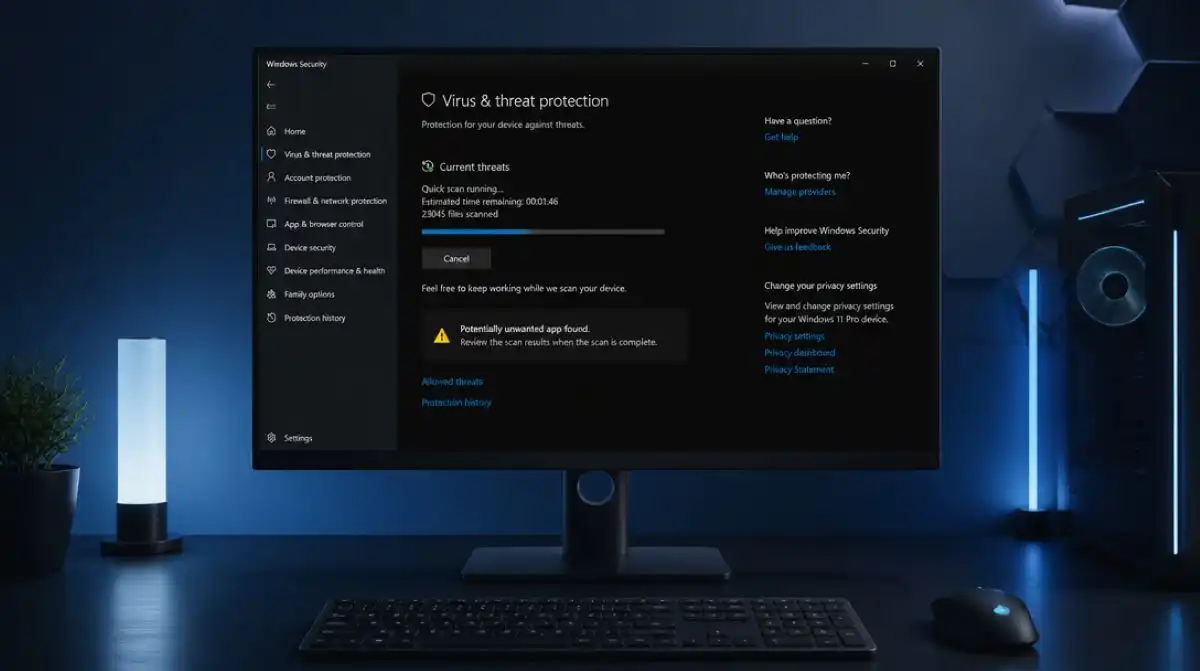
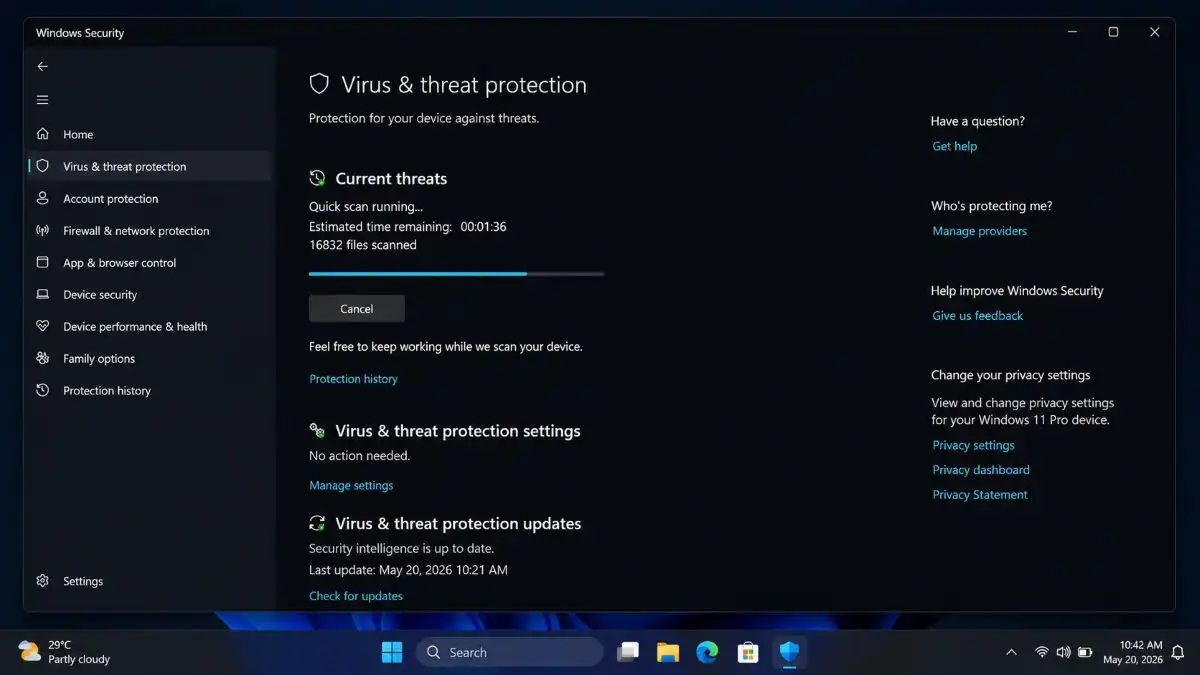
9. Scan Your PC for Malware
Malware can take up CPU, memory, disk space, and network usage. If your computer starts running much slower than usual, that could be one cause for concern.
Windows 11 already comes with Windows Security, which means that it’s not necessary to have some other software just to do a simple scan.
Do malware scan
- Open Windows Security.
- Select Virus & threat protection.
- Choose Quick scan.
- Follow the recommendations in case of any detected threats.
When it comes to some unusual or persistent problems, it may be useful to run a more through scan via Windows Security.
Another thing to avoid is downloading any “PC speed booster” apps, because many of them are useless.
10. Update Your Drivers
Device drivers ensure that the hardware devices such as graphics cards, network adapters, storage controllers, and others work well with Windows.
Old and defective drivers may lead to crashes, errors, or poor performance.
Driver updates check
- Click the Start button with right click.
- Go to Device Manager.
- Choose a hardware category from it.
- Click right mouse on the device.
- Choose Update driver.
- Graphics drivers should be installed from the manufacturer’s official website, where necessary.
Do not download drivers from any third-party websites.
11. Optimize Your Storage Drive
There are certain disk optimization features in Windows that may helpful for improving the speed of the storage drives.
When working with HDDs, optimization may include defragmentation. In the case of SSDs, Windows uses a different approach for these disks, and you should not use regular defragmentation options on your SSD drive.
Optimize a Drive
- Press the Windows key.
- Type Defragment and Optimize Drives.
- Launch the program.
- Choose your drive.
- Press Optimize if suggested by Windows.
Windows usually performs drive optimization automatically.
12. Check Your RAM and Hardware
If you’ve tried the software fixes above and Windows 11 is still running slowly, then the problem might be caused by the hardware.
Start Task Manager by using Ctrl + Shift + Esc to see how much memory your computer uses.
In case your PC tends to use up to the amount of its available RAM constantly even when you use common applications, it could use some extra memory for better multitasking.
There is also storage hardware, such as HDD, which could run slower compared to a newer SSD especially in the process of launching Windows and programs.
Hardware problems indicators
- Windows runs slow even when started after a clean restart.
- RAM usage tends to be very high.
- System drive is an old HDD.
- Applications takes long time o open.
- PC performs poorly when many apps are opened at once.
- No improvement in performance after software troubleshooting.
Check your motherboard or laptop specs before you purchase any upgrades.
What If Windows 11 Is Still Slow?
In the case that none of the twelve solutions works, do not jump to conclusions regarding the issue with Windows.
Figure out the moment when it slows down.
- If Windows is running slowly right after start-up, look into the possible reasons including the start-up programs, background processes, storage and hardware.
- If one program runs slowly, this might mean that the issue lies in that program and not in Windows.
- If the computer randomly freezes, crashes, overheats, and makes unusual sounds, consider hardware issues too.
- Creating a new Windows user profile can help you find out whether there is an issue in your user profile.
When Should You Upgrade Your PC?
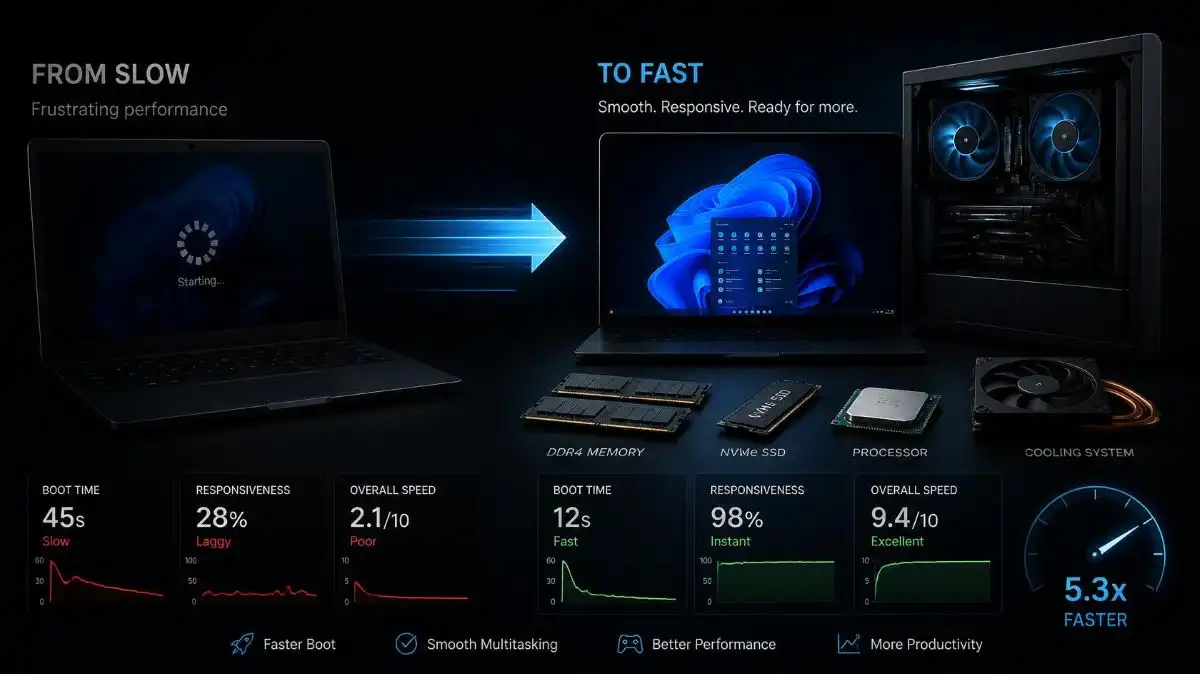
There are certain limits in software optimizations. If you have an old computer, the hardware upgrade might improve performance significantly more than Windows tweaks and settings.
For example, replacing the outdated HDD with a new SSD will result in much faster boot time and faster loading of applications.
Increasing RAM will allow improving performance if your PC hang when performing typical tasks.
But be sure not to purchase hardware according to general tips and guidelines. You should check signs that your PC may need an upgrade or not.
Frequently Asked Questions (FAQs)
Q1. How can I speed up Windows 11?
Ans. Disable unnecessary apps in startup, free up disk space, close high-resource programs, install updates for Windows, and minimize unnecessary effects.
Q2. Will upgrading my RAM make Windows 11 faster?
Ans. Upgrade of RAM will speed up your computer if you regularly run out of system RAM when running multiple programs.
Q3. Can an SSD make Windows 11 faster?
Ans. Yes. Replacement of HDD to SSD compatible with your system will speed up Windows startup and loading of applications.
Q4. Why does Windows 11 become slow after startup?
Ans. Too many applications during startup and excessive background processes use too many system resources right after starting Windows. You can see this in Task Manager under Startup apps.
Q5. What should I do if Windows 11 remains slow?
Ans. If you have tried all software solutions and not get results, then it might be worth checking hardware – RAM, storage device, temperatures, and others.
Conclusion
Problems related to slow performance in Windows 11 occur due to many startup programs running or inadequate free space, but it can also occur due to old drivers or aging hardware.
First, try to fix some of the easier issues such as restarting your computer, examining Task Manager, disabling unnecessary startup programs, freeing up storage, and installing Windows updates. After this, move on to the rest of the recommendations if the problem persists.
If the problem persists even after taking all the above-mentioned measures, check your computer’s hardware instead of spending money on purchasing new software to optimize your computer. Sometimes a hardware update solve the problem.
These 12 tips will help you figure out what exactly slows down the performance of Windows 11 and fix the issue.
Also Read this: