Are your apps not opening in Windows 11 after clicking on them? It doesn’t matter whether your program is open for a second and closed immediately or simply won’t open at all, it is annoying.
The possible causes for not opening of apps on Windows 11 can include corrupt app files, old software, Windows related issues, background processes, permission problems or system component damage.
The good news is that you don’t necessarily have to uninstall and install Windows again or use complicated tools to solve the issue.
In this guide, you will find 10 working ways to fix apps not opening in Windows 11, starting from simple ones up to more complicated steps.
Why Are Apps Not Opening in Windows 11?
It would be beneficial to understand the reason why the issue has occurred before trying to fix it.
Common reasons include:
- Temporary Windows glitches
- Application is already running in the background
- Corrupted app files or settings
- Older version of applications
- Old Windows 11 components
- Permission issues
- Software conflicts
- Microsoft Store issue
- Windows system file corruption
- Blocked by Malware/security software
The best thing about all these problems is that most of them can be resolved easily even without any technical expertise.
10 Proven Solutions to Fix Apps Not Opening in Windows 11
1. Restart Your Windows 11 PC
Restarting the computer is a simple way to resolve this issue.
Sometimes, Windows can keep the background processes active in an incorrect manner. The restart ends these processes and provides a fresh start to the operating system.
How to restart Windows 11
- Press the Start button.
- Choose the Power option.
- Click on Restart.
- Let Windows start again.
- Check whether the application launches successfully.
If the application starts up without any trouble, then it means there was a problem with some temporary process.
2. Check Whether the App Is Already Running
Sometimes the app, doesn’t show up on your screen because its process is already living in the background.
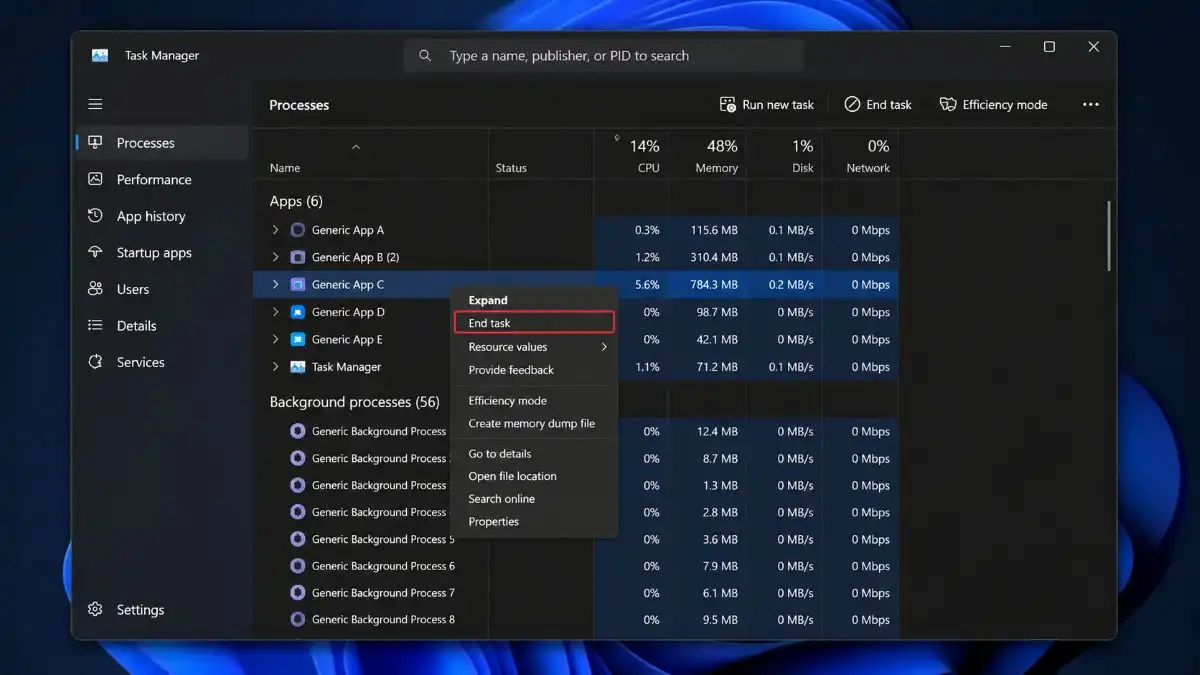
You can check this by using Task Manager.
How to check the app process
- Press Ctrl + Shift + Esc to open Task Manager
- Then look under the Processes tab
- Find the application that refuses to open
- Select the program.
- Click on the button ‘End task’.
- Try to launch the application again.
Windows Explorer can also be restarted from Task Manager in case there are some problems with the desktop or Start menu.
Note: Terminate a process only if you know what it is. Don’t terminate any critical processes of Windows.
3. Run the App as Administrator
Some programs might need extra permissions to launch and reach certain files.
Launch the program as an administrator.
How to run an app as Administrator
- Press Start.
- Search for the program.
- Right-click on it.
- Choose the option ‘Run as Administrator’.
- If Windows asks for user account control click Yes.
When the program runs, the problem might be linked to permissions.
Make the app always run as administrator.
If the program asks for administrator permissions, every time:
- Right-click the shortcut of the program.
- Click Properties.
- Go to the tab “Compatibility”.
- Check the box “Run this program as an administrator”.
- Click on Apply and OK.
However, keep in mind that you shouldn’t grant administrator permission to programs you do not trust.
4. Repair or Reset the App
Repairing some applications without full reinstallation is possible through Windows 11 built-in features.
This works well if the files or configurations for an app get corrupted.
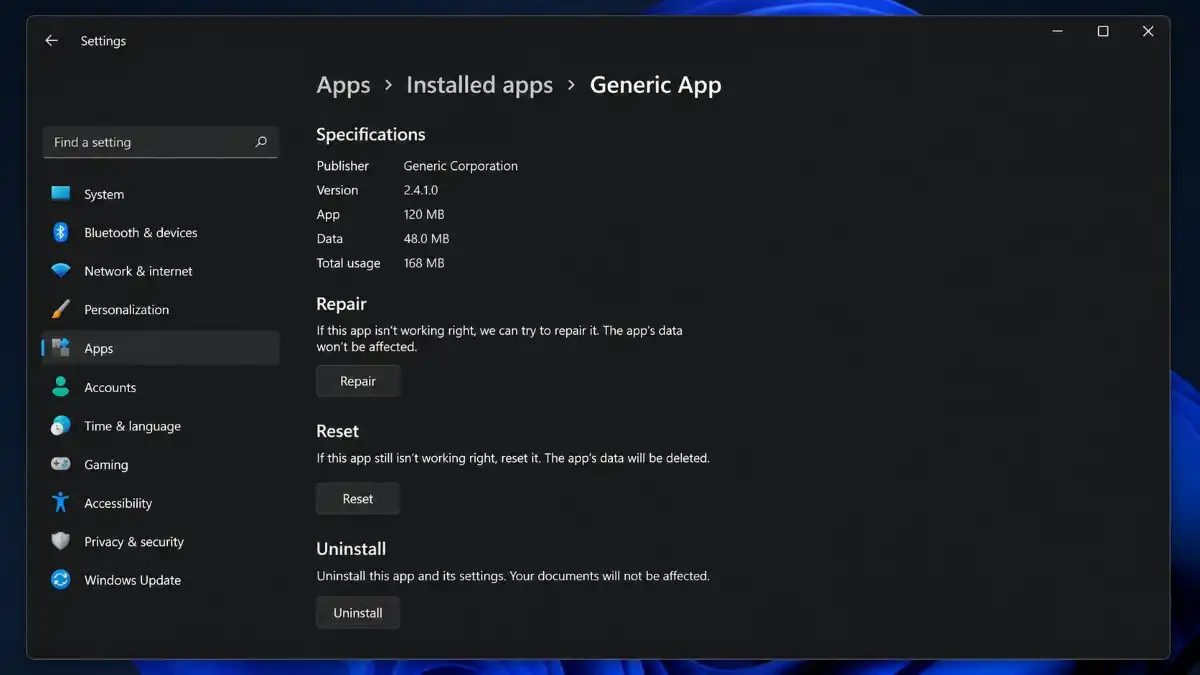
How to Repair an application
- Launch Settings.
- Go to Apps.
- Click on Installed Apps.
- Find the application.
- Click on the three-dot icon next to it.
- Choose Advanced options.
- Click on Repair.
Windows will try to repair your app without wiping away any of its data.
If Repair does not work, go back to the same menu and click on Reset.
Difference Between Repair and Reset
Repair tries to fix the application without affecting any of its data.
Reset restore the application to its default state and may remove locally saved app data and configurations.
First try to Repair before using Reset.
5. Update the Problematic App
An out dated application might not behave well with your current Windows 11 version.
Developers keep sending updates on a regular base to patch bugs, address compatibility problems and also security concerns.
In you have downloaded the app from the Microsoft Store
- Launch Microsoft Store.
- Go to Library.
- Check for updates.
- Click on Update all or the application that needs an update.
- Launch the application again.
In case you have downloaded the app from the internet
Visit the official website of the application and see if there is any new version.
Try not to download software updates from third-party sites, because these updates can bring unwanted programs or even dangerous stuff along with them.
6. Update Windows 11
If multiple programs stop working, there might be a fault in the operating system itself.
There are updates released by Microsoft that provide bug fixes, increased compatibility, and various security patches to Windows.
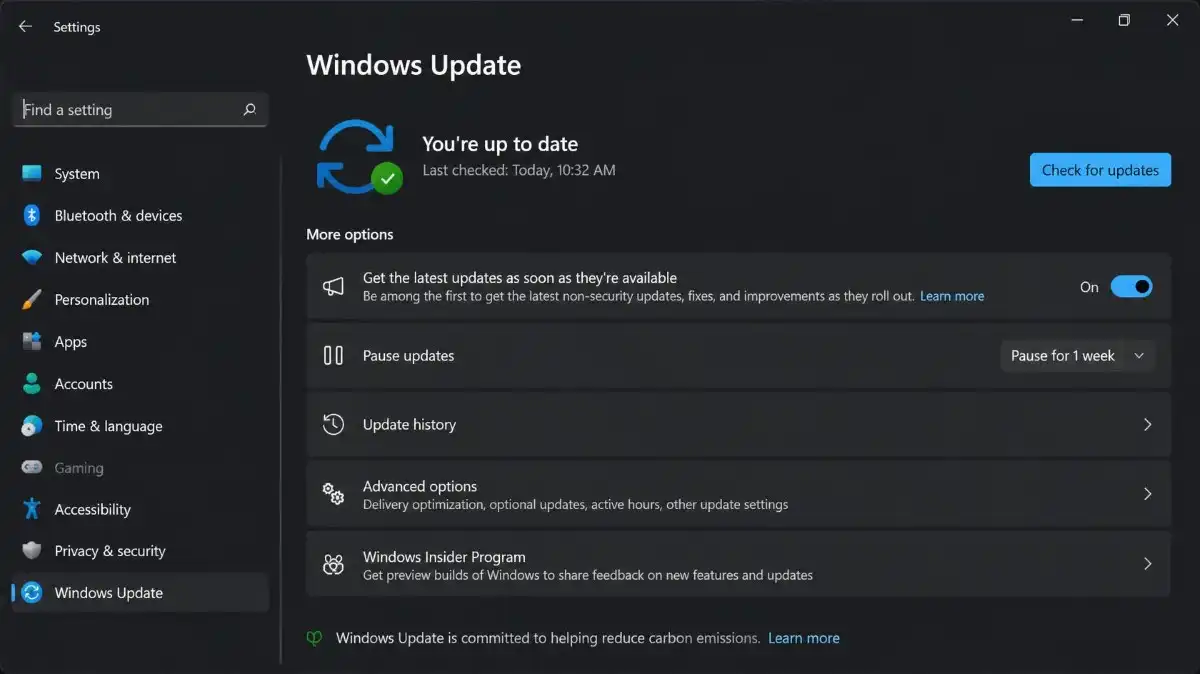
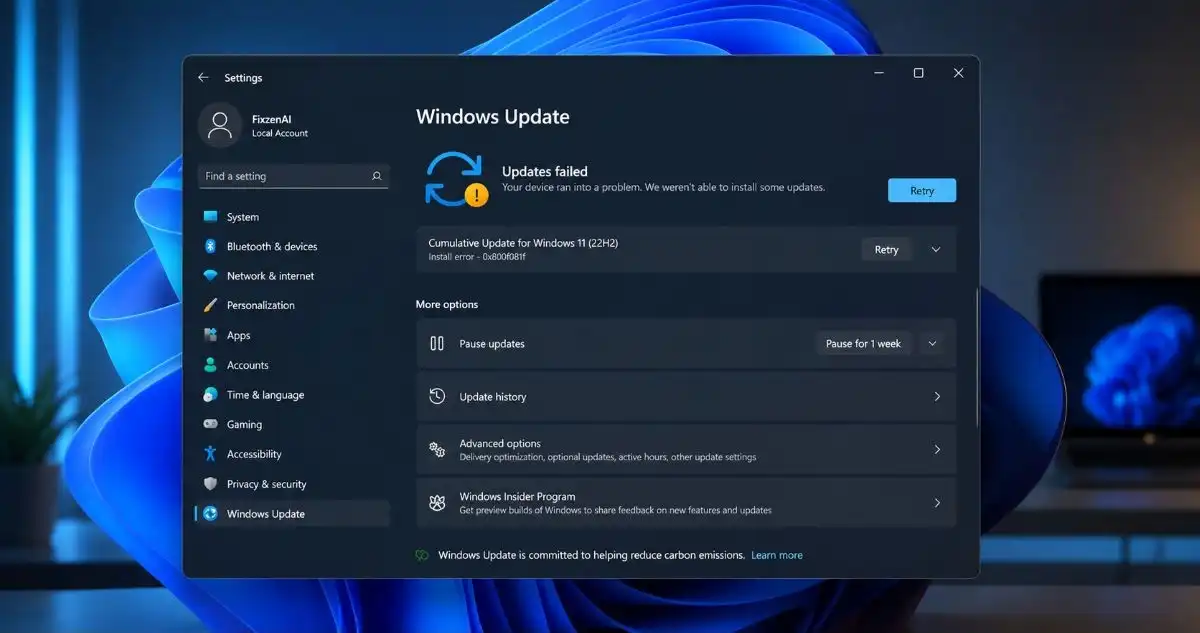
How to check for Windows updates
- Press the Windows key + I to access Settings.
- Choose Windows Update.
- Check for updates.
- Install available updates.
- Reboot your PC if Windows prompts you to.
Then attempt to open the app causing trouble again.
Pro tip: Should this have happened straight after you received a Windows update, make sure to remember the time when the problem first appeared.
7. Run the Windows Store Apps Troubleshooter
Windows provides certain troubleshooting techniques that can help identify specific configuration-related issues when problems arise with Microsoft Store apps.
Troubleshooting may depend on the version of Windows 11 you have and may be accessed from troubleshooting settings.
How to open troubleshooting settings
- Go to Settings.
- Choose System.
- Tap Troubleshoot.
- Click Troubleshoot Other troubleshooters.
- Search for the respective troubleshooter.
- If available, click Run.
Follow the on-screen instructions.
This method works when many Microsoft Store apps are affected.
8. Reinstall the App
If repairing, resetting, and updating the application still doesn’t help, reinstalling it might fix the whole situation by replacing damaged or missing program files.
How to reinstall an app
- Open Settings.
- Choose Apps.
- Tap Installed apps.
- Locate the problematic application.
- Click the three-dot menu.
- Pick Uninstall.
- Go through the uninstall steps, follow what it says on the screen, carefully.
- Restart your PC.
- Download the newest version from the app’s official source.
- Install it again.
Before uninstalling an app, make sure to check if it contains any important local data. Some apps delete saved preferences or other local files during uninstallation, so be sure to back up any important items first.
9. Check Windows Security for Malware or Blocked Apps
If there was an issue with an application stopping working abruptly or multiple applications start acting weird, scanning the PC is a good idea.
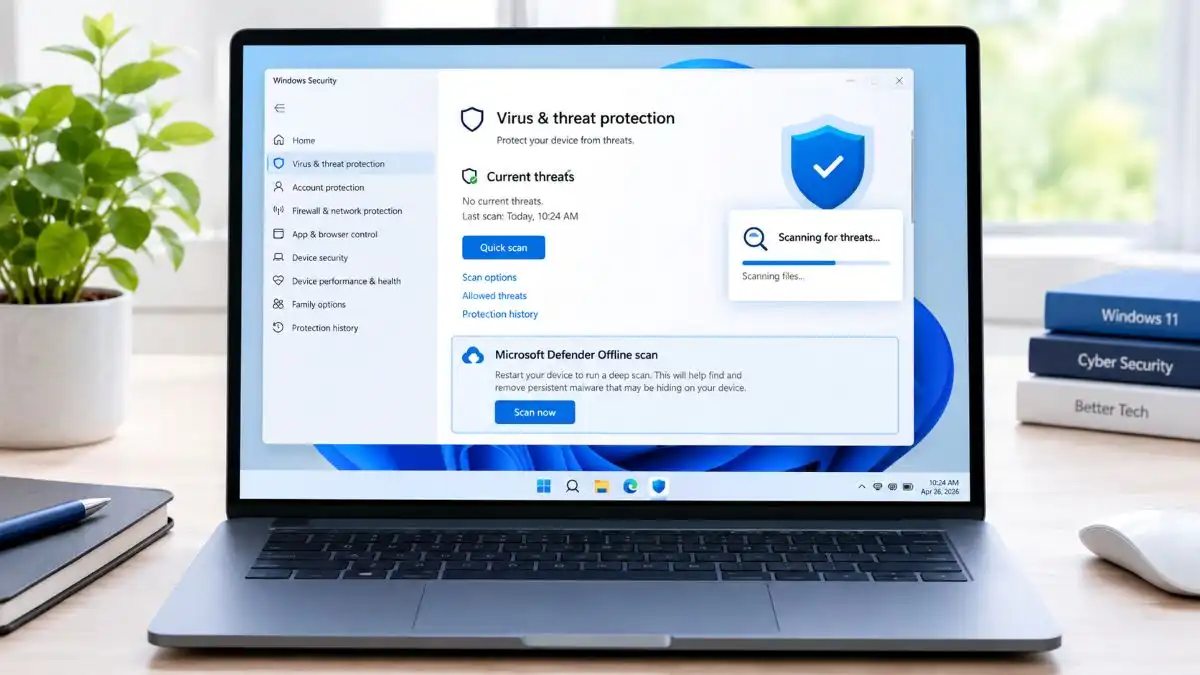
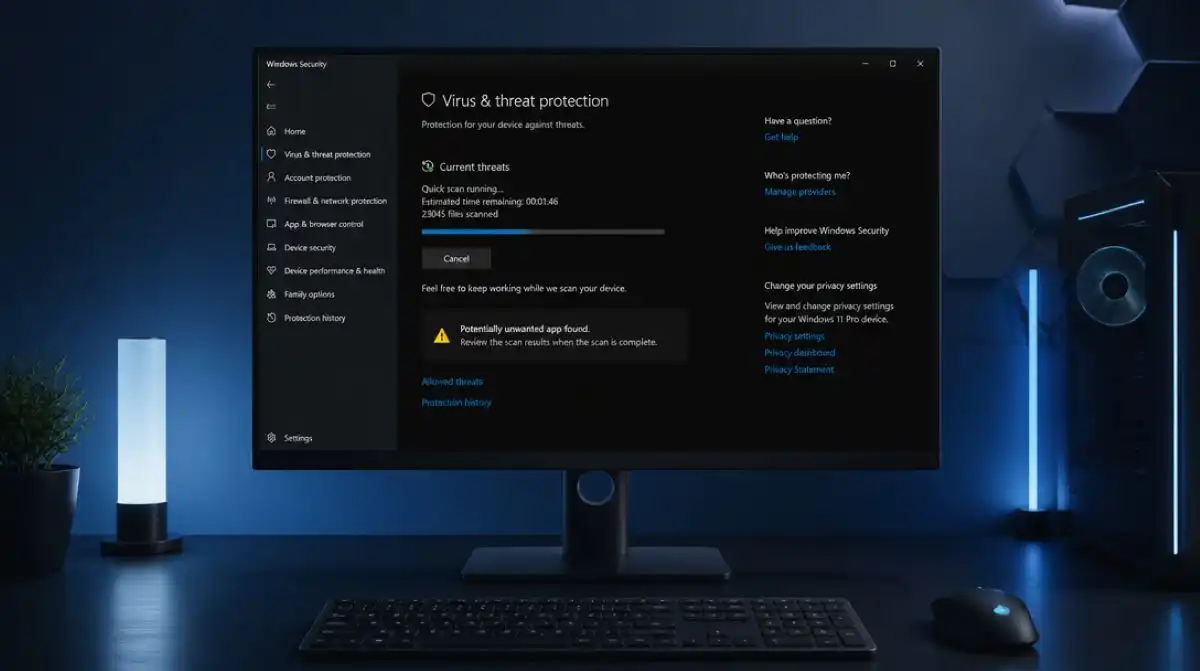
Performing a scan in Windows Security
- Launch Windows Security.
- Choose Virus & threat protection.
- Click on Quick scan.
- Allow the scan to complete.
If you think that the malware infection goes deep, follow our detailed guide on how to remove malware from Windows 11.
Also, check whether Windows Security is updated.
Moreover, if Windows Security or another security application has specifically blocked a trusted program, take a look at its protection history before adjusting the security settings.
Note: Never turn off your anti-virus permanently just because you need an application to run. If a security software detects any real threat, then first analyze the detection.
10. Repair Windows System Files Using SFC and DISM
And if all methods fail, the issue could lie with corrupted Windows system files.
Windows has two built-in command-line utilities that can be useful:
DISM (Deployment Image Servicing and Management)
SFC (System File Checker)
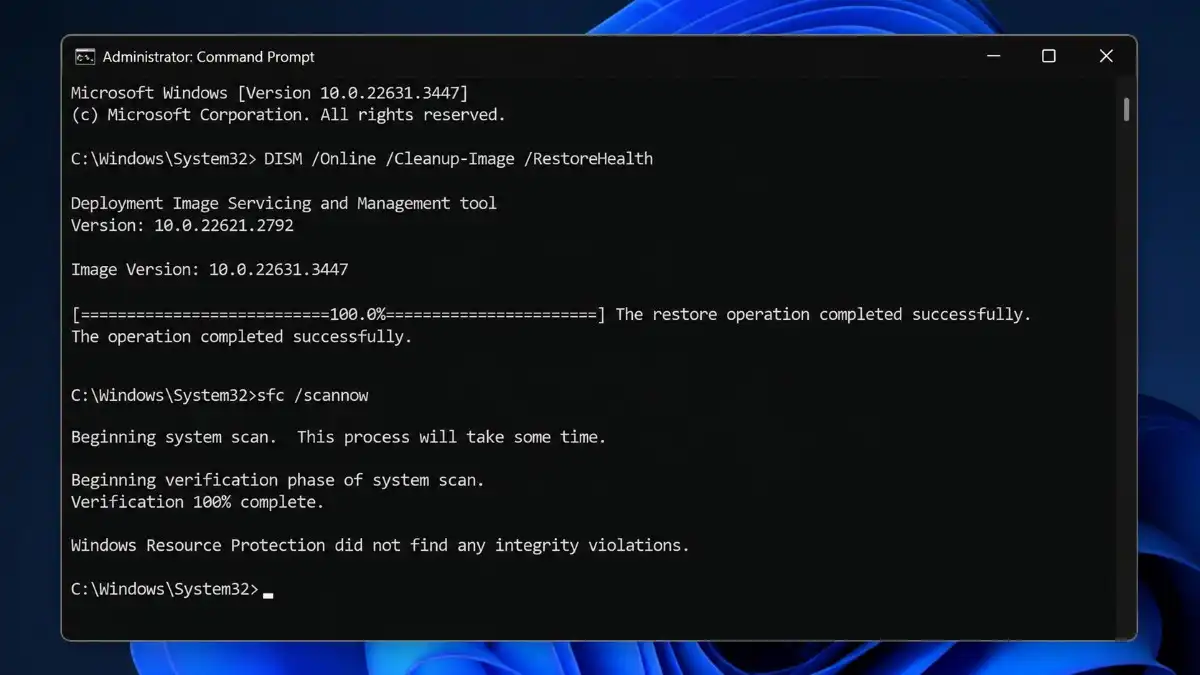
They have the ability to fix some of the issues occurring with Windows system components.
Step 1: Running DISM
- Go to Start.
- Use Search to find Command Prompt.
- Right-click on it.
- Click Run as administrator.
- Type: DISM /Online /Cleanup-Image /RestoreHealth
- Hit Enter key.
- Wait till the process completes.
The whole process takes some time. So please don’t close the command prompt while it’s running.
Step 2: Run the System File Checker
When DISM has finished up, run this next command.
sfc /scannow
Hit Enter and just wait there until the scan gets complete.
Once both of them are done, reboot your computer, then try opening the application again.
What to Do If Only One App Won’t Open
When everything else is functioning properly except for one application, then pay attention to that particular application rather than focusing on the entire Windows environment.
Here’s what you should do first:
- End the process of the application.
- Run it as administrator.
- Repair the app.
- Reset the app.
- Update the app.
- Reinstall the app.
- Check whether the developer lists a known Windows 11 compatibility issue.
If the problem affects a specific application such as Discord, see our guide on Discord not opening on Windows 11 for app-specific troubleshooting.
You may also refer to the official support documentation of the program that may contain known issues for your particular version of Windows 11.
What to Do If No Apps Are Opening
If more than one application fails to launch, then the issue is probably with Windows itself.
Begin with:
- Rebooting your PC.
- Updating Windows.
- Run Windows Security.
- Running DISM.
- Running SFC.
- Determining if there was any software or driver installation done recently.
- Using Windows recovery tools in case the problem persists.
If the problem is common for almost all applications and occurred after some changes in the system, then Windows recovery tool may be used after taking backup of important files.
Frequently Asked Questions
Q1. Why are my apps not opening in Windows 11?
Ans. Applications might not work due to corrupt files, outdated applications, problems with Windows, permissions, background applications, virus infections, or incompatibility issues.
Q2. How do I fix an app that won’t open?
Ans. Restart your computer, terminate the application background processes, fix or reset the application, update, and reinstall it if needed.
Q3. Why does an app open and then immediately close?
Ans. This may result from corrupted files of the application, issues of compatibility, missing dependencies, obsolete software or clash with other applications.
Q4. Will resetting an app delete everything?
Ans. A reset will erase any data stored locally by the app and set the application back to default settings. It is recommended to review the documentation of the application before resetting it.
Q5. Should I reinstall Windows if apps won’t open?
Ans. No, usually not. Do what is explained in this guide for fixing the problem first. Reinstallation of Windows should be viewed as a last option.
Conclusion
If your apps not opening in Windows 11, it shouldn’t mean that the program is faulty. There are a number of different reasons for this kind of issue in Windows 11, which include problems like a Windows slow performance, data corruption, outdated software version, permission issue, etc.
So first, try the more basic stuff—like rebooting your PC, stopping the app process completely, launching the application as an administrator, and repair the app. If nothing changes, then go to updating the app, reinstalling it, running security checks, and after that use the DISM and SFC tools.
For the majority of cases, one of these steps usually helps you whats going wrong and fix the real cause without having to reset or reinstall Windows 11.