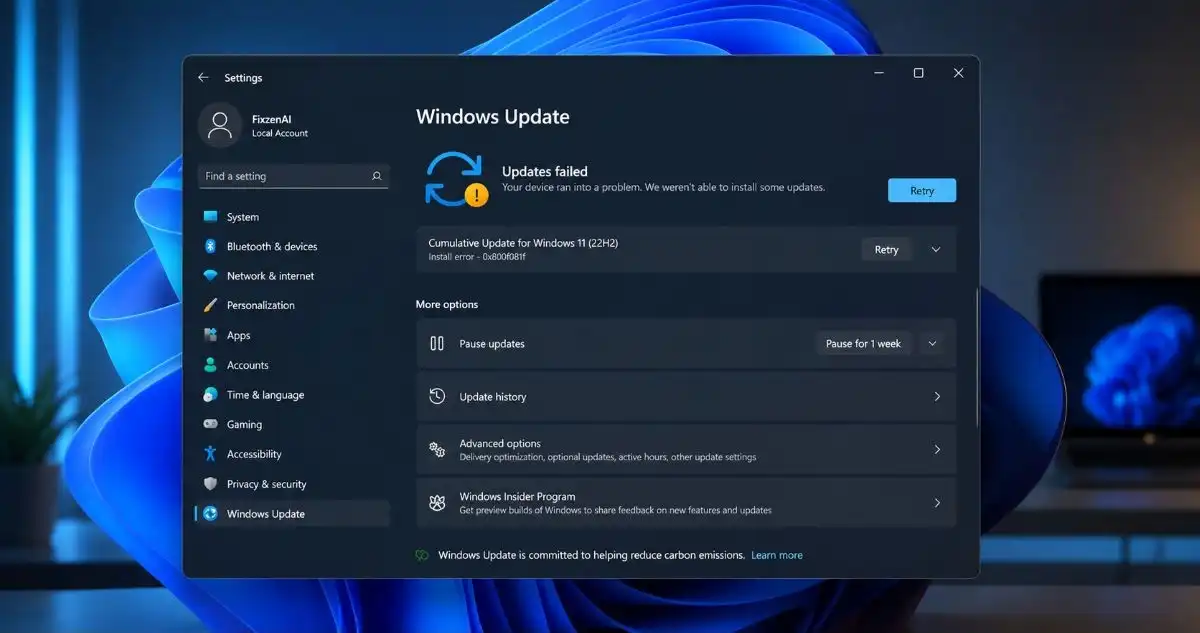
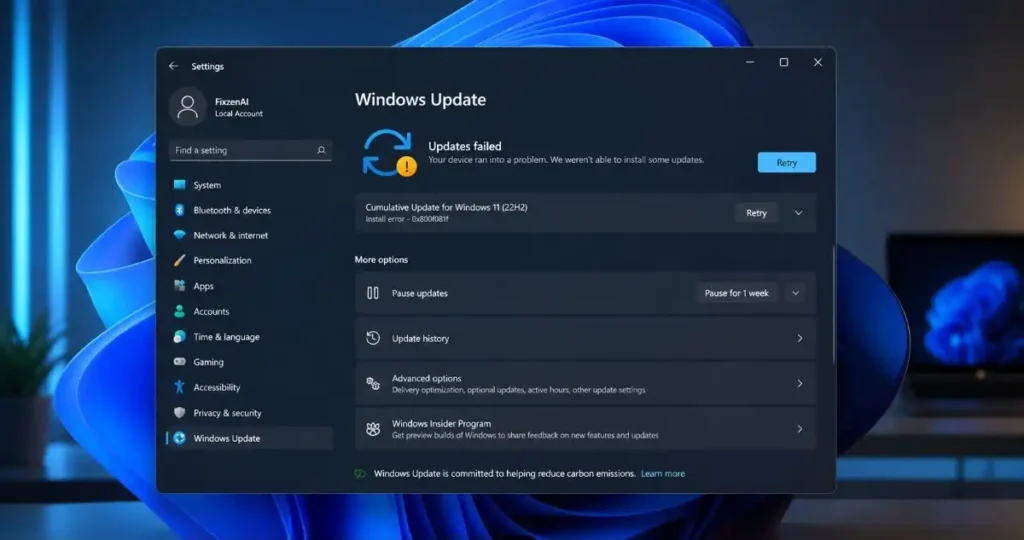
Is your Windows 11 not updating, getting stuck at download or showing an error while installing? There are various reasons why your Windows 11 may experience update problems, such as storage problem, corrupted update files, internet connection issues, broken system files, and problems with Windows update services.
However, the bright side is that all Windows Update problems can actually be fixed without needing to reinstall Windows.
In this article, you will find 10 methods of fixing Windows 11 update problems, as well as how to resolve if Windows 11 update is stuck or not downloading.
Why Is Windows 11 Update Not Working?
To solve this problem effectively, it helps to know some common reasons for this problem.
Some of them are listed below:
- Unstable or slow internet connection
- Not enough free storage space
- Damaged Windows Update files
- Wrong working of Windows Update services
- Corrupted system files
- Incompatible drivers
- Interference from third-party security software
- Temporarily damaged Windows Update
- Failed previous updates
If any of the above issues is giving you trouble, proceed through the solutions mentioned below step by step.
10 Ways to Fix Windows 11 Update Problems
1. Restart Your Windows 11 PC
It is possible to solve the problem of Windows Updates temporarily through a restart.
It is possible that Windows has some background tasks or other pending changes that will not allow a new Windows Update installation. You need to restart your computer and solve the problem with the update.
Steps to restart Windows 11
- Click the Start menu.
- Choose Power button.
- Click on Restart.
- Let Windows start up fully.
- Go to Settings > Windows Update
- Check for updates.
If the problem continues, proceed to the next possible solution.
2. Check Your Internet Connection
Poor internet connectivity can prevent Windows 11 from updating and even downloading the update files.
Windows Update taking too long to complete on a certain percentage? It might be because of your internet connection.
What to check
- Load several web pages on your computer.
- Reset your router if necessary.
- Disconnect and connect back to Wi-Fi.
- Where possible, use the Ethernet cable.
- Don’t start any other downloads when the Windows Update process is in progress.
Once you have verified that the connection is stable, go back to Settings > Windows Update and retry.
Can’t get Windows 11 update to download?
If the update gets stuck at 0%, follow through with the Windows Update Troubleshooter steps below.
3. Make Sure You Have Enough Free Storage
In order to download, extract, and install the updates, storage space on your Windows is required.
If your system drive is almost full, you may fail to install an update because of storage issue.
How to Check Available Storage Space in Windows 11
- Go to Settings.
- Choose System.
- Select Storage.
- Review available space on the system drive.
In case you lack space, delete any extra files. Storage Sense can help to clear up temporary files automatically.
If your PC is also running slowly while you’re trying to install an update, you may want to check these additional Windows 11 performance fixes
Quick Tip
Do not delete Windows system files to gain some extra space.
4. Run the Windows Update Troubleshooter
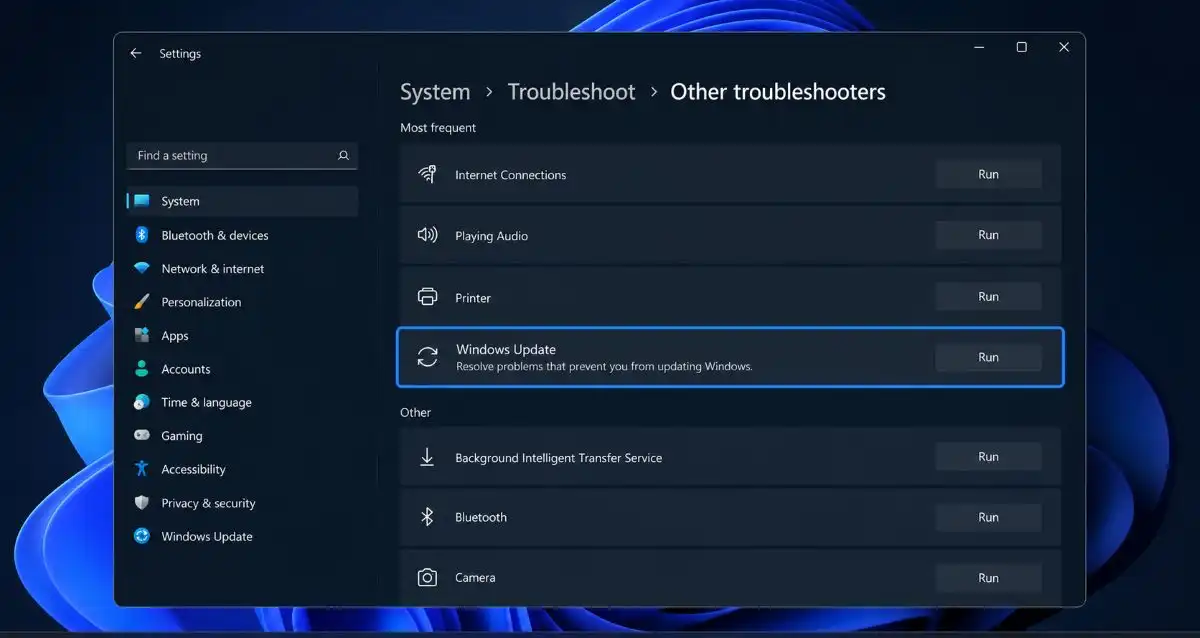
Windows 11 features an inbuilt troubleshooter that may diagnose and correct several of the common issues during Windows Update.
One of the best things about using the troubleshooter is that it does not require advanced commands.
How to use Windows Update Troubleshooter
- Go to Settings.
- Navigate to System.
- Click on Troubleshoot.
- Click Other troubleshooters.
- Select Windows Update.
- Click Run.
- Follow the prompts on the screen.
When the troubleshooter is done, reboot the PC and look for updates once again
5. Restart Windows Update Services
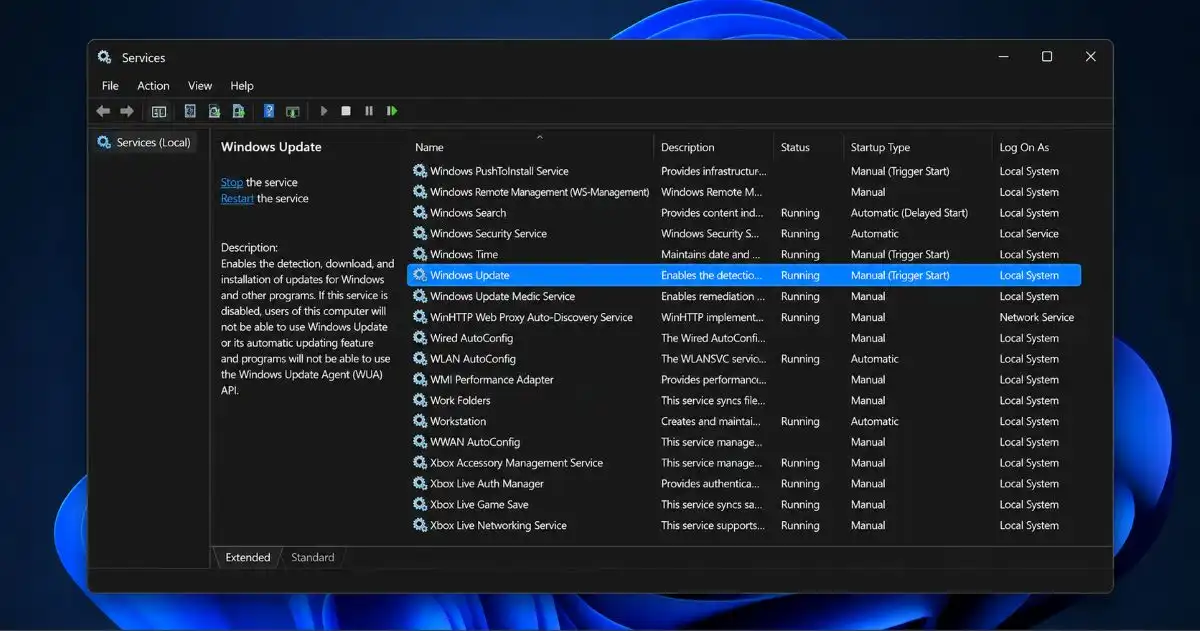
Windows update relies on some background services that might be causing some trouble in case they don’t work correctly.
The issue with Windows Update could be solved by restarting the Windows Update service.
How to restart Windows Update
- Windows + R keys combination.
- Type services.msc.
- Enter
- Look for Windows Update.
- Right click on it.
- Choose Restart.
If the service is not started, right-click on it and choose Start.
You may also look at the Background Intelligent Transfer Service (BITS) because Windows uses it to transfer the files in background.
Restarting the services and then coming back to Windows Update will work.
6. Clear the Windows Update Cache
Sometimes, Windows Update download corrupted or incomplete files.
In such cases, Windows will keep failing to install the same update.
Clearing the Windows Update cache will force Windows to download new updates.
Before you begin
The solution includes stopping all the Windows Update related services and removing temporary update files from the computer system.
Step 1: Stopping Windows Update services
Go to the Command Prompt as an administrator.
Enter the following commands one by one:
net stop wuauserv
net stop bits
Step 2: Emptying the update cache
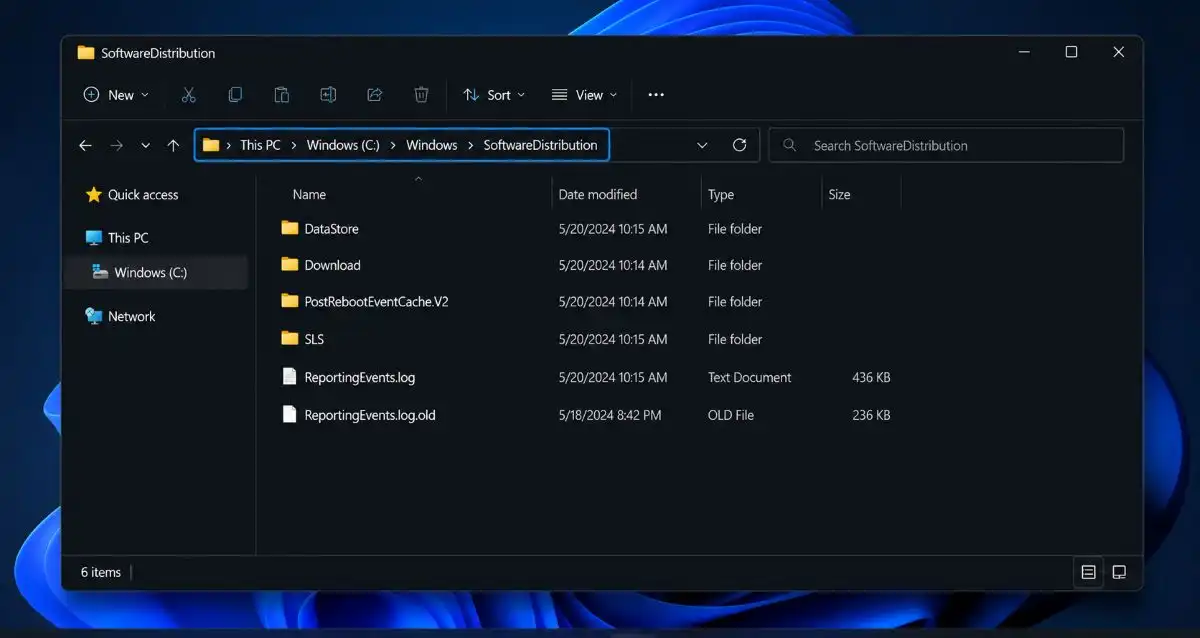
Go to the File Explorer and go to the following path:
C:\Windows\SoftwareDistribution
Clear all the files inside the Software Distribution folder.
Never delete the folder.
Step 3: Restart the services
Go back to the Command Prompt (as administrator) and execute:
net start wuauserv
net start bits
Then restart your computer and see now Windows Update works properly.
7. Run System File Checker (SFC)
Corrupted Windows system files may lead to Windows Update issues.
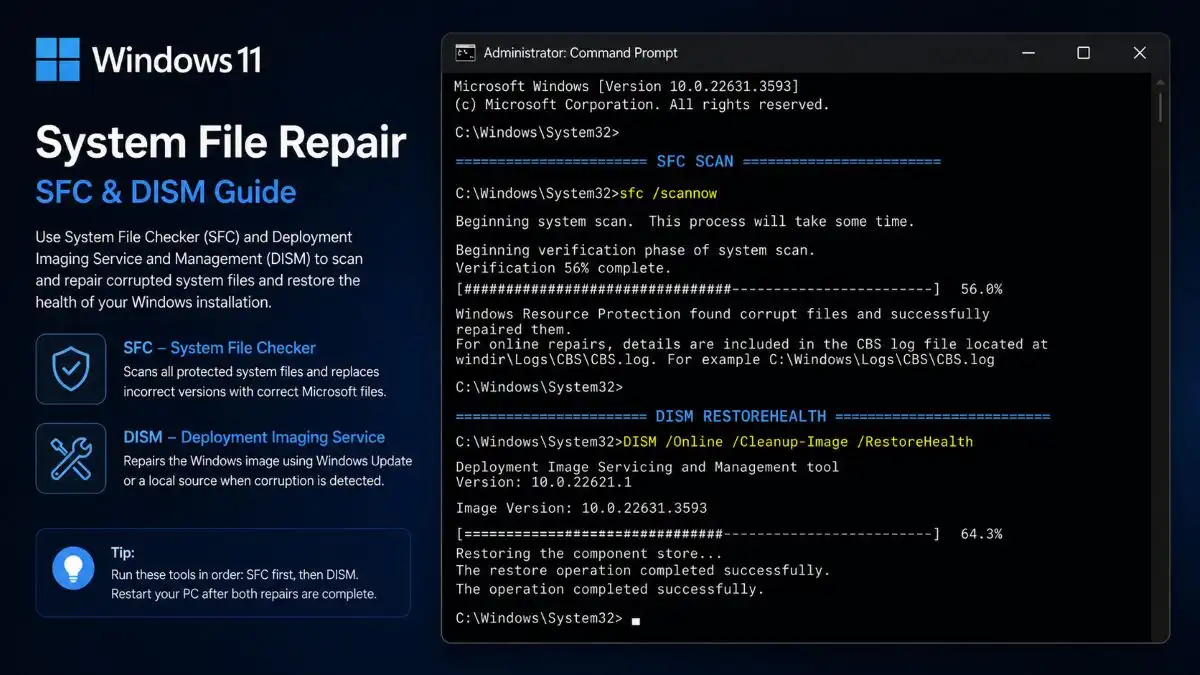
There is a built-in tool in Windows named System File Checker(SFC), that is able to check your protected system files and fix any corrupt file.
Steps for using SFC
- Open Start menu.
- Find Command Prompt.
- Right-click it.
- Choose Run as administrator.
- Type: sfc /scannow
- Hit Enter.
- Wait until it is finished.
Do not close the Command Prompt during the process.
After finishing this process, reboot your computer and update Windows again.
8. Run DISM to Repair the Windows Image
When the SFC does not fix the issue, there may be an issue with the Windows component store.
For that purpose, DISM utility can be used to verify and fix the Windows image.
Open command prompt as an administrator and execute:
DISM /Online /Cleanup-Image /RestoreHealth
This process may take some time.
After it is completed, reboot your computer and try SFC once more:
sfc /scannow
After rebooting, update your Windows.
If you’re also having trouble opening programs after a Windows problem, check our guide on fixing apps that won’t open in Windows 11.
9. Check for Driver or Hardware Compatibility Problems
Sometimes a Windows 11 update fails, due to an incompatible driver, or because of connected hardware.
It is especially important to consider this point if the update has been working successfully in the past but stopped working after connecting a new device or updating a driver.
Things to check
- Drivers for graphics
- Drivers for network
- Storage drivers
- Drivers for printers
- USB devices recently connected
- Newly installed hardware
If you have just connected a new device, unplug it and see whether Windows Update works.
Also, check the Device Manager for any devices with warning icons.
How to open the Device Manager
- Click Start with the right mouse button.
- Click the Device Manager option.
- Look for any devices that have warning icons.
- Find a new driver on the website of the manufacturer, if needed.
If a driver problem is causing crashes or system instability, see our guide on how to fix the Blue Screen of Death in Windows 11.
Do not install drivers from unfamiliar websites.
10. Reset Windows Update Components
If all of the above doesn’t work and you’re still having trouble updating Windows 11, then you should try resetting the Windows Update components.
It’s a little trickier to do, so beginners need to be careful with the commands.
Open up Command Prompt with administrative rights and execute:
net stop wuauserv
net stop bits
net stop cryptsvc
net stop msiserver
Then rename the folders that have something to do with the update:
ren C:\Windows\SoftwareDistribution SoftwareDistribution.old
ren C:\Windows\System32\catroot2 catroot2.old
Next, start the services back up again:
net start wuauserv
net start bits
net start cryptsvc
net start msiserver
Reboot your computer and check for updates.
Windows will recreate those folders, if necessary.
How to Fix a Windows 11 Update That Is Stuck
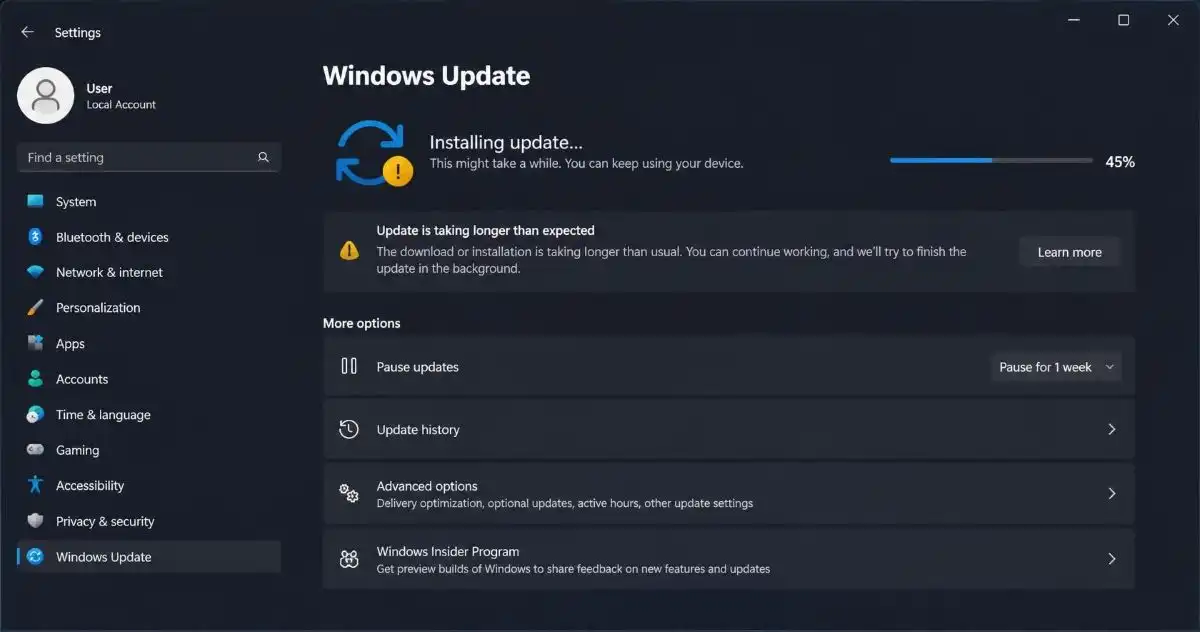
If the update for Windows 11 gets stuck at a certain percentage, don’t immediately assume that the update process has failed.
Sometimes it takes time to apply updates, especially on slow machines.
Not all updates happen quickly, especially in slower computers.
But if the update stays at the same percentage for long time and there is no progress at all, you could follow these steps given below:
- Ensure that your internet connection is steady.
- Check the storage space available.
- Reboot your computer if possible according to Windows guidelines.
- Use Windows Update troubleshooter tool.
- Reboot Windows Update services.
- Clear Windows Update cache files.
- SFC and DISM.
Do not force your computer to power off during installation of updates.
How to Fix Windows 11 Update Failed Errors
If there is an error shown by Windows such as “Updates failed,” “We couldn’t complete the updates” or some other Windows Update error, then begin from the simple solutions first.
Try these steps:
Restart → Internet → Storage → Troubleshooter → Windows Update services → Update cache → SFC → DISM
In case there is a particular error code, then look for that error code because every Windows Update error can be caused by something else.
What If Windows 11 Still Won’t Update?
When all of the above 10 methods have been tried but Windows 11 will not update anyway, the reason might be more specific.
Check:
- Windows Update error code.
- Compatibility of your machine.
- Specific drivers preventing Windows Update from working properly.
- Specific software installation preventing Windows Update from working properly.
- Any known problems with the Windows Update reported by Microsoft.
- Microsoft’s official support pages may also help troubleshoot the problem further.
- Consider the fact if the problem appeared immediately after making any changes to your device.
If you’ve noticed other unusual behavior on your PC at the same time, it’s also worth checking whether malware could be involved. You can learn how to remove malware from Windows 11 in our separate guide.
Frequently Asked Questions
Q1. Why won’t my Windows 11 update install?
Ans. There may be several reasons – lack of space, corrupted updates, or Windows Update issues. Try the solutions suggested in the article from the beginning to end.
Q2. What should I do if my Windows 11 update is stuck?
Ans. Give it some time. If it hangs for a long time, restart your PC and then run the Windows Update Troubleshooter.
Q3. Why is Windows 11 Update stuck at 0%?
Ans. This issue come up because of Internet connectivity, Windows Update services, or also corrupt update files. you should check your Internet connection and then restart the Windows Update services.
Q4. Why does my Windows 11 update keep failing?
Ans. The causes of repeated update failure can be an update cache problem, system file issues, lack of storage space, or drivers.
Q5. Can I fix Windows 11 Update without reinstalling Windows?
Ans. Yes, most common Windows 11 update problems are fixed with built-in tools, like the Windows Update Troubleshooter, SFC and DISM.
Q6. What if none of these Windows 11 update fixes work?
Ans. When you continue to experience problems updating Windows, make sure to write down the code of the error and find the solution that will address your particular problem.
Conclusion
Updating Windows 11 might not always go well, but usually, common problems associated with updates on Windows 11 can be solved. Begin with some basic troubleshooting, such as rebooting your computer, reviewing its internet connection and available storage, and launching Windows Update Troubleshooter.
When Windows 11 is not updating, try to clear out Windows Update cache, restart its services, and run SFC/DSIM to fix corrupted system files.