
If you’ve a Blue Screen of Death in Windows 11 (BSOD), you’re really not alone. That blue screen can pop up, stop what you’re doing, make your PC reboot, and show one of these error like CRITICAL_PROCESS_DIED, MEMORY_MANAGEMENT , or IRQL_NOT_LESS_OR_EQUAL.
Even if it looks pretty dramatic, a BSOD is usually the result of a software clash, outdated drivers, a faulty hardware, corrupted system files, or sometimes a Windows update. The good part is, a lot of Windows 11 blue screen errors can get resolved without you having to replace the whole computer.
In this full guide, you’ll figure out the most common causes behind the Windows 11 blue screen, and follow step-by-step options to troubleshoot and fix it.
What Is the Blue Screen of Death (BSOD)?
The Blue Screen of Death, or BSOD, shows up in Windows as a error screen. When a serious problem occur in operating system.
Once a BSOD happens, Windows basically stops everything right away to avoid data loss. After that, the system restart automatically, or it might just stay there on the blue screen, until you reboot it yourself, manually.
You might see messages like these, depending on what went wrong:
- SYSTEM_SERVICE_EXCEPTION
- CRITICAL_PROCESS_DIED
- MEMORY_MANAGEMENT
- PAGE_FAULT_IN_NONPAGED_AREA
- DRIVER_IRQL_NOT_LESS_OR_EQUAL
- KERNEL_SECURITY_CHECK_FAILURE
- DPC_WATCHDOG_VIOLATION
Each error point towards a different issue, but the troubleshooting given below usually fix most cases.
Common Causes of Windows 11 Blue Screen Errors
Most common reasons are:
- Corrupted Windows system files
- Outdated or incompatible drivers
- Bad RAM
- Overheated CPU or GPU
- Windows updates that didn’t finish right
- Malware infection
- SSD or hard drive errors
- BIOS compatibility issue
- Driver conflicts
- Hardware failure
How to Fix Blue Screen of Death in Windows 11
Below are the most effective solutions.
1. Restart Your Computer
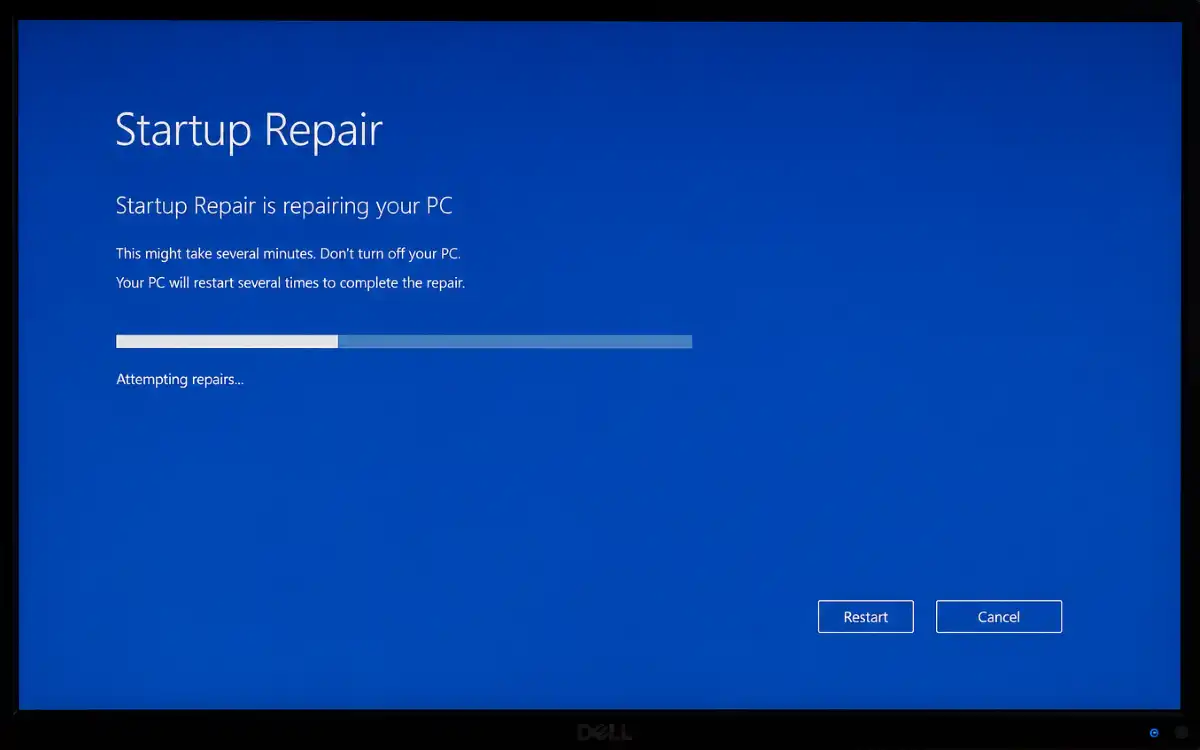
Sometimes the BSOD shows up only once, because there’s software conflict. First try start up repair your PC and then look whether it comes back again. If the blue screen keeps popping up repeatedly, go ahead and continue with the next methods.
2. Note the Error Code
Windows often shows a stop code like,
- CRITICAL_PROCESS_DIED
- VIDEO_TDR_FAILURE
- MEMORY_MANAGEMENT
- SYSTEM_THREAD_EXCEPTION_NOT_HANDLED
Make a note of the error code , before you restart or reboot. It gives clue about whether the issue is related to drivers, memory, storage, or maybe Windows itself.
3. Disconnect External Devices
Sometimes external hardware can lead to a blue screen problem.
- USB drives,
- External hard disks
- Printers,
- Gaming controllers
- Docking stations
- Webcams
Then reboot your PC. Once Windows loads normally, reconnect devices one by one , until you find out the device that’s actually causing the crash.
4. Boot into Safe Mode
Safe Mode starts Windows with truly essential drivers.
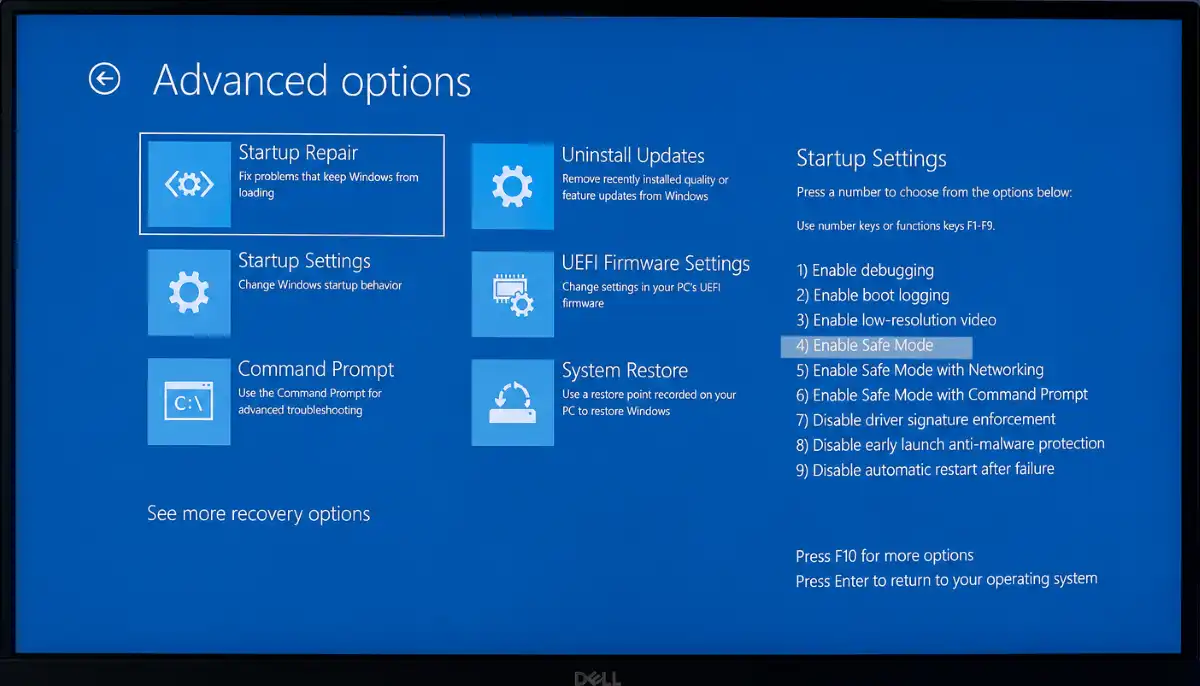
To get into Safe Mode, do this:
- Hold the Shift key while you choose Restart.
- Pick Troubleshoot.
- Go for Advanced Options.
- Select Startup Settings.
- Restart again .
- Press 4 for Safe Mode.
If your PC behaves normally while in Safe Mode, then the problem is probably coming from a third party driver or application.
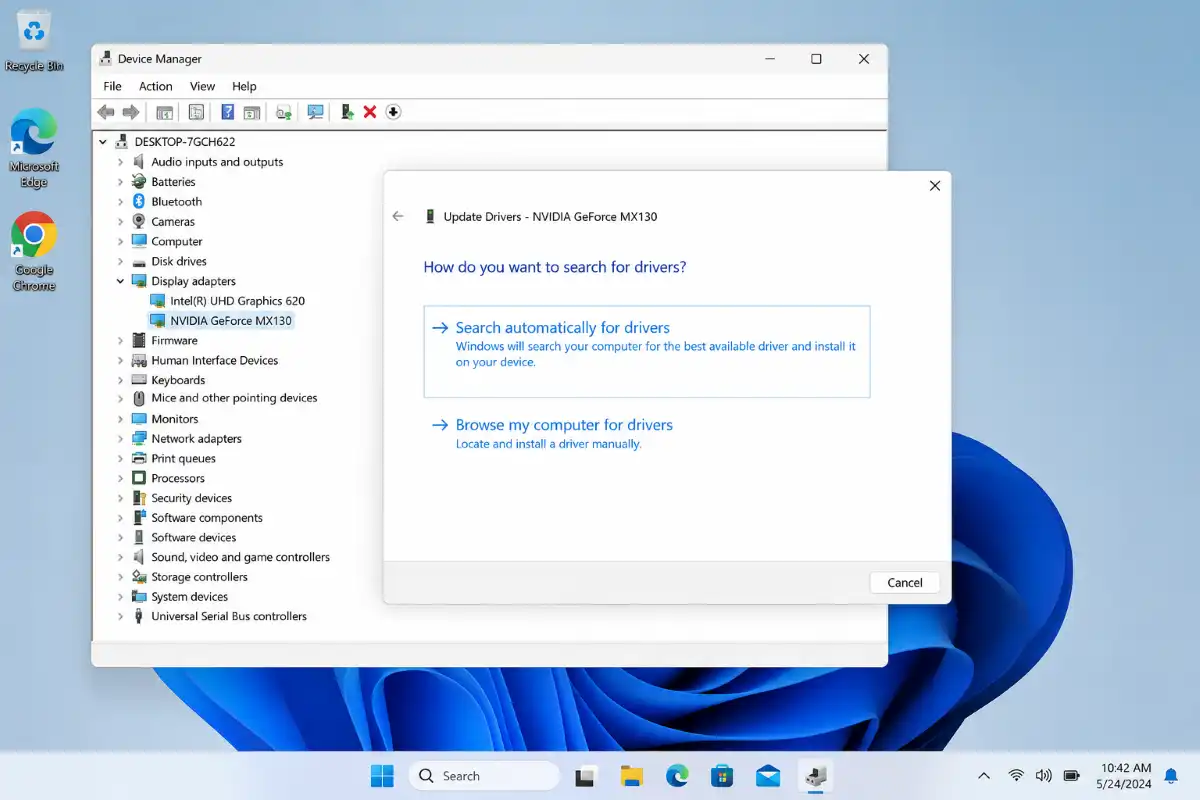
5. Update Device Drivers
Outdated drivers are still one of the main reasons behind BSOD crashes .
Try to update these device drivers-
- Display
- Network adapter
- Chipset
- Audio devices
- Storage controller
Follow these steps:
- Right-click the Start button .
- Open Device Manager .
- Expand the device category.
- Right-click the specific device.
- Pick Update Driver .
Also , for best compatibility, download the latest driver releases directly from your hardware manufacturer’s website.
6. Install the Latest Windows Updates
Microsoft, regularly releases updates that fix annoying bugs, that could lead to sudden system crashes. If you want to check for updates you can do this.
- Open Settings
- Choose Windows Update
- Press Check for Updates
- Install any available updates
- Reboot your PC
So, keeping Windows up to date improves system stability and security.
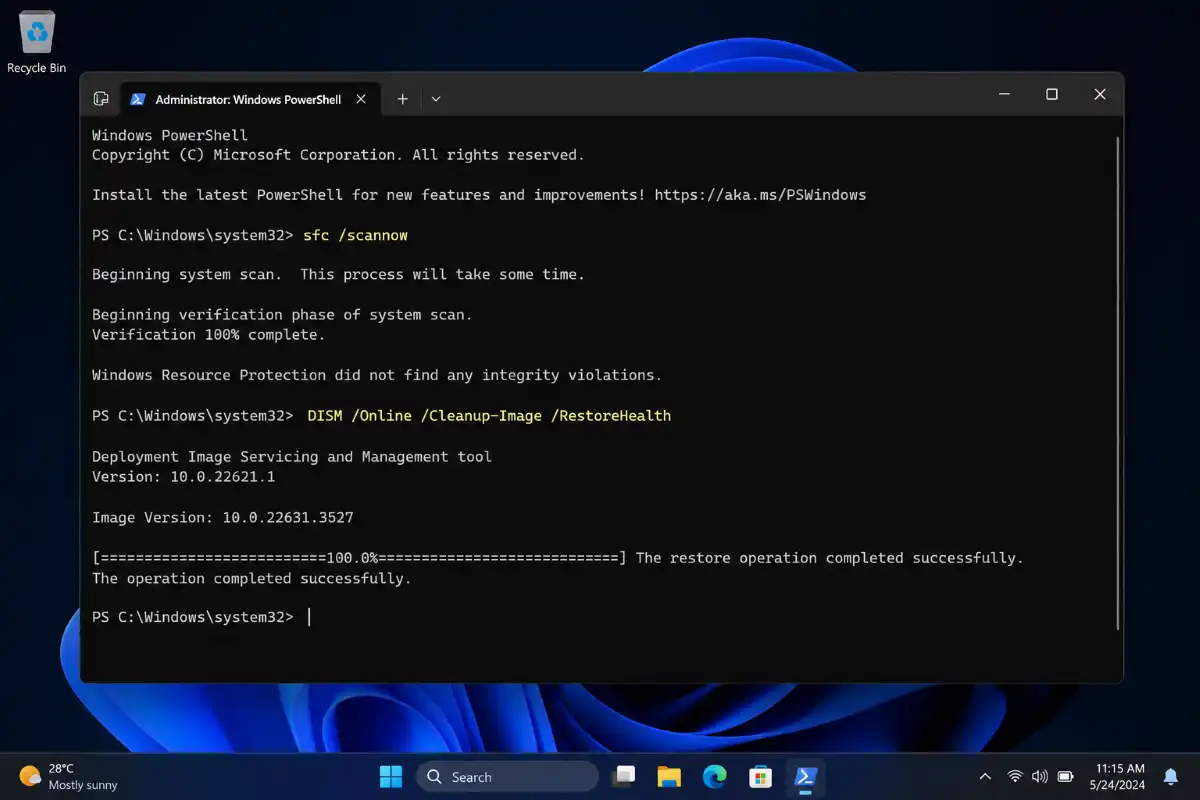
7. Run System File Checker (SFC)
Corrupted Windows file(s) also a cause of BSOD errors.
Try running the System File Checker.
- First, open Command Prompt.
- Search for Command Prompt.
- Right-click it, then pick Run as Administrator.
- Type this, and press Enter:
sfc /scannow
Just wait while it checks everything. When the scan is done, if any corrupted items are located, Windows will automatically fix them. After that, go ahead and restart your PC.
8. Run DISM Scan
If SFC cant fix every file then , use DISM. Open command prompt as Admin.
Then run:
- DISM /Online /Cleanup-Image /RestoreHealth
This command repair the Windows system image. Once it finishes , run SFC again too.
9. Check Your Hard Drive
Hardrive errors also a cause of blue screen crashes, which is unexpected.
First open Command Prompt, as Administrator. Then type:
- chkdsk C: /f /r
- Hit Enter.
- After that restart your PC.
Windows check the drive and try to fix damaged sectors. Big drives can take quite a few hours to finish, so don’t be panic. And also Learn Microsoft guide for DISM commands.
10. Test Your RAM
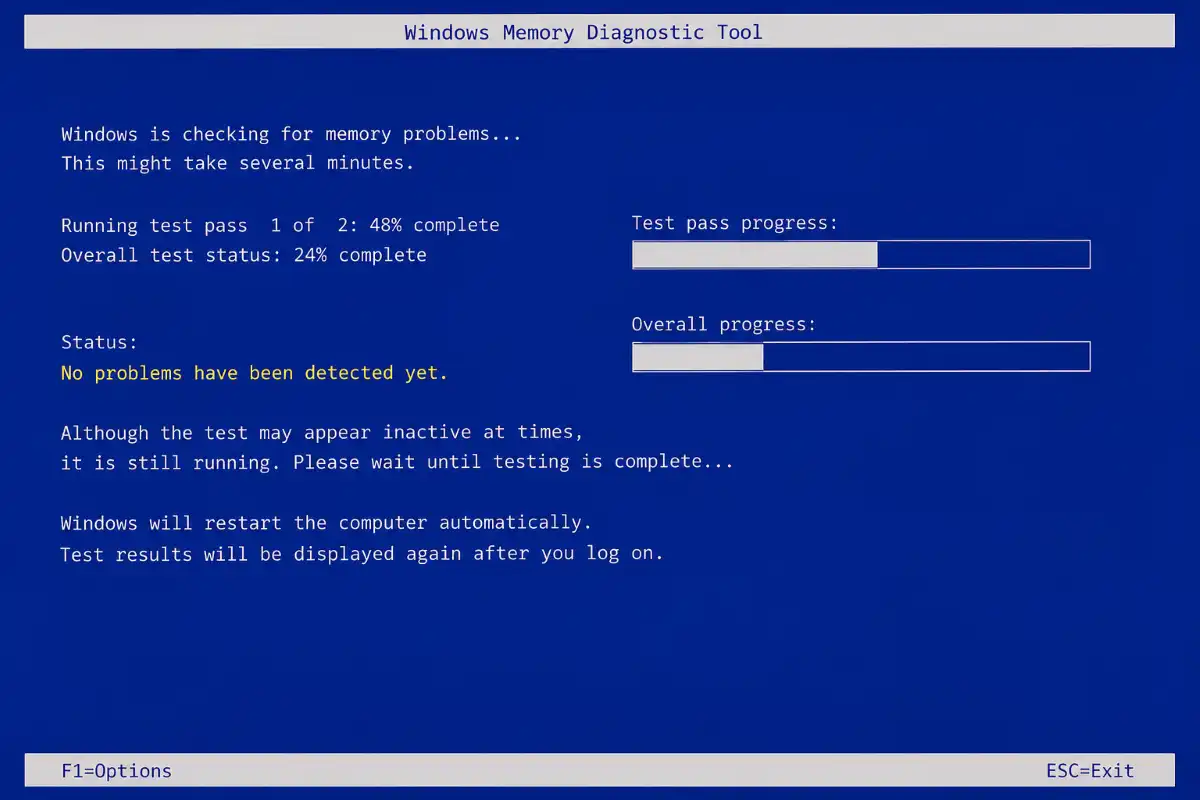
Faulty RAM modules can pretty often trigger BSOD errors, and if it happens more than you would think. Use a built in Memory Diagnostic tool that you can use.
Just follow these steps, kind of simple, mostly:
- Press Windows + R.
- Type :
mdsched.exe - Press Enter.
- Choose Restart Now.
After that, Windows will automatically test your RAM. If you seen any error, it is recommended that you replace the faulty memory module.
11. Uninstall Recent Software or Updates
If the blue screen showed up after installing new software, or after a Windows update , then try removing it first.
Go to, Settings → Apps → Installed Apps
Look at what you installed recently and uninstall those programs.
If it was a Windows update:
Settings → Windows Update → Update History → Uninstall Updates
After that, restart your computer.
12. Perform a System Restore
System Restore basically takes Windows back to an earlier working condition, without deleting your personal data.
Steps:
- Search for Recovery.
- Open Recovery.
- Select Open System Restore.
- Pick a earlier restore point that was set before the blue screen trouble started.
- Finish the restoration process.
This method fixes, software-caused crashes.
Advanced Fixes for Persistent Blue Screen Errors
If none of the previous methods work, then, try these advanced solutions.
Reset BIOS Settings
Sometimes, the wrong BIOS update setting, or even a bit of overclocking too aggressive can cause system instability. Try restoring the BIOS settings back to their default values.
Update BIOS
BIOS updates are releases from motherboard manufacturers side that improve Windows compatibility. So before updating always try to follow the manufacturer’s instructions.
Disable Overclocking
CPU, GPU, or RAM overclocking may result in random crashes.
Restore default clock speeds and test system stability.
Scan for Malware
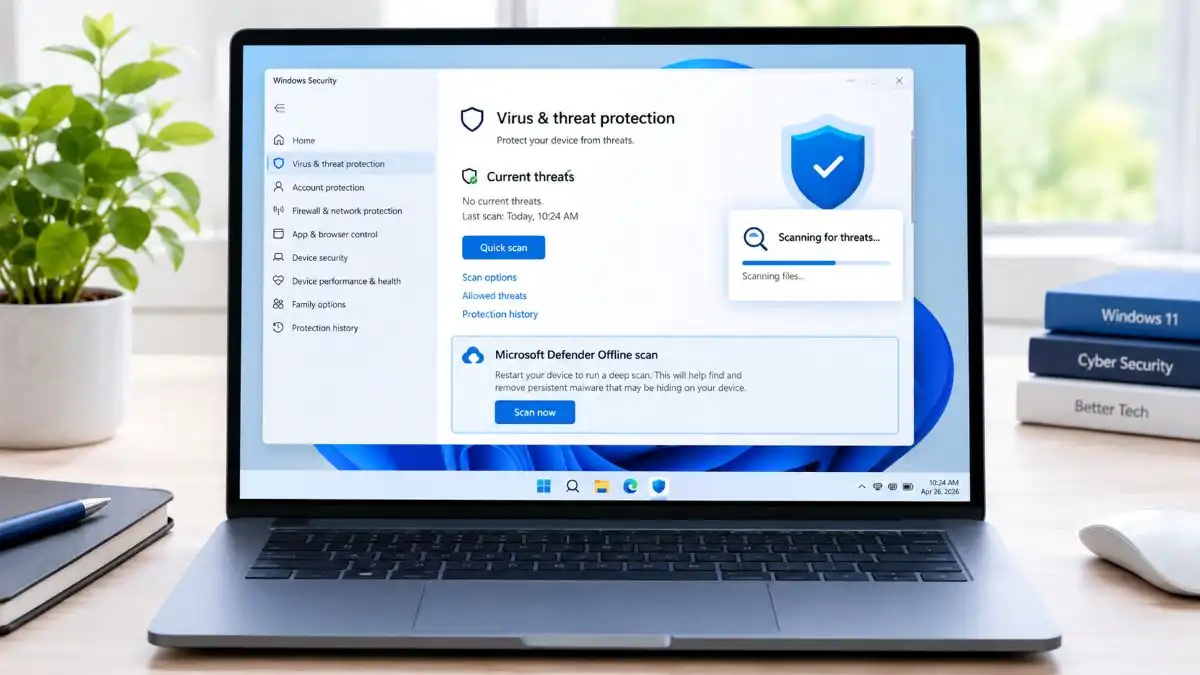
Some malware can mess up system files and then blue screen stuff happen. Try using Windows Security or a trusted antivirus program, run a full system scan, and don’t skip it.
Reset Windows 11
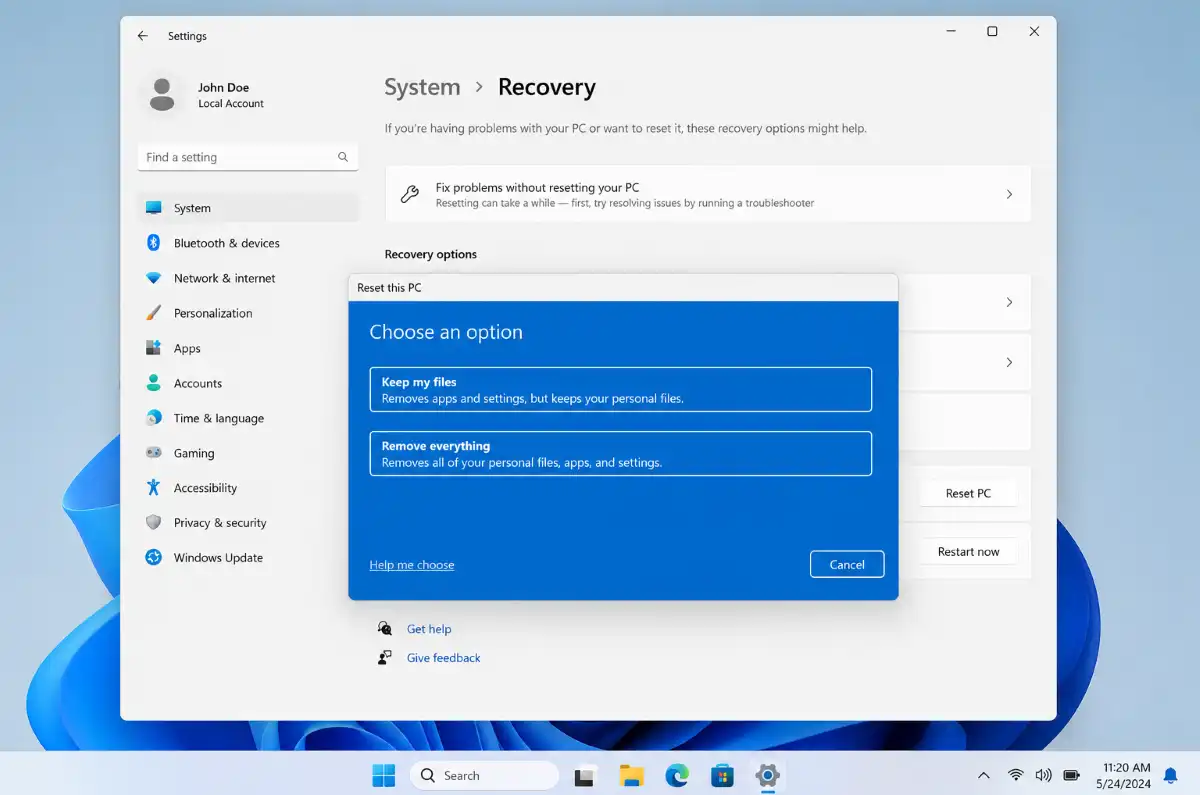
If the software corruption is, really severe, resetting Windows by using Windows Recovery or Repair might be the quickest option.
Go to
Settings → System → Recovery → Reset this PC
Now choose between complete reset or keep files and reset window.
How to Prevent Blue Screen of Death in Windows 11
Prevention is better than troubleshooting. Try these best practices:
- Make sure Windows stays updated
- Install drivers only from trusted sources
- Skip those unnecessary registry cleaners
- Keep an eye on CPU temperatures
- Keep your SSD in good condition
- Run malware scans on a regular basis
- Avoid unstable overclocking, honestly
- Use a reliable power supply unit
- Back up important files regularly
This kind of regular care helps lower BSOD occurrences quite a lot.
Frequently Asked Questions
Q1. Why does Windows 11 keep showing a blue screen?
Answer. Repeated blue screens point to hardware problems, maybe faulty drivers, corrupted Windows file(s), overheating, or RAM memory failures. Sometimes it’s one of those or a mix of them ,
Q2. Can RAM cause a blue screen?
Answer. Yes.Faulty RAM is one of the most common causes of those BSOD errors, especially MEMORY_MANAGEMENT and PAGE_FAULT_IN_NONPAGED_AREA .
Q3.Will resetting Windows fix the blue screen?
Answer. Yes. If the trouble is software related, a simple Windows reset resolve BSODs issue. But when it comes to a hardware failure, it need replacement or repair.
Q4. Can outdated drivers cause BSOD?
Answer. Yes. Graphics drivers, chipset drivers, storage drivers, and network drivers are common reasons of Windows 11 crashes. So it is essential to keep them updated.
Q5. Is the Blue Screen of Death dangerous?
Answer. The BSOD itself is a protective mechanism meant to prevent more damage to your system or your data. If you see blue screens very often, that usually hints at some deeper hardware or software issue.
Conclusion
A Blue Screen of Death in Windows 11 can be frustrating, but most of the time it is still fixable if you do the troubleshooting steps in the right way. Start with restarting your PC, unplugging the external devices, and then updating drivers.
If the issue keeps showing up, try the built-in tools—System File Checker, DISM, CHKDSK, and Windows Memory Diagnostic to identify system issue and repair it.
For crashes that keep happening, check recent software install, test your hardware and maybe use a restore or reset Windows. If you keep your operating system updated, maintain your hardware in good condition, and follow sensible best practices, you can lower the chances of future BSOD errors, so your Windows 11 PC overall run smoothly.
If you’re looking to improve productivity and browser performance, you may also find these guides helpful: