
Introduction
Even basic can things can become a bit annoying why is my browser so slow. Like, browser performance problems really waste time, even when you’re just waiting for web sites to load, or getting that odd latency when you are streaming videos, or you run into frequent freezes that just keep happening.
Fortunately, there are easy fixes for most browser issues. This post will explain why your browser might be operating slowly and give you 15 practical solutions to boost its performance.
Why Is My Browser So Slow?
Modern web browsers are made to deal with tangled websites, streaming videos, add-ons, and even web applications. Still, with time, a few things can quietly drop their performance.
Common reasons include:
- Too many open tabs
- Too many browser extensions
- An overloaded cache and cookies
- An outdated browser version
- Malware or unwanted software
- Low available RAM
- A slow internet connection
- Hardware acceleration that conflicts with your setup
- A corrupted browser profile
Fortunately, most of these issues can be fixed within minutes.
How to Speed Up a Slow Browser (15 Fixes)
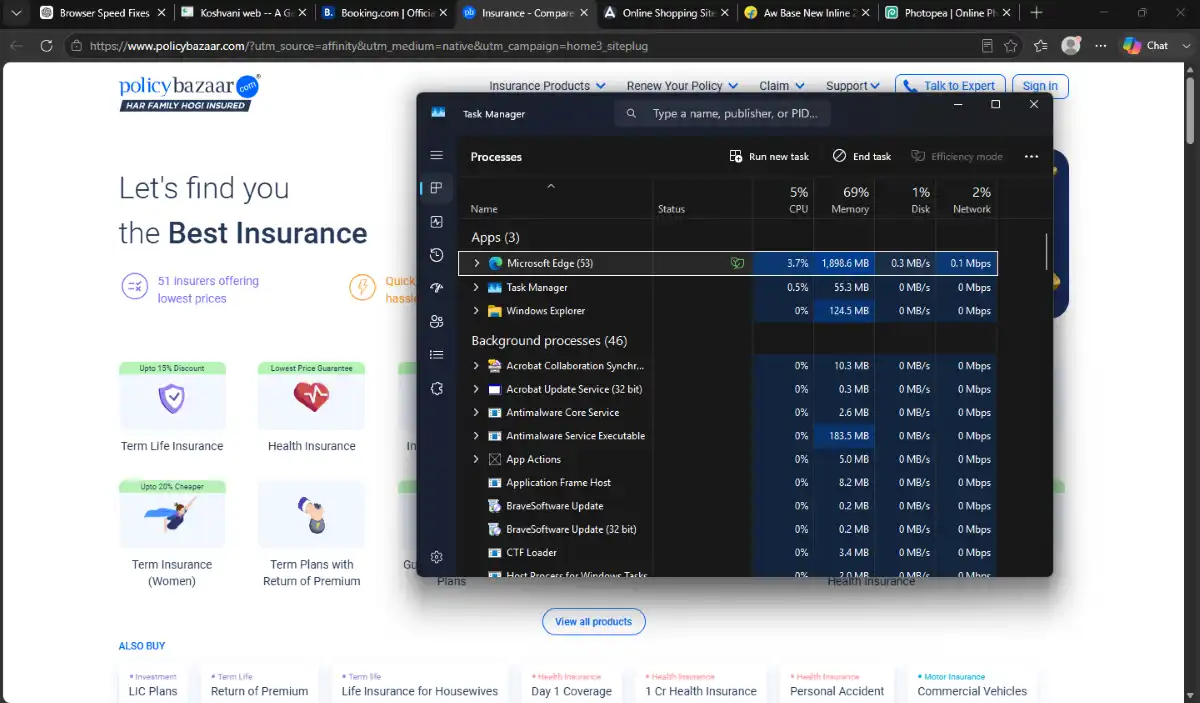
1. Close Unused Tabs
Every browser tab uses a lot of memory. If you open too many tabs every day, your browser will struggle and its performance will slow down.
What to do:
- Shut the tabs you’re not actually using anymore.
- Save the pages that matter by bookmarking them, instead of letting them sit there.
- Try the browser’s tab grouping feature to keep things in order, so it dosen’t get messy.
Therefore, close the unused tabs, which will increase the performance of your browser.

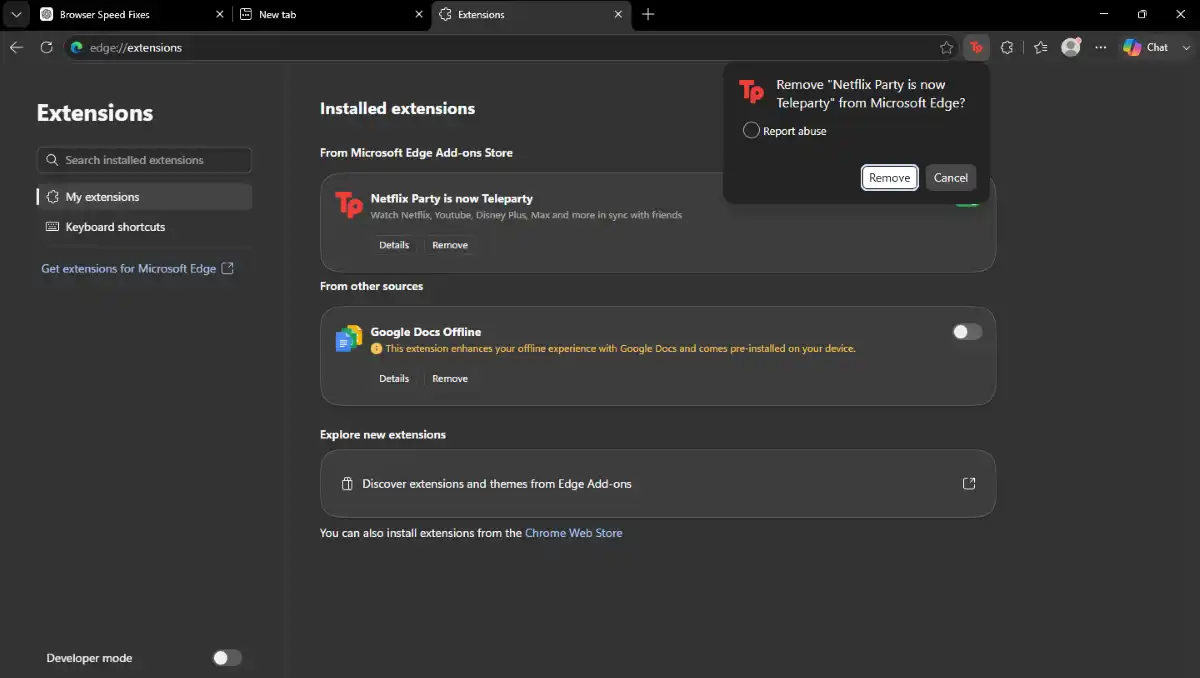
2. Remove Unnecessary Browser Extensions
Extensions can make your browser work better, but if you keep too many installed it may slow down startup times and, honestly, the day-to-day browsing too. Sometimes it’s like the browser is dragging, even if nothing else changed.
Check your extensions:
- Go through your extensions and remove the ones you use, barely at all.
- Also disable the add-ons that are outdated or no longer supported.
- In the end keep only the essential ones, and let the rest go.
Some extensions run continuously in the background, which consumes a lot of memory and CPU power.
3. Clear Cache and Cookies
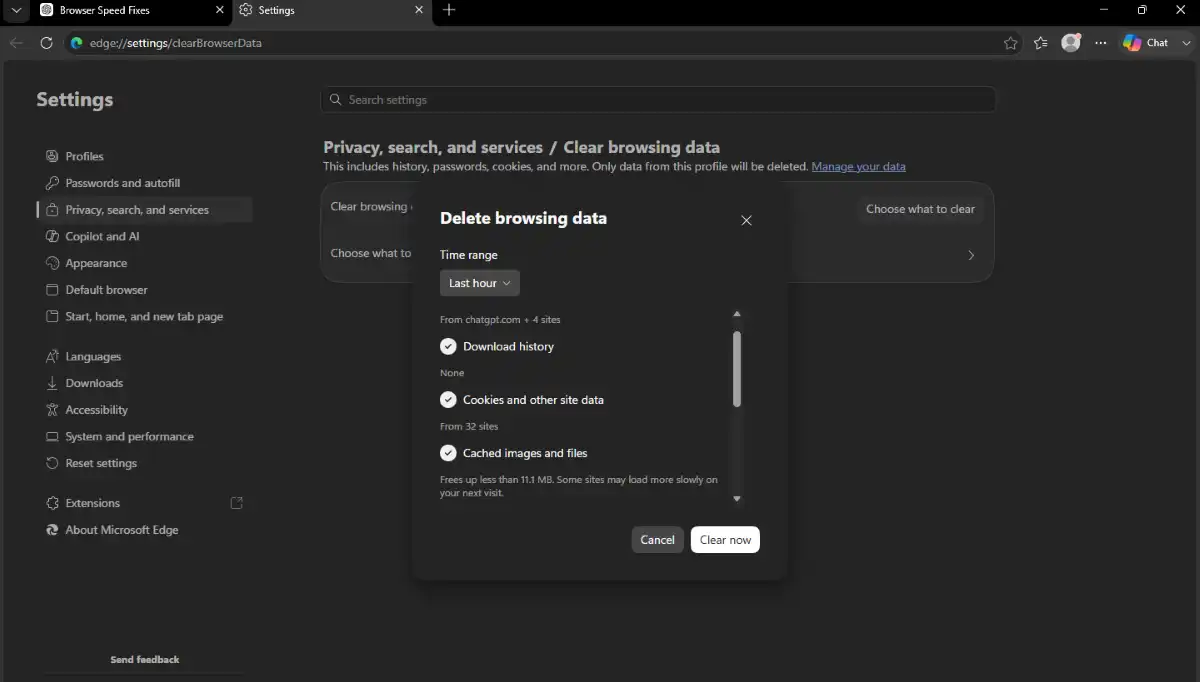
Browsers keep cached files so pages load faster. But if the cache gets overloaded, a site can end up showing incorrectly or, yeah, it may load slower than expected. There are a few nice benefits to clearing the cache:
- it frees up storage
- it removes aged website files
- it resolves loading problems
- it makes the browser feel more responsive
Doing a cache clean every few months is good habit. If you need browser-specific instructions, refer to the official Chrome Help or Microsoft Edge Support documentation.
4. Update Your Browse
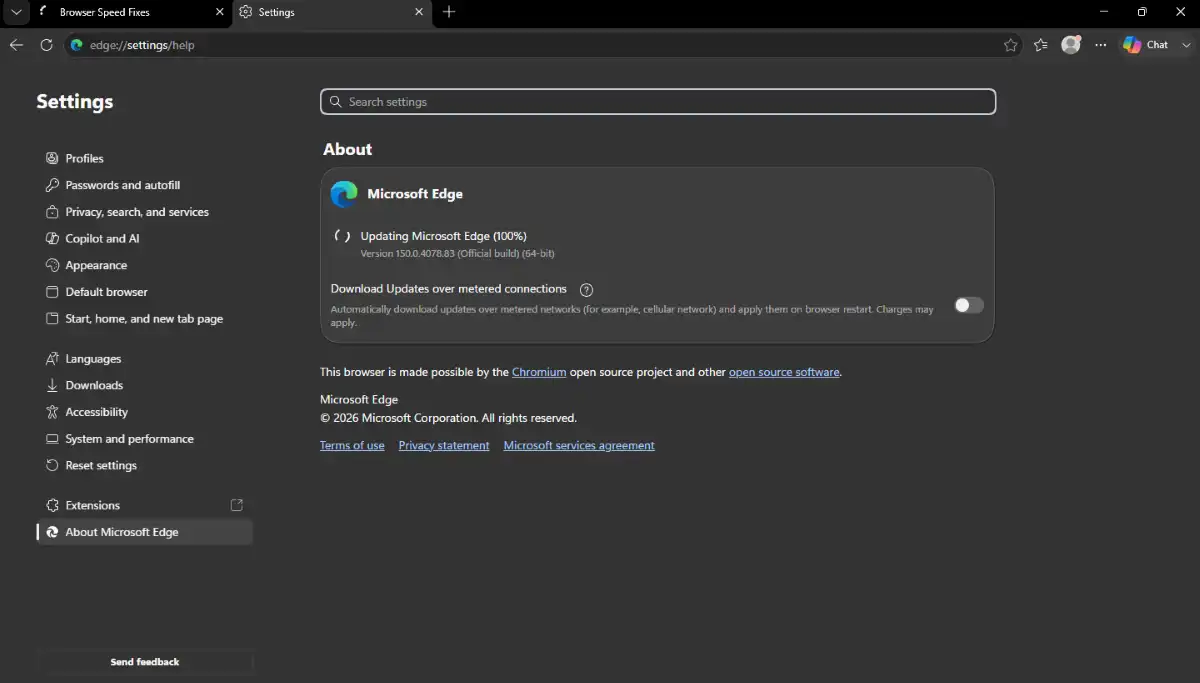
Browser developers regularly release updates that boost performance, bugs fix, and also cover security weaknesses. If your browser is older, you may end up with Slower browsing Weird site compatibility problems More frequent crashes Extra security risks. So always, keep that browser updated, with the newest version.
5. Restart Your Browser Regularly
A lot of users just keep their browsers running for days, or even weeks. Honestly if you restart it, helps a lot, like It frees up memory Closes all those background processes It refreshed the browser performance It can apply the updates A fast reboot often fixes the temporary lag or weird slowness you get sometimes.
6. Disable Background Applications
Some browsers keep running background processes even after you close the main window. Those background process can start consuming
- CPU resources
- Memory
- Battery life
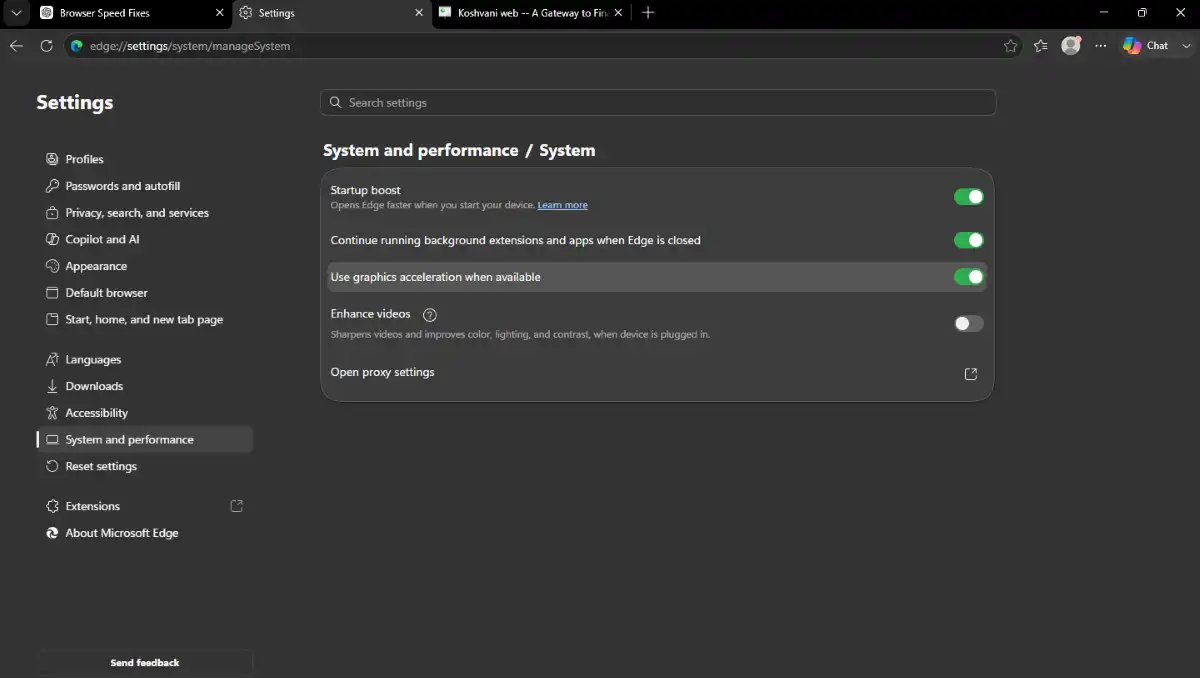
To make everything run smoother, disable any unnecessary background applications in your browser settings , so overall performance actually improves.
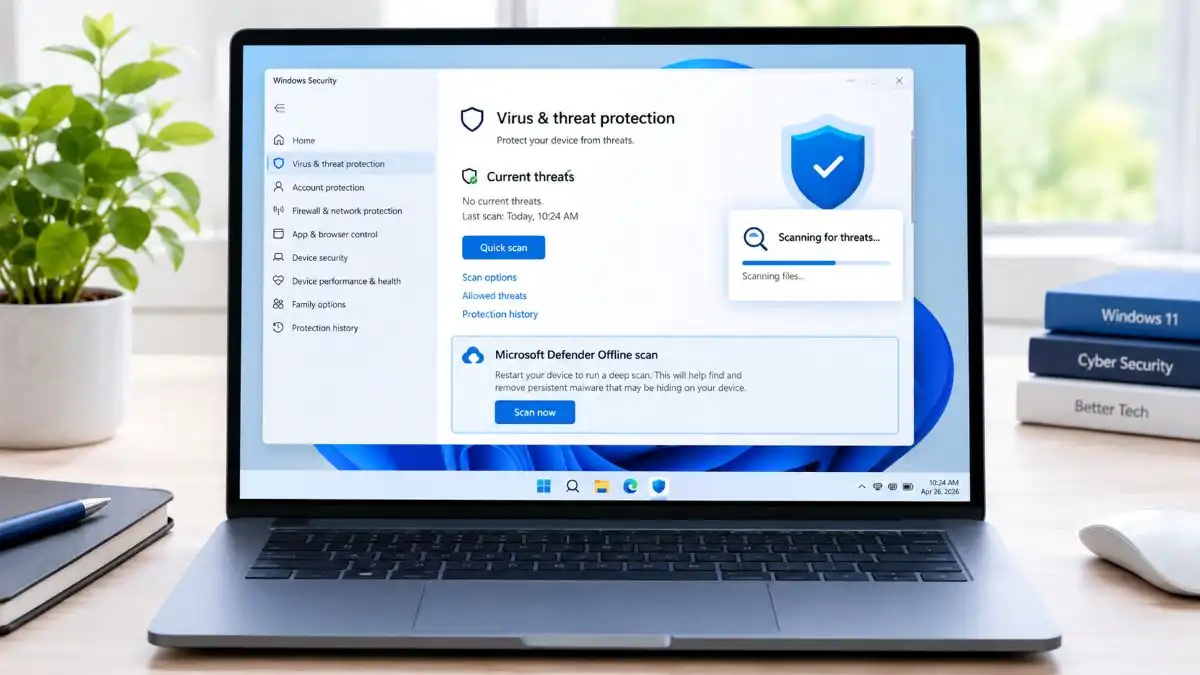
7. Scan for Malware
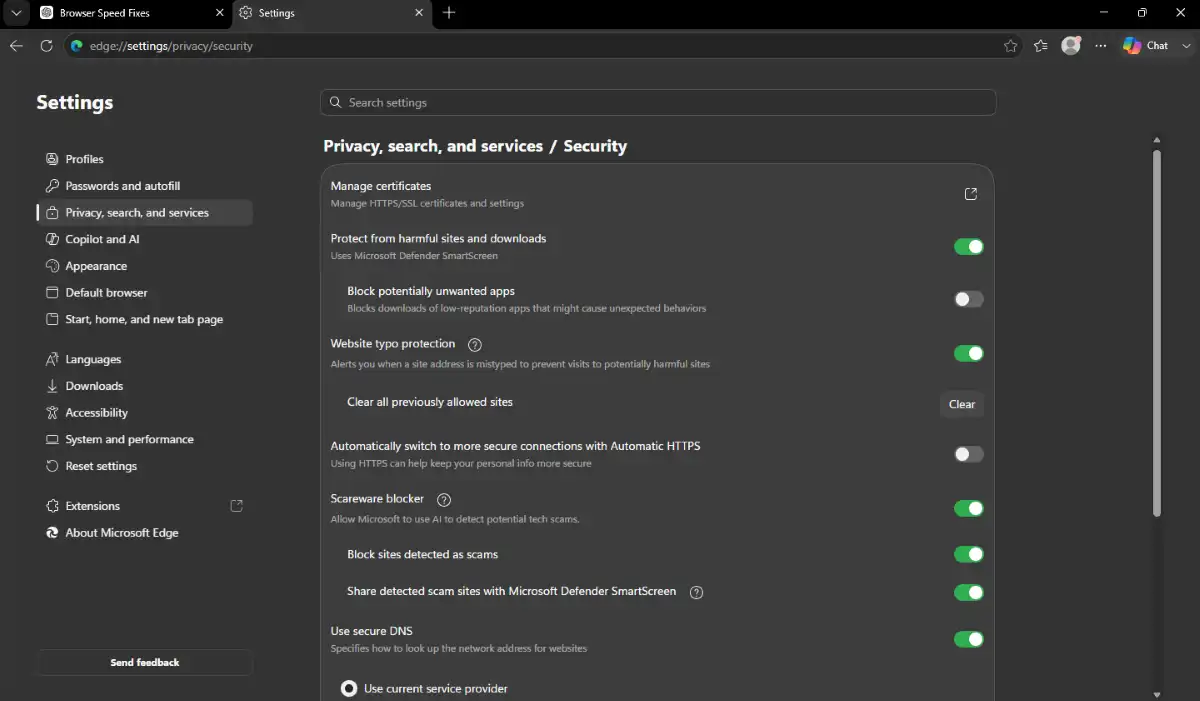
Malware often messing with browser performance, mostly by adding ads into the pages, doing redirects, or running hidden background processes. You might notice browser malware if you see,
- Unexpected pop-up ads
- Random browser redirects
- New or unknown search engines
- Page loading speed is slower
If you think your browser is infected, run a trusted antivirus , or an anti-malware scan right away.
8. Reduce Startup Pages
If your browser starts up and it suddenly opens a bunch of websites by itself, startup can feel a bit slower. Instead, try this:
- Open just a blank new tab page
- Get rid of the extra startup websites, you really do not need
- Add bookmarks for the pages you visit often
This increase the browser launch time.
9. Turn Off Hardware Acceleration (If Needed)
Hardware acceleration allow web browsers to use your computer’s graphics for more smooth performance. On certain systems it can end up causing stuff like, Screen flickering A bit of lag Occasional browser crashes High GPU usage. If you notice any of those symptoms, turning off hardware acceleration might help with overall stability.
10. Check Your Internet Connection
Sometimes it’s not the browser issue, like at all. A weak, or just slow internet connection can make pages look sluggish, even while your browser is basically doing its job. Try these few steps, one by one:
- Restart the router
- Get closer to the Wi-Fi, if you can
- Disconnect any devices you’re not using
- If possible, use a wired Ethernet connection
11. Free Up Computer Memory
Your browser is kind of fighting with other applications for RAM space. If a few heavy programs run at the same time, the browser can feel slower, you know, performance might take a hit. Try closing the nonessential stuff like
- Video editors
- Games
- Virtual machines
- Big spreadsheet software
With a bit more free memory around, your browser tends to run more smoothly and work efficiently.
12. Reset Browser Settings
If your browser has incorrect settings, or if some unwanted modifications can affect its overall performance.
Restore your browser by resetting:
- Default settings
- Search engine
- Startup page
- Privacy settings
Most browsers allow you reset everything while still keeping your bookmarks and your saved passwords,
13. Create a New Browser Profile
A damaged browser profile might end up causing crashes, freezes, or just this really unusually slow performance,
When you make a fresh profile, it removes Corrupted preferences, Broken configurations Extension conflicts.
After that, you can usually sync your bookmarks and passwords again later, no big deal.
14. Reinstall the Browser
If the earlier fixes dont work , try reinstalling your browser. That can clear up deeper software troubles you cant easily see.
A fresh installation removes:
- Corrupted files
- Weird configuration problems
- Installation errors
After reinstalling, install only the extensions you actually need.
15. Keep Your Operating System Updated
Browser performance also sort of depends on what operating system you’re on. Like really, Windows, macOS, and Linux updates often roll out things such as:
- Better memory management
- Driver improvements
- Security patches
- Performance enhancements
So keeping your OS up to date helps browsers run more smoothly over time.
Bonus Tips for a Faster Browser
Here are a some tips, that can meaningfully help browser speed and overall smoothness:
- Restart your computer weekly, it really helps.
- Try not to install unnecessary toolbars.
- Keep the number of browser extensions small , as much as you can.
- Use a newer browser version, whenever possible.
- Make sure you always have enough free storage on your device.
- Regularly clear downloads, and browsing data too.
- Pay attention to CPU and RAM usage through your system’s task manager.
Frequently Asked Questions
Q1. Why does my browser feel slow even if my internet is fast?
Answer. A fast connection doesn’t mean a speedy browser. Unused extension, less RAM, outdated software or malware can still slow browsing performance.
Q2. Does clearing cache make my browser faster?
Answer. Yes it can. Removing cache files can improve page loading and reduce browser laziness.
Q3. Which browser is the fastest ?
Ans. Google Chrome, Microsoft Edge, Mozilla Firefox, Brave, and Safari all bring good speed when they are keep updated and properly maintained.
Q4. Can too many tabs, slow down my browser?
Answer. Yes, each open tab takes up memory, and also uses processing power, which make it slower. Closing unused tabs improve the browsing.
Q5. How often should I clear my browser cache?
Answer. It’s enough to clear browser cache every two to three month. If you still face website loading issues, then you might clear it a little more often.
Conclusion
A slow browser doesn’t always mean you have to buy a new computer. In many cases, just clearing the cache, remove unused extensions, updating the browser, and reducing the number of open tabs can actually make a difference in how fast pages load.
If you’ve think why is my browser so slow then tried all 15 methods, and it’s still acting slow, then maybe the problem is more tied to your device hardware, your operating system, or even your internet connection. Doing regular maintenance, plus keeping your apps up to date, tends to help you get faster, steadier, and safer web sessions.
Once you go through these ideas, you can expect quicker load times, better responsiveness, and a more efficient way to browse everyday.
If you’re looking to improve productivity beyond browser performance, you may also find these guides helpful: