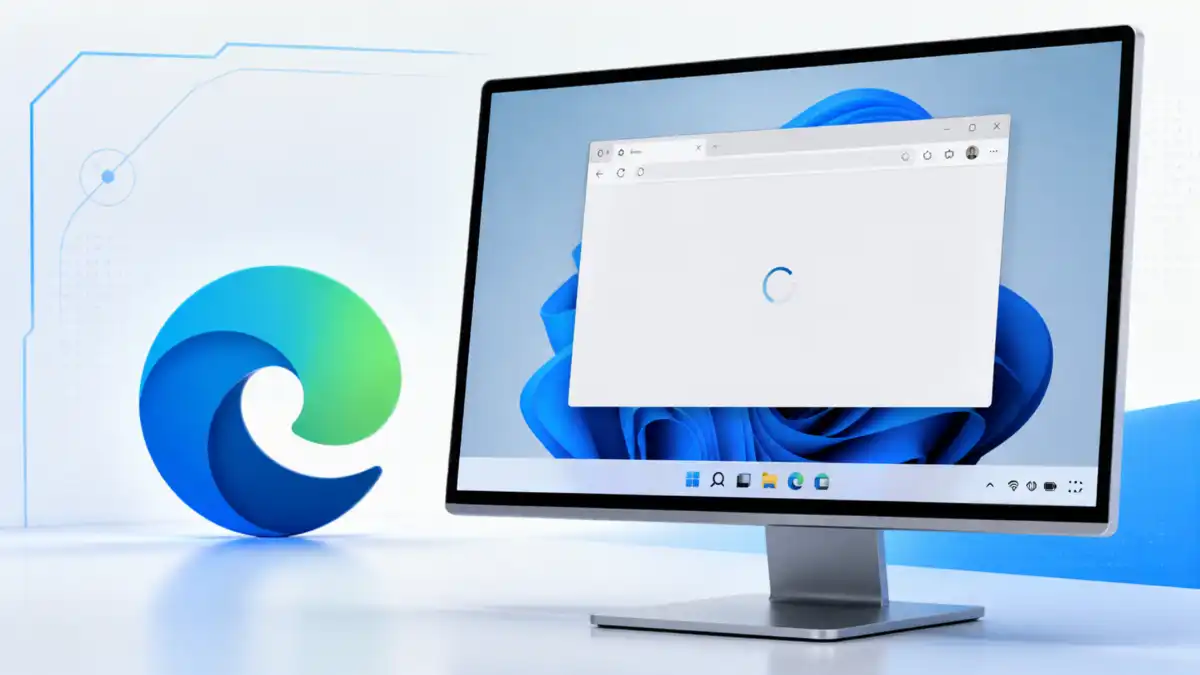
The default browser on Windows 11 is the Microsoft Edge. This browser can be used to access the internet, watch films, send/receive emails, and download files. But sometimes, Microsoft Edge may fail to launch when clicked from its icon.
Sometimes, Microsoft Edge starts but after a few seconds, it exits. In other case, nothing happens when you click the browser. It happen due to a temporary problem occur in Windows, corrupted browser files, or simply because Microsoft Edge is too old version.
The good thing is that there are some simple fixes you can perform before reinstalling the browser.
Here, we will see 10 simple methods to resolve the problem of Microsoft Edge not opening in Windows 11. The solutions are to be performed in sequence, starting with the easiest ones.
Why Is Microsoft Edge Not Opening in Windows 11?
Microsoft Edge doesn’t open due to:
- A temporary problem with Windows or the browser.
- Microsoft Edge running in the background.
- Browser files/settings being corrupted.
- Outdated Microsoft Edge or Windows.
- An active browser extension.
- Antivirus blocking the browser.
- Malware or any other unwanted software.
You do not have to identify the exact reason behind it. Start with the following solutions and check to see if Edge runs after applying each one.
10 Ways to Fix Microsoft Edge Not Opening in Windows 11
1. Restart Your Computer
Starting your computer is the simplest way of dealing with problems when Microsoft Edge is not working.
There could be some temporary problems with your computer or there may be some programs running on your computer which are causing the problem. Restarting your computer will ensure that all such applications are removed.
Follow these steps:
- Start button from the Windows taskbar.
- Power button.
- Click Restart.
- Let Windows reboot.
- Launch Microsoft Edge and see if it opens.
It is important to click Restart and not Shut down if you wish to restart your computer right away.
If this doesn’t work, try another solution.
2. Close Microsoft Edge Processes in Task Manager
In case Microsoft Edge does not appear on your computer screen, then it must be working in the background, which prevents the creation of a new window.
You can terminate these processes using Task Manager.
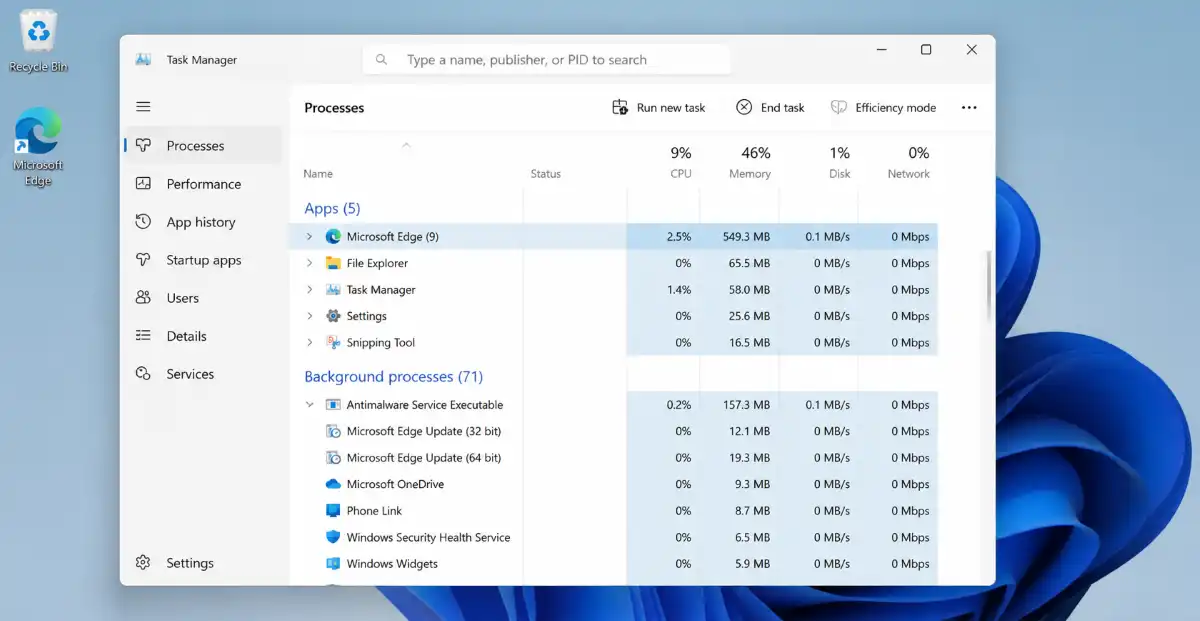
Follow these steps:
- Use the keys Ctrl + Shift + Esc to open Task Manager.
- Find Microsoft Edge from the list of the current applications and processes.
- Choose Microsoft Edge.
- Then click on End task.
- Follow the same steps for terminating other Microsoft Edge processes, if they are present.
- Close Task Manager.
- Open Microsoft Edge again.
Remember: Don’t terminate any other process of Windows.
The mechanism: Ending an Edge process allows it to restart.
3. Run Microsoft Edge as Administrator
Sometimes, the problem with permission might affect the program. Using Edge as an administrator will allow you to see if the problem is because of permissions.
But, you should never use Edge as an administrator if there is no need for that.
Here is what you have to do:
- Go to Windows Start button.
- Enter “Microsoft Edge” in the search window.
- Right-click on Microsoft Edge from the search results.
- Select the “Run as administrator,” if it is available.
- Click Yes, if Windows prompts for permission.
- See if the browser opens.
If the browser opens, then you may have the problem with permission or some other settings for opening the program.
If the browser doesn’t open, then move on to the next troubleshooting step.
4. Repair Microsoft Edge in Windows Settings
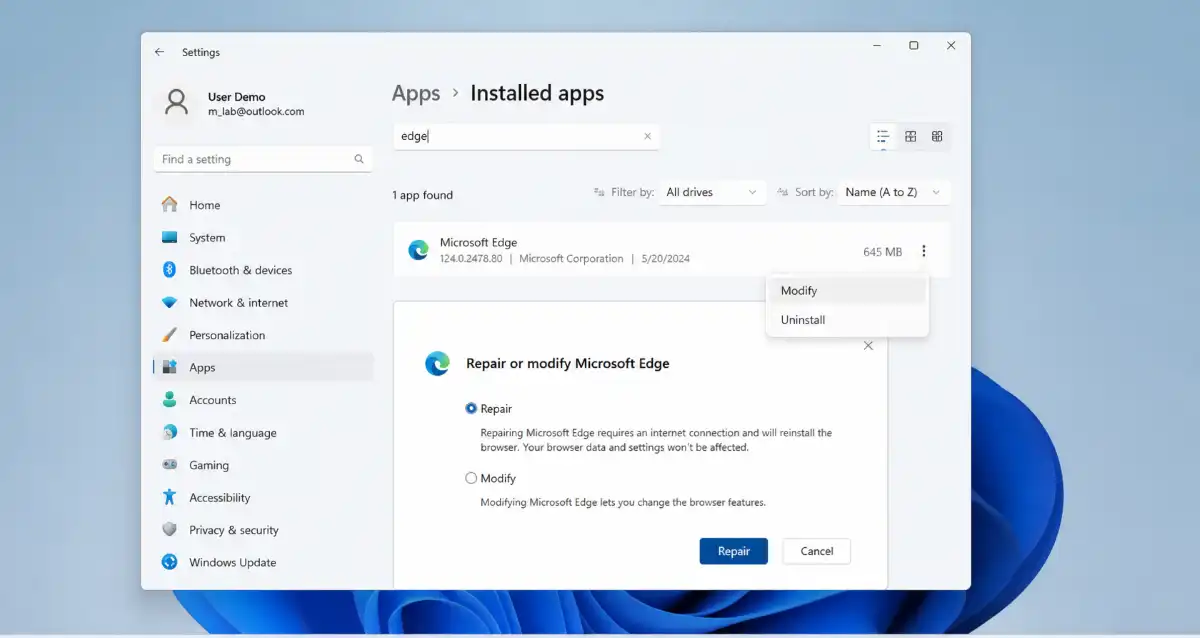
In case there is anything wrong with the Microsoft Edge program files, the solution to the problem will be fixing the browser.
Fixing Microsoft Edge browser can be done on Windows 11. As per the Microsof, fixing the browser does not affect any of your browser data.
The steps to fix the browser include the following:
- Click Settings using the Windows + I keyboard shortcut.
- Choose Apps.
- Go to Installed apps.
- Find Microsoft Edge.
- Click on three dots next to it.
- Click on Modify.
- When prompted, click Yes.
- Make sure you are connected to the internet.
- Click on Repair and follow the instructions.
Let it complete the process and then launch Edge.
Note: If there is no Modify button, your computer is probably managed by some company. You need to contact your administrator in this case.
This is the most effective fix to use if Edge does not work.
5. Install Available Windows Updates
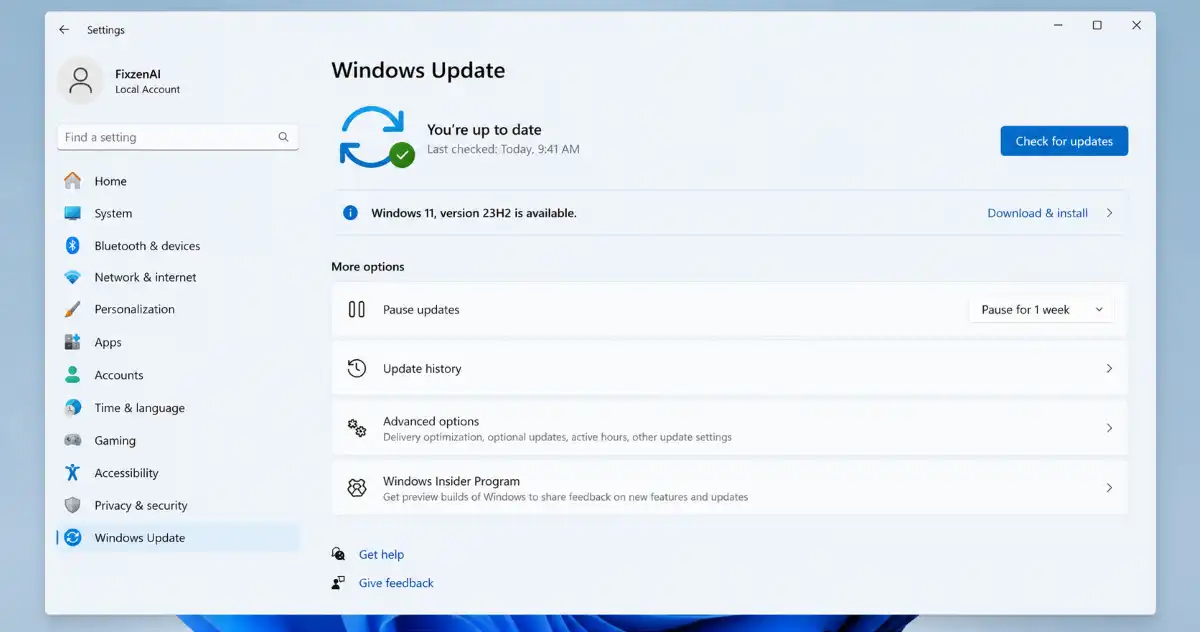
An older version of Windows may also be a reason why you experience such issues. You can try fixing them by updating the system.
Here’s what you should do:
- Go to Windows Settings using Windows + I key combination.
- Navigate to Windows Update.
- Press the Check for updates button.
- Wait until Windows finds the updates.
- Install the updates.
- Reboot your PC if required.
- Open Microsoft Edge.
Make sure your computer stays connected to the internet during this process.
If your computer doesn’t need any updates, go to the next step.
6. Check Your Antivirus or Security Software
Occasionally, the security software denies access to the application because it mistakenly classifies the file or process as potentially dangerous.
If Microsoft Edge was not opening after installing security software or making some changes to security settings, check to see if the software is blocking it.
How to do this:
- Go to your antivirus/ security software.
- See the protection history, quarantine or blocked applications notifications.
- Find out if there is any entry about blocking Microsoft Edge.
- Check if the blocked file is legitimate.
- Update the security software.
- Reboot your PC and try opening Edge.
Important safety note: Do not disable Windows Security and your firewall just to use Edge. Do not return a file from quarantine until you are sure it is legitimate.
If your security program does not block Edge, then continue your troubleshooting.
7. Run a Malware Scan
It is possible that malware can affect Windows applications. If Microsoft Edge suddenly fails to work or there is any kind of unusual behavior by the computer, it will be required to conduct a malware scan.
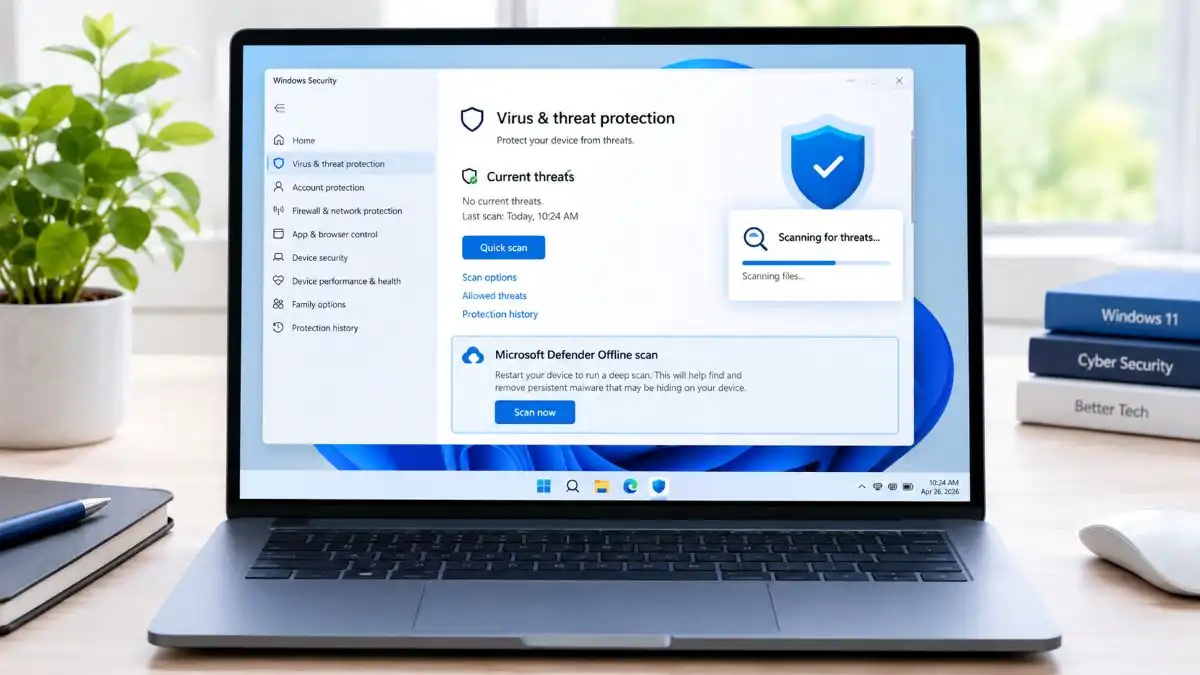
Windows Defender Antivirus comes as part of Windows 11 through Windows Security.
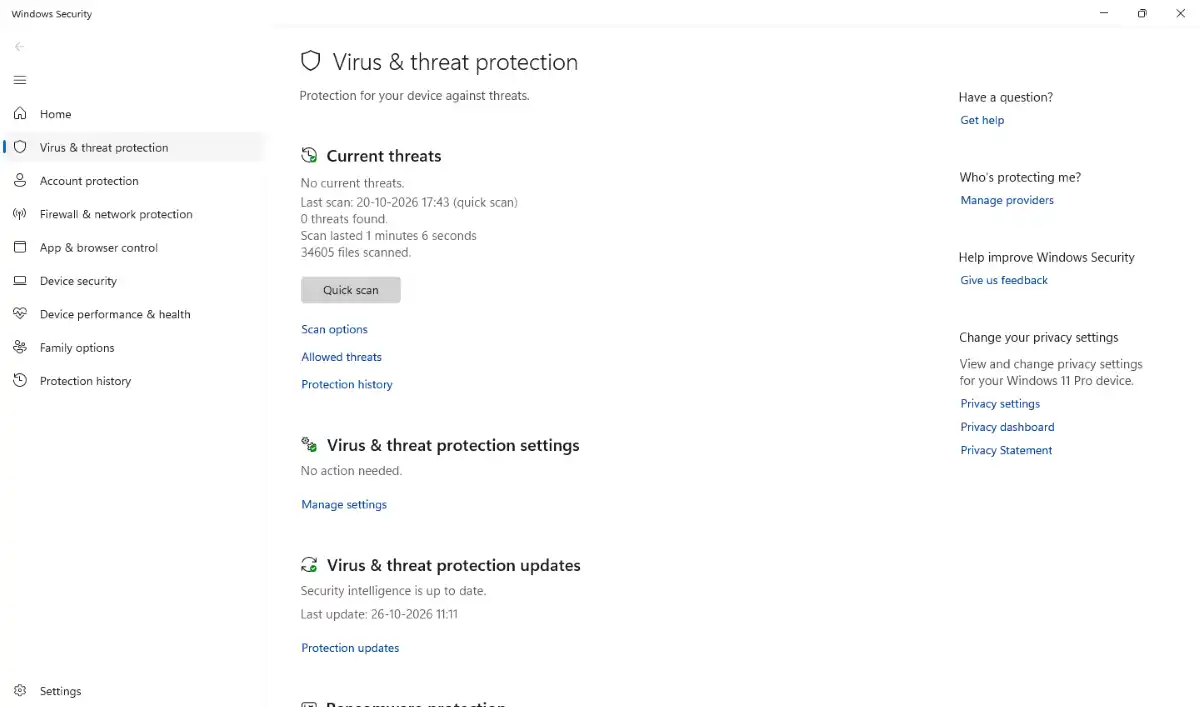
Please do as follows:
- Press on the Start menu and search for Windows Security.
- Launch the program.
- Go to Virus & threat protection.
- Click Quick scan.
- Complete the scan.
- Take the suggested action if any threats are found.
- Restart the computer if required and check whether Edge works.
The quick scan detects threats from typical locations. If the issue persists or there might be a serious infection, than run a complete scan.
A malware scan cannot resolve all the problems of your browser but may help find security problems on your computer. for more detail read our guide how to remove malware from windows 11.
8. Try Opening Edge Without Extensions
Browser extensions provide functions like password management, shopping help, and ad blockers.However, a bad extension might occasionally lead to problems during startup or stability of the browser.
In case the Edge browser starts and closes shortly afterwards, an extension might be a factor in causing the problem.
The following method allows you to start Edge without the extensions that you regularly use.
Use these instructions:
- Press Win+R to open the Run dialog box.
- Type in the following command: msedge.exe –disable-extensions
- Hit Enter.
- Remember one thing this command work only for new window so before using this command close all edge tabs.
- This command won’t always work on all the computer so try next step.
- After Edge starts, go to edge://extensions page in the address bar.
- Disable your extensions.
- Restart Edge.
- Enable extensions one by one to find the problematic extension.
Disable/remove only the problematic extension.
If this command doesn’t launch Edge, you can try the next step.
9. Create a New Browser Profile
Microsoft Edge saves information such as bookmarks, settings, extensions, and others in a browser profile. The problem may be in the browser profile if it is damaged.
When you are able to start Microsoft Edge but the application fails to work properly and crashes or freezes, then testing a new profile will be helpful.
Follow these actions:
- Launch Microsoft Edge if it is possible.
- Click the profile picture which is located in the upper right part of the interface.
- Choose the Add Profile button.
- Create a new profile using the on-screen prompts.
- Check Microsoft Edge through accessing a website.
If you managed to create a new profile and test the browser, then the problem may be in your old profile.
Important! A new browser profile will not contain your bookmarks, saved passwords, settings, or extensions. You should not delete the original profile. Make sure that your information is backed up or synced.
However, if you are not able to launch Microsoft Edge long enough to create a new profile, move to the next point.
10. Reinstall Microsoft Edge
If none of the above mentioned methods work, then installing or repairing Microsoft Edge may be needed.
First, you can use Fix 4 – the Repair method if you have not done so far. Reparing is easy and simple and it also preserve your browser data and settings.
If it not working download a Microsoft Edge from its official site.
Follow these steps:
- Open another browser such as Google Chrome or Mozilla Firefox.
- Visit the official Microsoft Edge site at: https://www.microsoft.com/edge
- Download the Microsoft Edge.
- Run the installer.
- Follow the prompts.
- Restart your PC if necessary.
- See if Microsoft Edge opens.
Only use the Microsoft site to download the browser. Do not use other sites for downloading the installer.
In case of problems, ensure that your internet connection is good and that you have enough space on your hard drive.
Frequently Asked Questions
Q1. Why is Microsoft Edge not opening in Windows 11?
Ans. Microsoft Edge is not opening in windows 11 due to background processes being stuck, corrupted browser files, obsolete software, or incorrect extensions.
Q2. How do I fix Microsoft Edge when it opens and immediately closes?
Ans. Close Edge processes on Task Manager first and try to restart the browser. If problem still exit, proceed with repairing Microsoft Edge via Windows Settings.
Q3. Will repairing Microsoft Edge delete my bookmarks?
Ans. Repairing Edge is meant to retain your bookmarks and other browser data. But, make sure you back up any data before trying to fix Edge
Q4. Can I reinstall Microsoft Edge if it will not open?
Ans. Yes. Open another browser, visit official Edge website, and download it. Try the built-in Repair option first before downloading.
Q5. What should I do if Microsoft Edge still does not work?
Ans. Update Windows, scan your computer using security software and repair Edge. If the problem still exist, you should refer to the Microsoft’s official help page.
Conclusion
It is frustrating if Microsoft Edge is not working on your Windows 11 PC. There are many methods that you can follow to resolve this problem without any technical knowledge.
Firstly, restart your PC and stop all those processes that have got stuck in Edge. If this does not help, then fix the browser itself, update Windows, inspect your security software, and apply the other fixes.
Restarting your computer and killing the Edge stuck processes as well as fixing Microsoft Edge are the best steps to take. If the problem persists, follow the other solutions. More information can be found in Microsoft’s official troubleshooting guide for Microsoft Edge.
If Google Chrome is also having startup problems, follow our guide to fix Google Chrome not opening in Windows 11 for more troubleshooting steps.