Is Google Chrome not working on your Windows 11 PC? Click the Chrome icon but nothing happens or Chrome just launches and then shuts down?
The reason for this may be a frozen Chrome process, data corruption, an extension problem, anti-malware software, installation file damage, or even a Windows problem. The good news is that there is no need to reset your PC in order to fix the problem.
This article tells 10 easy ways to fix the issue of Google Chrome not opening in Windows 11. Start from quick fixes to slightly more complex methods.
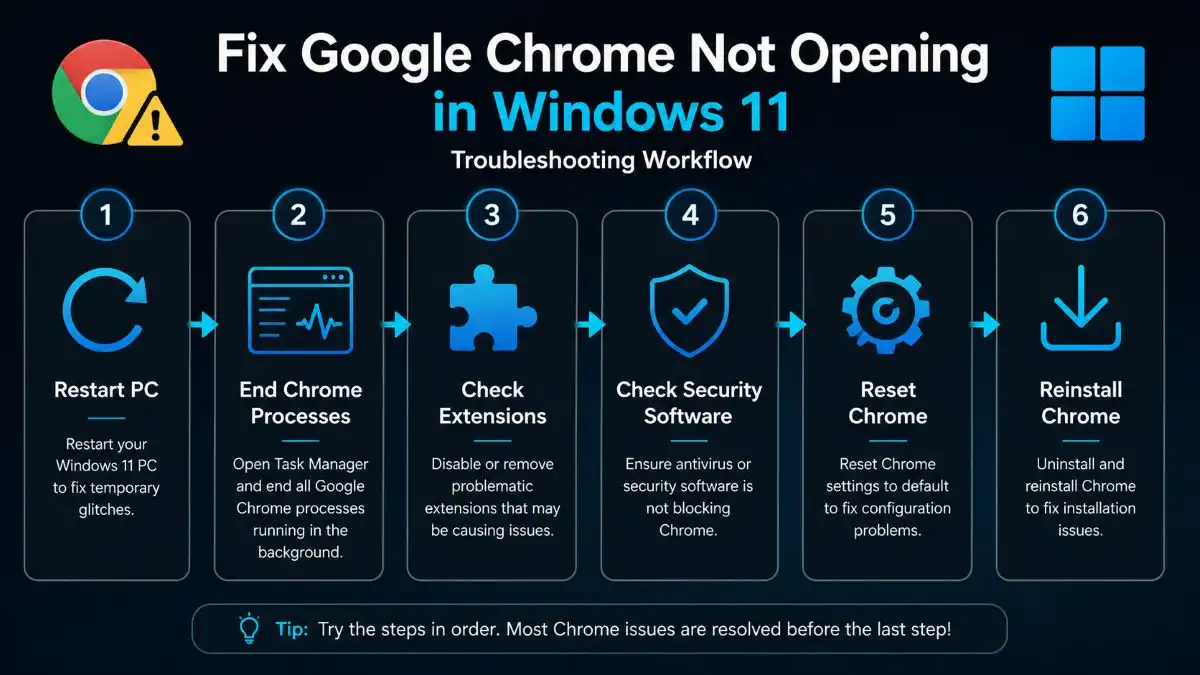
Tip: Test the methods in order. As soon as Chrome opens normally, you can stop because you don’t need to try all 10 methods.
Why Is Google Chrome Not Opening in Windows 11?
Chrome might not launch for a bunch of reasons, for example:
- There’s already a Chrome process running somewhere in the background.
- Chrome has frozen, got stuck, or it crashed.
- Browser files or the user profile data have been corrupted.
- A Chrome extension is causing some kind of clash or conflict.
- Antivirus, or other security programs are interfering with Chrome.
- The Chrome install is messed up or partially broken.
- Windows 11 has pending updates, or some temporary system problem going on.
- The Chrome user profile got corrupted, and that’s the whole issue.
Google troubleshooting says to maybe look if any Chrome processes are already running, then restart the computer, also check your security software, and if it still won’t open then try reinstalling Chrome.
10 Easy Ways to Fix Google Chrome Not Opening in Windows 11
1. Restart Your Windows 11 PC
Before doing anything complicated, try restarting your computer first.
Sometimes a temporary Windows process, or a background program, can block Chrome from launching the right way. When you restart Windows, those processes end, and Chrome gets a fresh start.
How to restart Windows 11
- Click the Start button.
- Pick the Power icon.
- Choose Restart.
- Wait while Windows boots again.
- Then try opening Google Chrome.
If it’s working fine after the reboot, then there may not have been any problem at all.
But if Chrome still won’t open, move on to the next step.
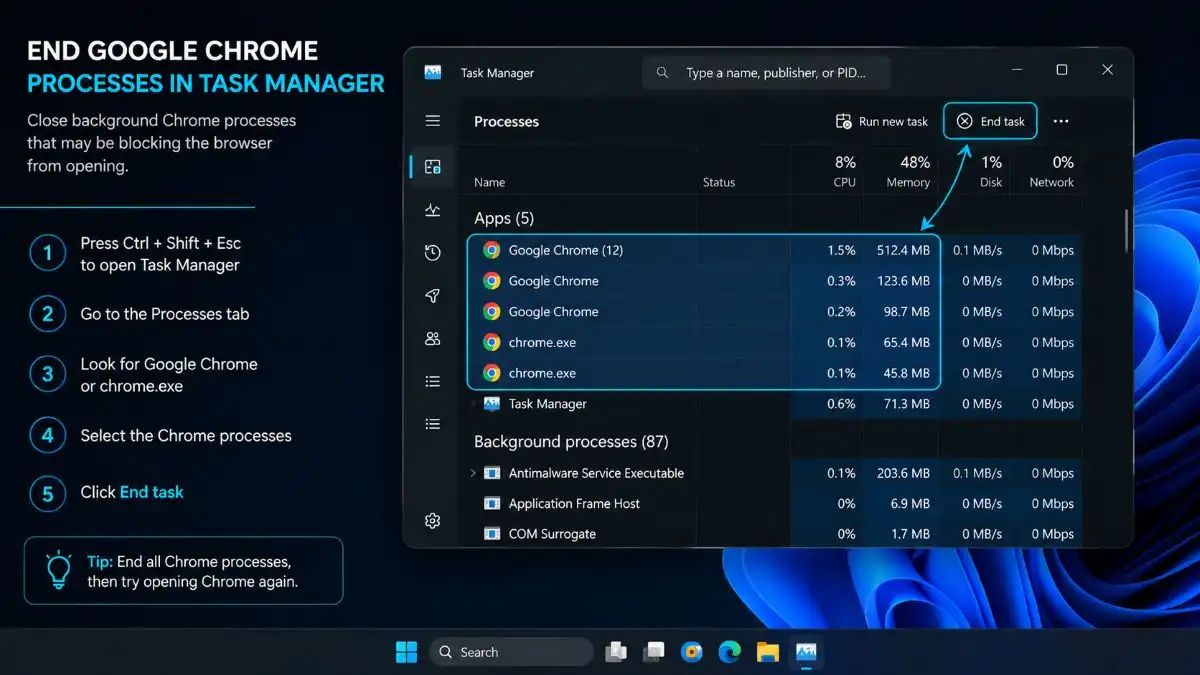
2. End All Google Chrome Processes in Task Manager
Sometimes Chrome is already running in the background , even when you dont see any Chrome window.
That stuck chrome.exe process can stop a new Chrome window from opening at all .
According to Google, users should check Task Manager and terminate existing Chrome processes.
How to terminate Chrome processes
- Press Ctrl+Shift+Esc to launch Task Manager.
- In case the Details tab is selected, select the Processes tab.
- Look for Google Chrome or chrome.exe process.
- Right-click the process.
- Select End task.
- Repeat the procedure until all Chrome processes have been terminated.
- Attempt to launch Chrome.
3. Run Google Chrome as Administrator
Windows permissions can sometimes conflict with the execution of the application.
Try running Chrome as an administrator as a simple test.
How to run Chrome as an administrator
- Click Start.
- Look for Google Chrome.
- Right-click on Chrome.
- Choose Run as administrator.
- If a User Account Control message appears, choose Yes.
If Chrome opens in this manner but cannot open normally, the problem might have something to do with permissions.
It is not expected that you should normally run your browser as an administrator all the time. You should just use this process to test the issue.
4. Disable Problematic Chrome Extensions
These add-ons may cause the browser to crash or malfunction.
To solve Chrome issues, Google suggests disabling extensions since an extension may be responsible for any malfunction within the browser.
Nevertheless, if Chrome doesn’t open up at all, then you will not be able to disable extensions through Chrome settings.
First, try running Chrome in a clean state if that is possible. In case Chrome runs after applying another solution, check your extensions right away.
When Chrome opens
- Open Chrome.
- Press the button with three dots.
- Go to Extensions > Manage Extensions.
- Disable recently installed or suspicious extensions.
- Restart Chrome.
- Check Chrome.
When disabling an extension solves the problem, then you should enable your extensions one by one to find out which one causes malfunction.
5. Clear Chrome’s Cached or Corrupted Data
Corrupted browser data may result in unusual behavior of the Chrome browser.
If Chrome loads but then freezes, crashes or quits, clearing the browsing data will resolve the problem.
Chrome data clearing steps
- Launch Chrome.
- Press on the menu icon (three dots).
- Click on the Delete browsing data option.
- Select the appropriate Time range.
- Pick the data to be deleted.
- Press the Delete data button.
- Reboot Chrome.
Cached data should be cleared to make the least possible change.
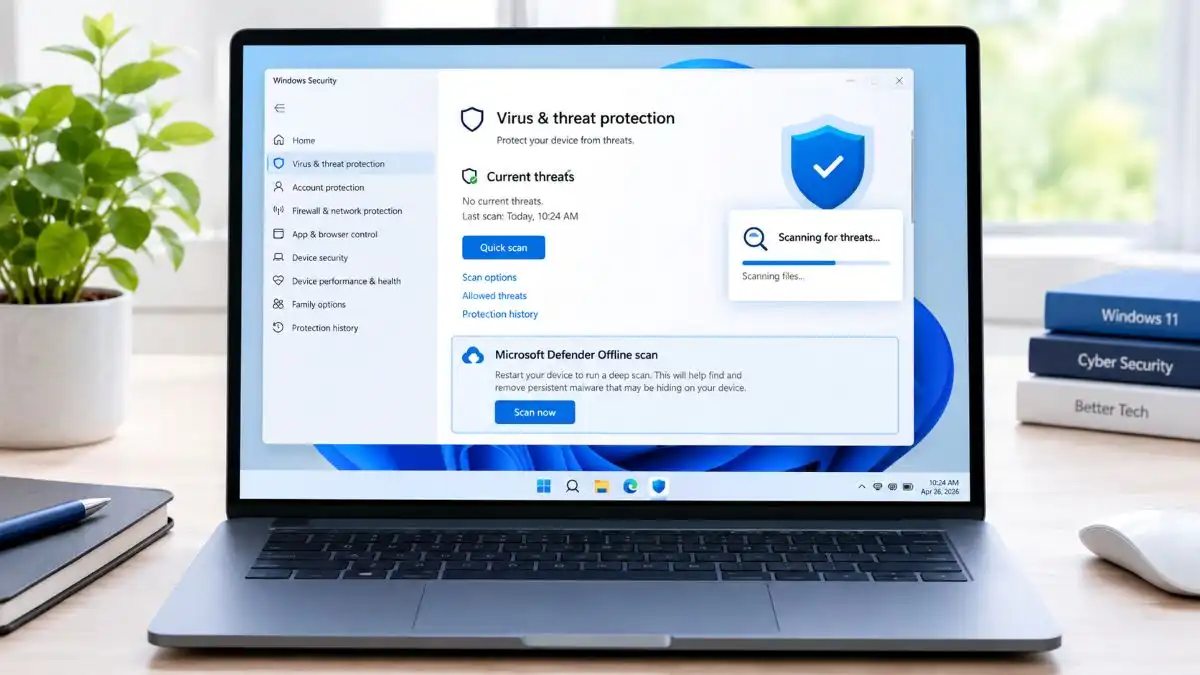
6. Check Your Antivirus or Windows Security
The security application may interfere with some applications at times.
According to Google, you should first check whether the antivirus or any other security application is preventing Chrome from launching.
What to check
- Open your antivirus application.
- Search for any blocked or quarantined Chrome files.
- Verify if Chrome is placed in an application blocking list.
- Ensure that your security program is updated.
Note: Please do not disable permanently your antivirus for the purpose of testing Chrome.
In case you need to make any changes to your security settings for troubleshooting purposes, be sure to re-enable the protection right away.
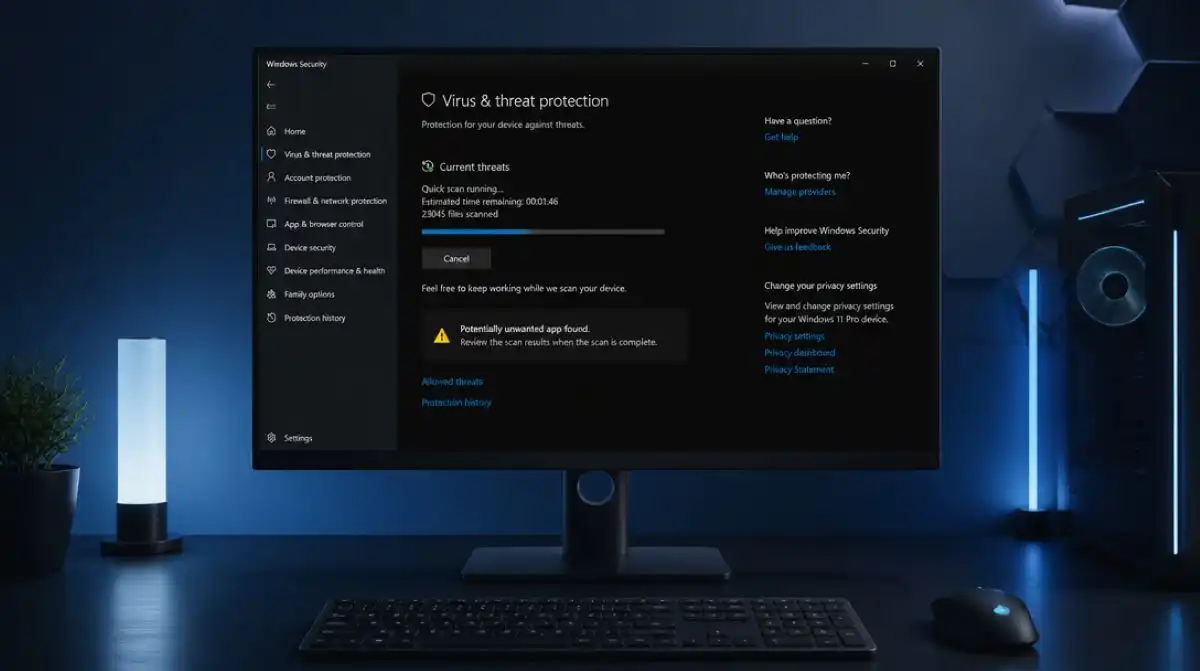
You can also perform a security scan in case you suspect any other malicious software affecting Chrome.
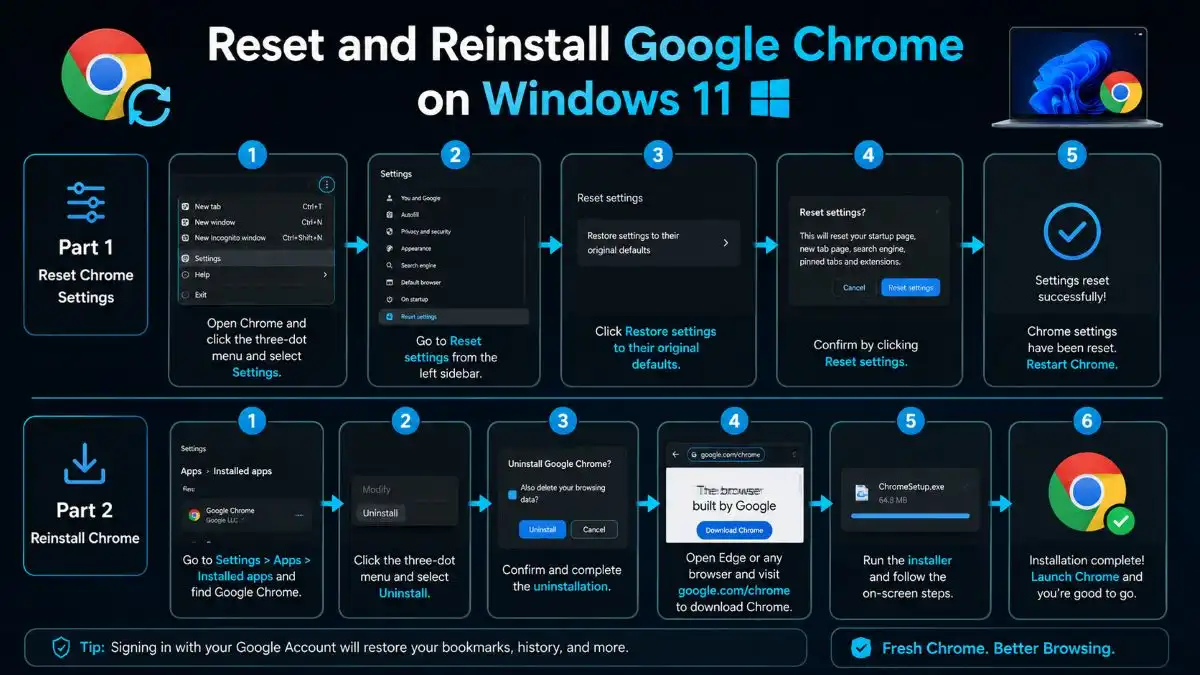
7. Reset Chrome Settings
If Chrome opens but behaves incorrectly, resetting the chrome can resolve problems caused by unwanted configuration changes or extensions.
Google says Chrome’s reset option restores various browser settings to their defaults while not deleting saved bookmarks or passwords.
How to reset Chrome
- Open Chrome.
- Click the three-dot menu.
- Select Settings.
- Click Reset settings.
- Select Restore settings to their original defaults.
- Click Reset settings.
Chrome’s reset does not completely erase your browser profile. It changes settings such as the default search engine, homepage, startup behavior, cookies/site data, and extensions/themes.
If Chrome won’t stay open long enough to access Settings, move to the next solution.
8. Repair Chrome’s Installation
If Chrome installation files have been corrupted, fixing the installation might help you out.
Windows 11 offers the feature of repairing some applications through Settings > Apps > Installed Apps, but not every desktop application has the option of repair in it.
Check whether repair option is available
- Go to Settings by using the keyboard shortcut Windows key + I.
- Choose Apps.
- Go to Installed apps.
- Search for Google Chrome.
- Tap on the three dots next to it.
- Look for Advanced options or Repair.
If Windows doesn’t offer any repair option for Chrome, then don’t be concerned about it. Reinstallation of Chrome will work better for you.
9. Uninstall and Reinstall Google Chrome
If none of the earlier solutions actually work, you can try to reinstall Chrome, that can replace damaged installation files.
Google suggests you uninstall and then reinstall Chrome when other fixes don’t clear up the problem, especially if Chrome won’t open properly.
How to reinstall Chrome
- Open Settings.
- Go to Apps > Installed apps.
- Find Google Chrome.
- Click the three-dot menu.
- Choose Uninstall.
- Follow the on-screen instructions.
- After that open another browser, like Microsoft Edge.
- Download Chrome from Google’s official Chrome website.
- Run the installer.
- Wait until the install finishes, then open Chrome.
Google provides an official Windows installation process and notes that Chrome supports Windows 10 and later on compatible Intel systems, while ARM Chrome requires Windows 11.
Download Google Chrome from the official website
What about your bookmarks and passwords?
If your Chrome data was synced to your Google Account, you can sign back in after reinstalling Chrome and get your synced information again. Google also points out that some Chrome data may still be there in your Google Account after you reinstall and sign in.
If you’re not sure whether things are actually synced, it’s safer to not delete Chrome profile data, unnecessarily.
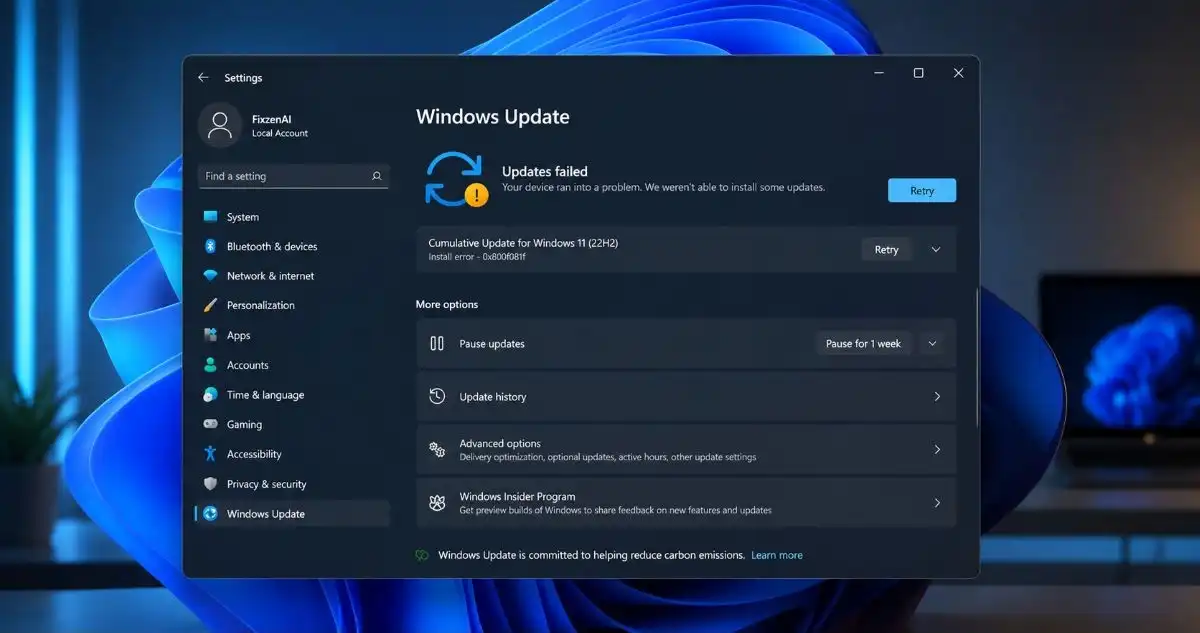
10. Install Pending Windows 11 Updates
A version of Windows that is not fully updated may lead to issues with your applications.
Windows Update is a good starting point when you need to perform troubleshooting.
Steps for checking Windows update
- Press Windows + I.
- Choose Windows Update.
- Click on Check for updates.
- Install any available updates.
- Restart your PC if needed.
After your Windows has been updated, open Chrome once again.
What to Do If Chrome Opens and Immediately Closes
If Chrome shows up for a second, then it just vanishes, try these fixes first:
- Stop all Chrome processes using Task Manager.
- Disable all newly installed extensions.
- Delete all browsing data in Chrome.
- Test your antivirus program.
- Reset all Chrome settings.
- Install Chrome again.
This kind of behavior is different from Chrome not launching, but the underlying causes might overlap, so fixes are still necessary.
What to Do If Chrome Still Won’t Open
If you tried all 10 solutions and Chrome still won’t launch, it might not be just Chrome itself
First, try opening another browser, like Microsoft Edge.
If Edge, or any other browser, also misbehaves or won’t start, then investigate Windows, security software, or even your network setup, rather than focusing only on Chrome.
If other apps in general are also failing to open, then you may be dealing with a wider Windows issue, and that needs its own kind of troubleshooting.
For Chrome specific problems, Google’s official troubleshooting guide also suggests checking for malware, and reinstalling Chrome when necessary.
Frequently Asked Questions
Q1. Why is Google Chrome not opening in Windows 11?
Ans. The following reasons can lead to Chrome failure: stuck process, corruption of data, bad extensions, security program, or corrupt installation files.
Q2. How do I force Chrome to open?
Ans. Start by opening Task Manager using Ctrl+Shift+Esc, locating Google Chrome or chrome.exe, select it, end the task, and then trying to run Chrome.
Q3. Will reinstalling Chrome delete my bookmarks?
Ans. If your bookmarks are synced to your Google account, you will be able to retrieve them after re-installing Chrome.
Q4. Should I reset Windows 11 if Chrome won’t open?
Ans. No. You shouldn’t go for resetting Windows right away. It is better to try the Chrome specific solutions provided in this guide such as killing Chrome processes, checking for extensions/security software, resetting Chrome, and re-installing it.
Conclusion
When Google Chrome is not opening in Windows 11, you usually don’t need some complicated fix.
Try the simplest things first, restart Windows, end Chrome processes from Task Manager, and also check if an extension, or maybe some security software is getting in the way. Sometimes it feels minor but it blocks everything.
By trying out these 10 fixes in sequence, most users will be able to point out the source of the issue – a temporary Windows process, Chrome settings, corrupted data, or even Chrome installation itself.
And if Chrome keeps failing even after a clean reinstall, the next step is to look for Windows issues or security software problems instead of reinstalling Chrome again and again.