Wondering how to check if Windows 11 has a virus? Is your Windows 11 PC suddenly running slow, showing strange pop-ups, or behaving differently than usual? These symptoms can sometimes be a sign of a virus or some other type of malware.
However, any computer problem does not mean that your PC is infected. Slow performance, browser issues, crashes and excessive resource usage can also be caused by apps, Windows problems, outdated drivers or insufficient storage.
The thing is that Windows 11 includes in-built security tools that can help you check your computer for malware.
In this guide, you’ll learn about 10 warning signs that your Windows 11 PC may have a virus, how to investigate suspicious activity, and what to do if Windows Security detects a threat.
What Is a Computer Virus?
Computer virus is a malicious software that disrupts your computer, damages your data, steals information or infects other computers.
Nowadays, the word “malware” is more commonly used as there could be many threats such as viruses, spyware, ransomware, trojan horse, adware, etc.
All kinds of malware infections do not behave similarly. Some are easy to detect while some could be working quietly in the background.
This is the reason why you need to regularly check your PC for any unusual activity.
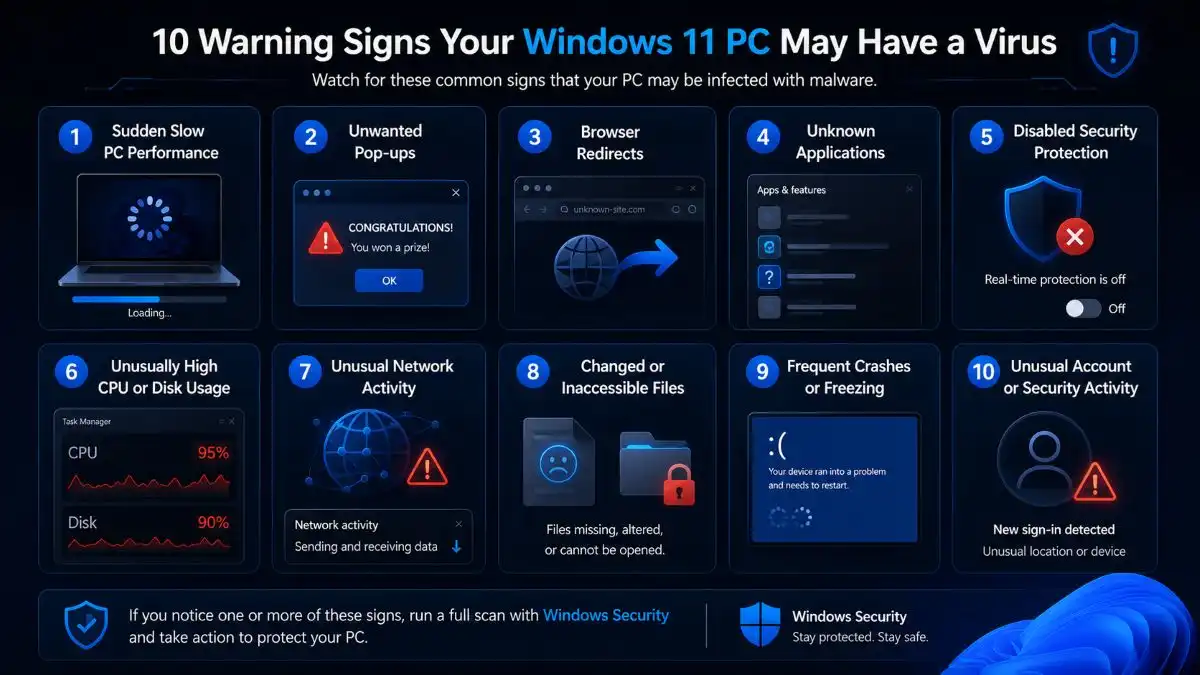
10 Warning Signs and How to Check If Windows 11 Has a Virus
1. Your PC Suddenly Becomes Very Slow
One of the most common warning sign is an unexpected drop in performance.
If your Windows 11 computer performed well before but suddenly has become very slow, then it can be caused by some malicious software. The malicious software might be using CPU, RAM, disk, and network resources.
However, it doesn’t mean that your PC has been infected by a virus just because it runs very slowly.
How to check
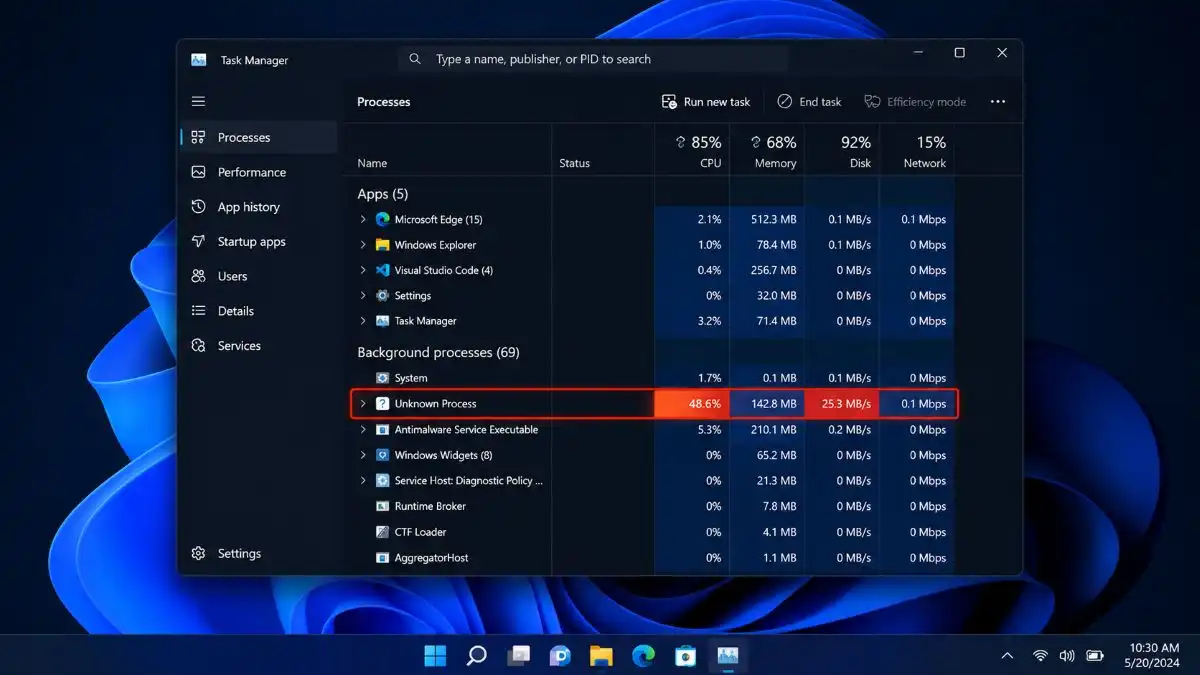
- Press the key combination Ctrl + Shift + Esc to launch Task Manager.
- Go to the Processes tab and see if there is any unknown application consuming abnormally high CPU, RAM, and disk resources.
- Don’t terminate the process just because its name sounds unusual. Some processes of Windows have strange names.
2. You See Frequent Pop-Ups or Unwanted Ads
Unexpected pop-up ads can be a warning, especially when they pop up outside your browser, or while you’re not even using the browser at that moment.
Pop-up windows may be filled with various advertisements, fake security alerts, or alerts about your computer being infected with multiple viruses.
Some web pages are capable of producing browser notification alerts that may seem like malware alerts.
How to check
Check the settings of your browser regarding notifications and add-ons.
For example, in Microsoft Edge browser, go to the following settings:
Settings → Cookies and site permissions → Notifications
See what web pages are allowed to show notifications and delete those you do not know.
If pop-ups are continues outside the browser, perform a Windows Security scan.
3. Your Browser Keeps Redirecting You
Is it true that your browser starts visiting new websites, redirects your search, and even changes your homepage without your consent?
This may be due to malicious software, malicious browser extensions, and browser hijacking.
How to check
- Look at your installed browser extensions.
- Delete those extensions which you do not recognize or have stopped using.
- Also check your default search engine and homepage settings.
If you still encounter this issue while visiting various websites, then perform a malware scan on your computer and newly installed software applications.
4. Unknown Programs or Apps Appear on Your PC
An unknown application is a warning sign on your computer.
Malware may come along with suspicious downloads and install other unnecessary programs as well.
But do not think that all such programs that you do not remember installing are malicious.
How to Check
- Open: Settings -> Apps -> Installed apps
- Arrange the list by Install date and find out any applications that were installed approximately when the issue began.
- Before removing the program, make sure to search the exact name of it.
5. Windows Security or Your Antivirus Stops Working
However, when Windows Security fails to open, keeps giving errors, or when the security functions switch off without your consent, then check out the problem.
Some malware attempts to compromise the security system to operate undetected.
How to check:
- Open Windows Security from the Start menu.
- Select: Virus & threat protection
- Check whether Real-time protection and other security features are enabled.
If you are unable to access Windows Security or if security settings have changed unexpectedly, consider this a reason to perform a thorough security scan.
6. Your PC Frequently Crashes or Freezes
Malware may be the cause behind computer freezing, restarting, crashes and bluescreen problems.
However, such behavior is usually related to drivers, hardware, faulty system files, overheating, or malicious software.
Crashing does not prove that the computer has a virus.
How to check
- First of all, consider the period when the issue occurred.
- If the crashes appeared after the installation of some unknown program or extension, you need to examine it.
- You also need to perform Windows Security check and keep Windows and drivers up-to-date.
7. Your CPU, Memory, or Disk Usage Is Unusually High
Malware can perform operations behind the scenes and use a considerable amount of computing resources.
Some signs of this include the fact that your fan keeps on working, that your computer overheats, and there is high resource usage in Task Manager despite your computer being idle.
How to check
Press: Ctrl + Shift + Esc
Open Task Manager and check for:
- CPU Usage
- Memory Usage
- Disk Usage
- Network Activity
- Active Processes
Check for those active processes which consume high amounts of resources regularly.
Once again, don’t disable any processes just because you don’t know what their name is. Search the process or verify it.
8. Your Internet Connection Becomes Unusually Active
However, unexpected network communication can sometimes indicate that some form of malware is communicating with external servers.
You may see unusually large data usage or even slower Internet speed without downloading or streaming anything at all.
How to check
- First, you should open Task Manager and see the Network column within the Processes tab.
- Additionally, you can see which applications use your network.
- When you see some unknown applications communicate with the Internet regularly, investigate them first before doing anything else.
9. Your Files Are Missing, Changed, or Suddenly Inaccessible
There is some malware that can manipulate, corrupt, encrypt or affect files in any way.
An example of such malware that poses a huge threat is ransomware as it encrypts files and demands a ransom for their release.
Signs of ransomware include:
- Sudden lack of access to files
- Unexpected change in file names
- Appearance of strange file extensions
- Ransom message on the desktop
- Mass modification of files
If you suspect any signs of ransomware infection, do not neglect them. Unplugging the infected computer from the network will prevent its further communication with other computers during your analysis.
Never pay any ransom due to the demands of the message.
10. You Notice Unusual Account or Security Activity
Notifications regarding password resets and logins from unfamiliar locations are some of the signs indicating that your login information is not secure.
It doesn’t mean that your computer is infected by some kind of virus. This can happen because of a phishing scam, the use of an old password, a data breach, or any other way.
How to check
Check recent login history on critical accounts like your e-mail and Microsoft account.
- In case of unusual login activity:
- Change password for the affected account.
- Use a strong, unique password.
- Enable two-factor authentication if you can.
- Log out from unknown sessions.
- Scan your PC for malware.
How to Check Windows 11 for Viruses and Malware
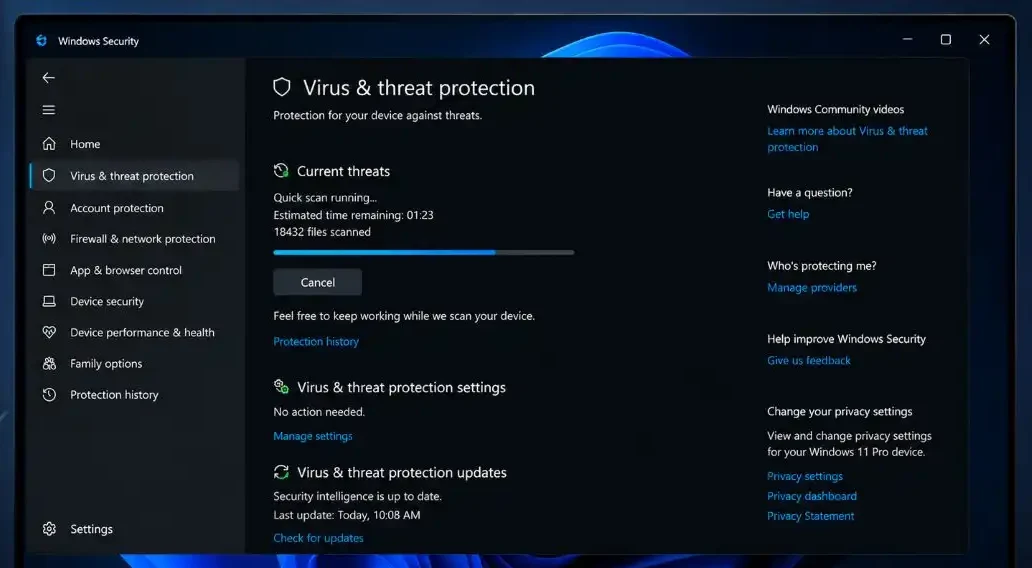
Just one warning sign does not always necessarily mean that there is malware on your PC.
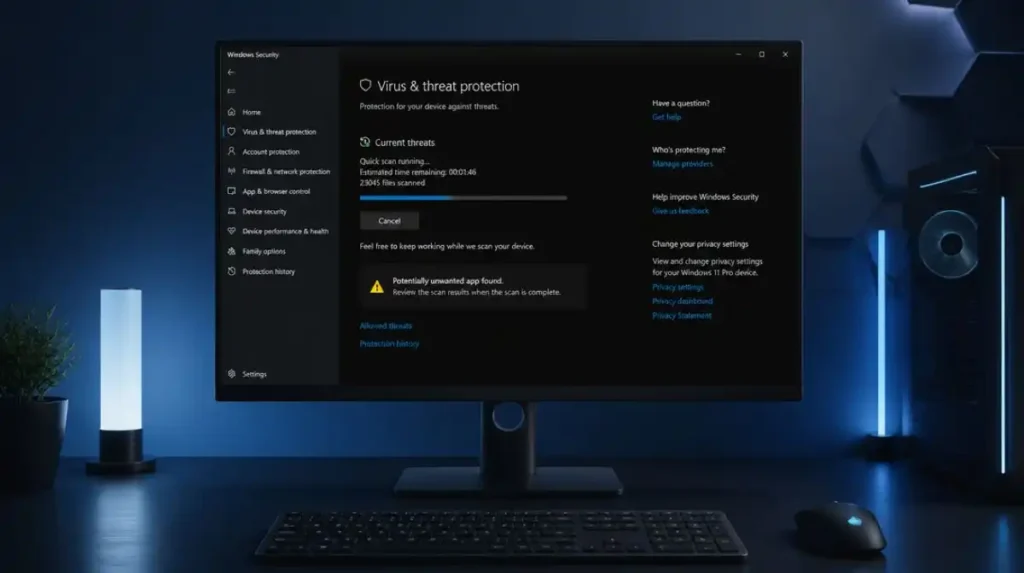
The right next step would be running a malware scan via Windows Security.
Step 1: Launch Windows Security
Press Start and type: Windows Security
Then launch the program.
Step 2: Open Virus & Threat Protection
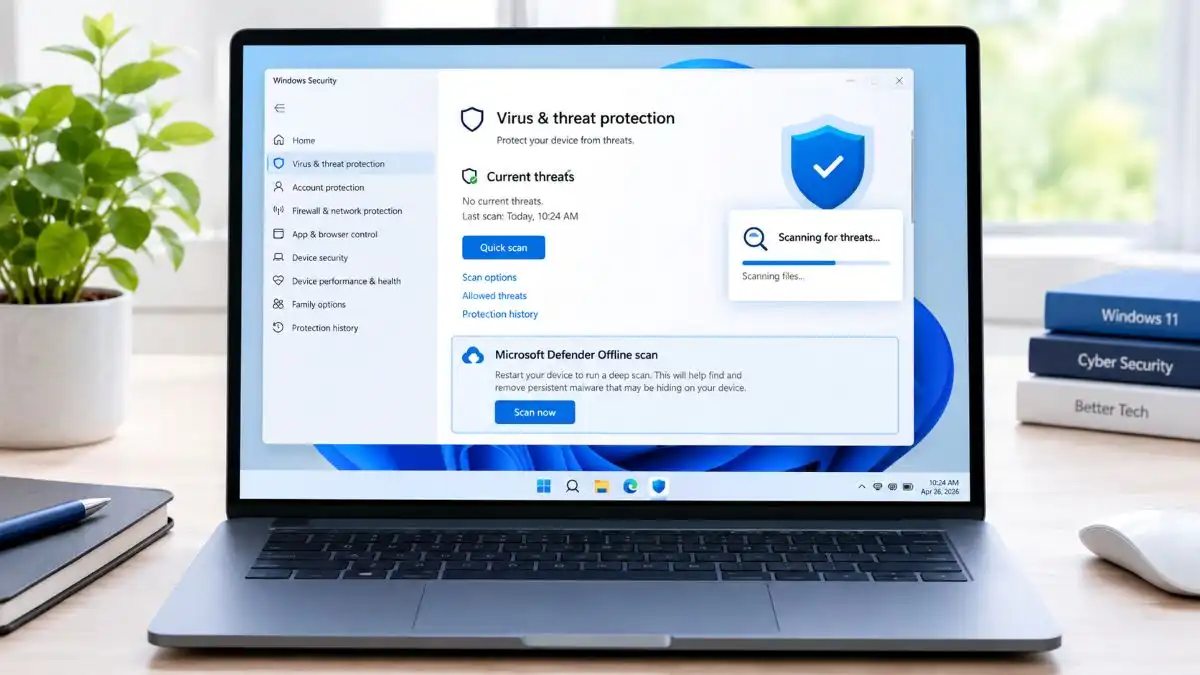
Choose Virus & threat protection.
You will be able to see the current state of your protection and options for scanning.
Step 3: Conduct a Quick Scan
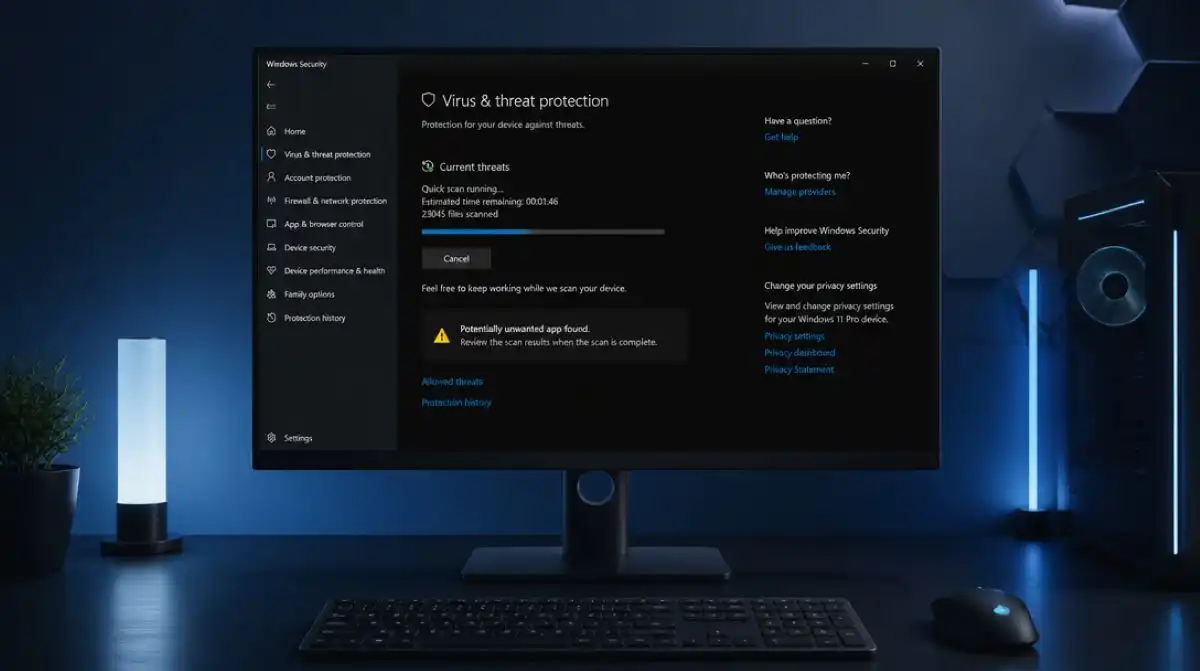
Choose Quick scan.
Your PC will run a malware scan through common places.
Conducting a quick scan would be a good first step if you suspect an infection.
Step 4: Run a Full Scan
If there are still any doubts after the quick scan, click Scan options.
Next, choose Full scan and begin the process.
A full scan involves checking many places on your computer and takes much longer.
This step would be a good choice when there are strong grounds for an infection.
Step 5: Check Protection History
After you conduct a scan, open Protection history in Windows Security.
This part displays the detected threats and actions that have been performed by Windows Security.
Please take note of the detection information before proceeding further.
What If Windows Security Finds a Virus?
If Windows Security finds malware, take the suggested step by Windows Security.
Depending on threats the available steps are:
- Quarantine
- Remove
- Allow
- Run an extra scan
Most of the time, you shouldn’t allow a threat that is found unless you are sure it is a false alarm.
In case the infection is severe or keeps recurring, then you might require more troubleshooting. Steps for how to remove malware from Windows 11 are explained here.
How to Check for Suspicious Programs
Windows Security is not the only place where you can make your search.
You can check the list of recently installed software manually.
Click on:
Settings → Apps → Installed apps
Then organize the list of applications in order of installation.
Check the list for applications you do not recognize, especially those that have the same installation date as the start of your PC problems.
Search for the application by its name before uninstalling anything; some genuine Windows utilities might be unknown to you.
How to Check Your Browser for Suspicious Extensions
Extensions will improve the capabilities of browsers, but using extensions from unknown sources increases security and privacy risks.
Go to your browser settings page and inspect all installed extensions.
Remove extensions that:
- You do not know about
- You do not need anymore
- Have been installed without your permission
- Redirect search results or show strange ads
- Ask for permissions irrelevant to their function
Once you delete the suspicious extension, restart the browser to see if the issue has gone.
How to Prevent Viruses on Windows 11
Prevention of malware is always more convenient than trying to solve the issue.
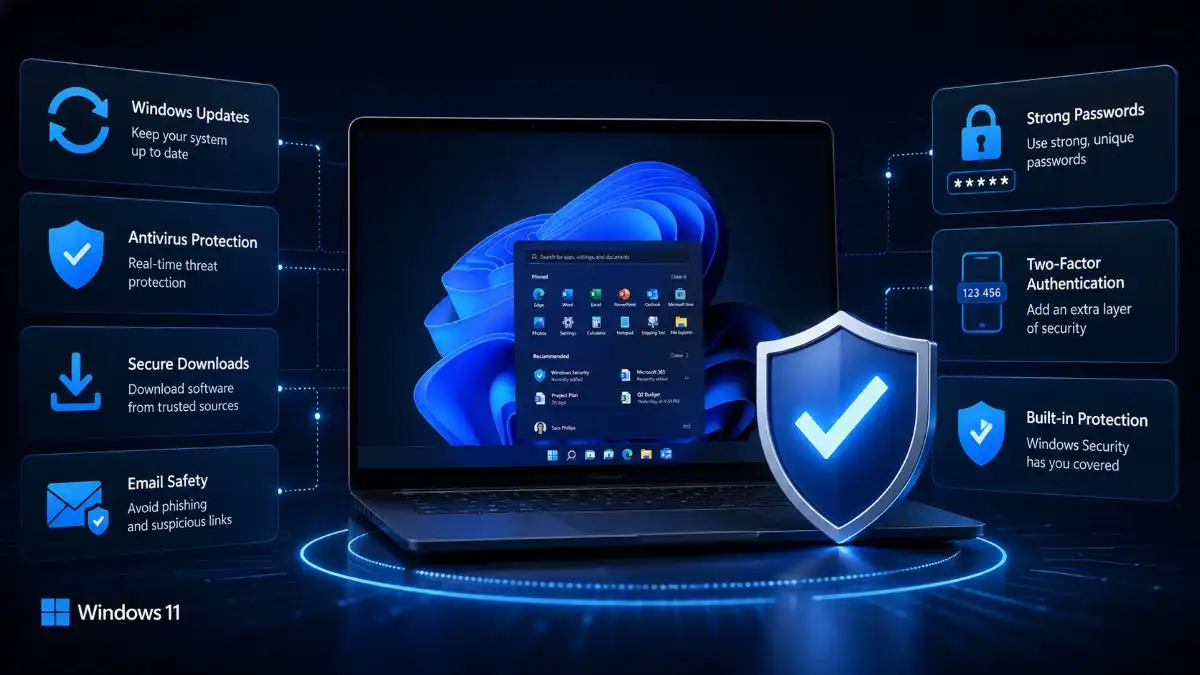
Here are the security tips that can be helpful:
Keep Windows Updated
- Install Windows updates and security updates when they become available.
Download Software from Trusted Sources
- Never download applications from strange websites or from unofficial mirrors or file-sharing web sites.
Be Careful with Email Attachments
- Never open strange email attachments or links even if the message looks urgent.
Use Windows Security
- Do not turn off Windows Security functions and allow Windows to update them.
Avoid Cracked Software
- Using cracked software will put your computer at risk of infections and many other security issues.
Create strong and Unique Passwords
- Never use the same password for all accounts.
- Password management tools can help you to create strong and unique passwords.
Enable Two-Factor Authentication
- If available, use two-factor authentication for important accounts.
- This will provide an additional security layer just in case if the password gets compromised.
When Should You Be Concerned?
One unusual symptom doesn’t mean that there is a virus in your computer.
For example, the PC can be running slow due to excess number of startup applications or lack of storage space.
However, you need to think about the matter seriously if there are several warning signs at once.
Examples include:
The computer runs slower than usual + unknown programs show up + redirects happen in your browser + Windows Security warns of the danger.
It’s far more suspicious than each warning sign taken separately.
Frequently Asked Questions
Q1. How do I know if my Windows 11 PC has a virus?
Ans. Look out for abnormal activities such as unexpected slowing down of the system, popup messages, redirection of the browser, etc. After this run a security scan to detect a threat.
Q2. Can Windows 11 detect viruses?
Ans. Yes. Windows 11 has Windows Security, with Microsoft Defender Antivirus, which is able to scan your PC for all types of malware and other security hazards.
Q3. Is a slow Windows 11 PC always a sign of a virus?
Ans. No. slow speed can also occur due to too many applications that launch on start-up, low memory space, or older software.
Q4. How can I check Windows 11 for malware?
Ans. Go to Open Windows Security > Virus & threat protection and click on Quick scan. You may also go for Full scan if you feel infected.
Q5. What should I do if Windows Security finds a virus?
Ans. Take the recommended step suggested by Windows Security, such as quarantining or removing the detected threat, and avoid opening any suspicious files and applications.
Q6. Can malware affect my browser?
Ans. Yes. Malware may be responsible for browser redirection, pop-ups, change of search engines, or even suspicious extensions.
Conclusion
Slow computer, pop-up ads, browser redirection, or unexpected software could be frustrating, but these signs doesn’t mean that your Windows 11 computer is infected with malware.
The smart way is to detect several warning signs and check them with Windows Security and other Windows built-in utilities.
Start with a Quick scan, if the problem persists, go for a Full scan, and check Protection history. You may also explore unknown programs, browser add-ons, and suspicious resource utilization.
First of all, you should never ignore any security alerts. Catching it early will allow you to avoid an attack by malware.
In conclusion, you now have some information on how to check if Windows 11 has a virus. You can start by using Windows Security, analyzing any suspicious activities, and taking the necessary actions.