Is Chrome running slow in Windows 11 although your internet connection is perfectly fine? Maybe you find that websites load slowly, tabs freeze, scrolling is slow, or Chrome responds slowly to clicks.
There are multiple reasons why Chrome browser becomes slow. These reasons include excessive number of open tabs, unnecessary extensions, outdated files of the browser, high memory usage, accumulation of cache or Windows processes in the background.
The best thing about a slow Chrome browser is that it can be fixed without reinstalling it or making any changes to Windows. In this article, we will share 10 simple tips to fix Chrome running slow in Windows 11.
Why Is Chrome Running Slow in Windows 11?
To solve any problem, it is good to know why the problem occurs first.
The browser Chrome becomes slow due to having number of tabs or extensions open simultaneously. Additionally, there are some sites that require lots of memory and CPU usage, such as video, advertisement, or application pages.
There are other possible causes like:
- Too many tabs opened in Chrome
- Unwanted or incorrect extensions
- High RAM or CPU usage
- Excessive amount of cache
- Outdated Chrome version
- Lots of background applications
- Problems with hardware acceleration
- Unwanted software (malware)
- Low available disk space
Please try the following fixes in sequence. You don’t have to perform all 10 steps.
If Chrome isn’t the only browser experiencing performance problems, check our guide on why your browser is running slow for additional troubleshooting steps.
10 Easy Ways to Fix Chrome Running Slow in Windows 11
1. Close Unused Chrome Tabs
Among the simplest solutions for speeding up Chrome is to close tabs that you are not using.
An open tab uses computer resources. There are certain tabs that keep using CPU and memory even when you’re not using them.
What to do?
- Check the tabs you have opened in Chrome.
- Close the unnecessary tabs.
- If there are many tabs opened, save necessary web pages first.
- Reboot Chrome and see if its performance changed.
When Chrome starts to perform much better after closing many tabs, then one of the reasons for the slow performance was definitely having too many tabs open.
Advice: Do not keep many pages opened in Chrome; either save them by using the Bookmark function or make your own Reading List.
2. Check Which Tabs or Extensions Use Too Much Memory
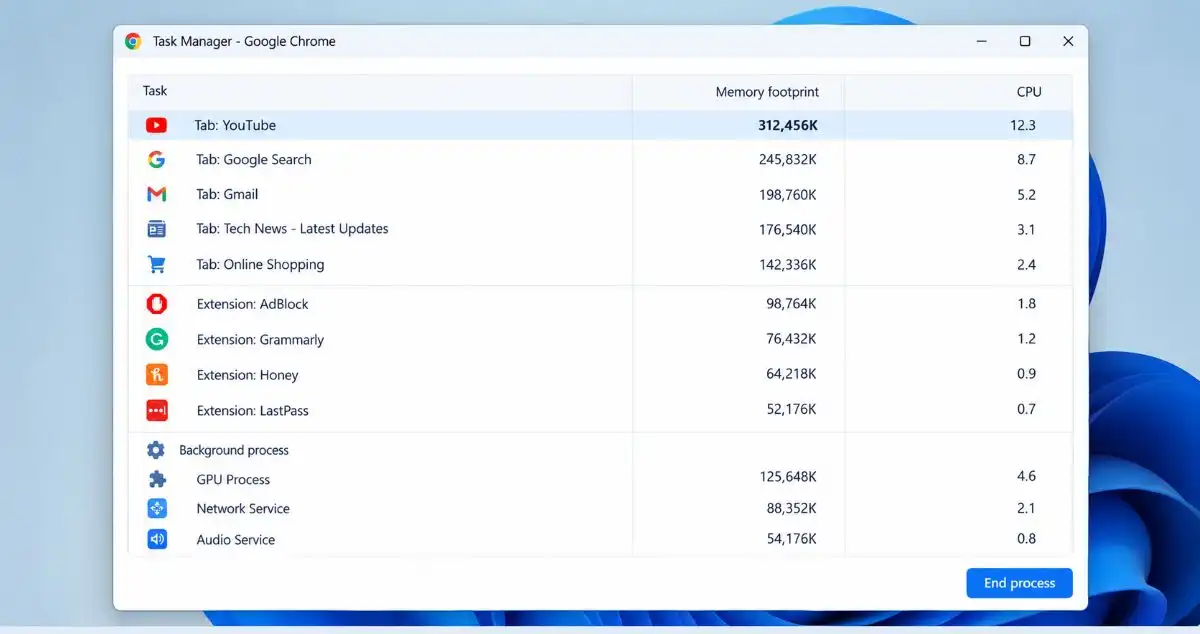
There is an in-built Task Manager in Chrome that can be used to monitor the CPU and memory usage of each tab and extension.
It will be helpful if Chrome works slowly but you do not know which tab causes the problem.
Steps to launch Chrome Task Manager:
- Launch Chrome browser.
- Go to the three-dot menu on the top right corner.
- Click on More tools.
- Choose Task Manager.
- Observe Memory footprint and CPU columns.
- Select a process that uses more resources than the rest.
- Click End process.
Be very cautious in closing processes; if you are unsure, let it run.
This tool can be used to identify a website or extension that slowing down your browser.
3.Disable Unnecessary Chrome Extensions
Extensions can be quite helpful in providing additional functionality within Chrome, but too many extensions can affect the speed of your browser.
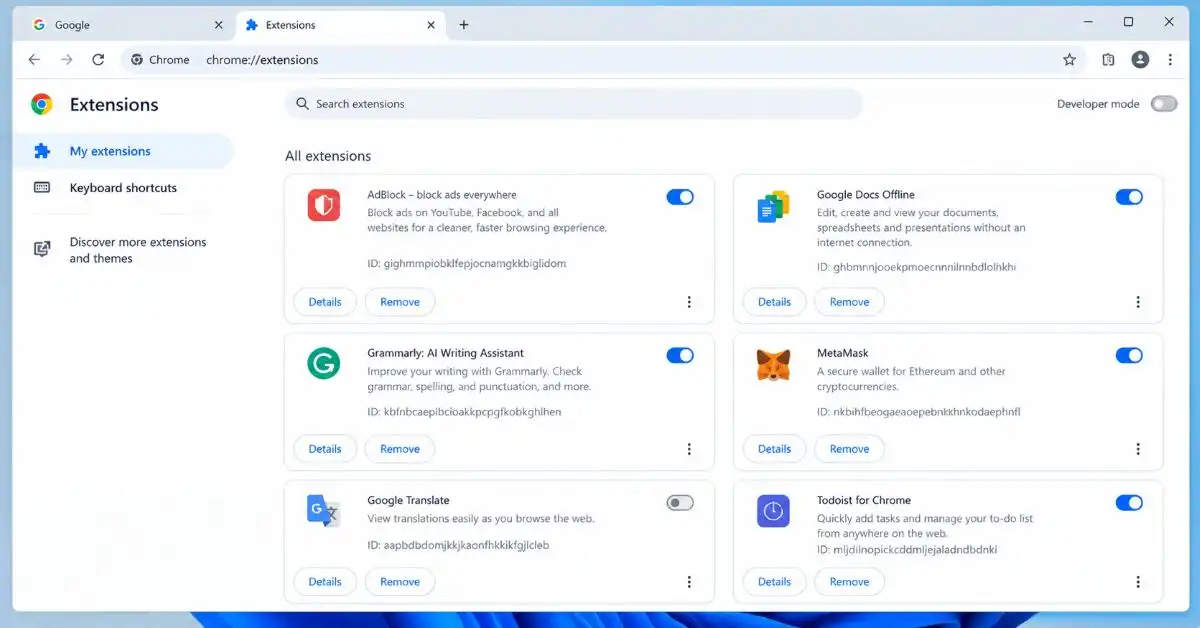
Also, improperly developed or outdated extensions can result in Chrome freezes.
To disable an extension:
- Launch Chrome.
- Press the three-dot menu icon.
- Select Extensions.
- Press Manage Extensions.
- Check the list of the installed extensions.
- Disable extensions that you do not use often.
It is not necessary to remove all extensions from your Chrome. First of all, disable the extensions that you do not need.
Restart your browser and check whether things improve.
If the speed does improve, you should activate the extensions one at a time in order to determine which extension is causing problems.
4.Clear Chrome’s Cached Data
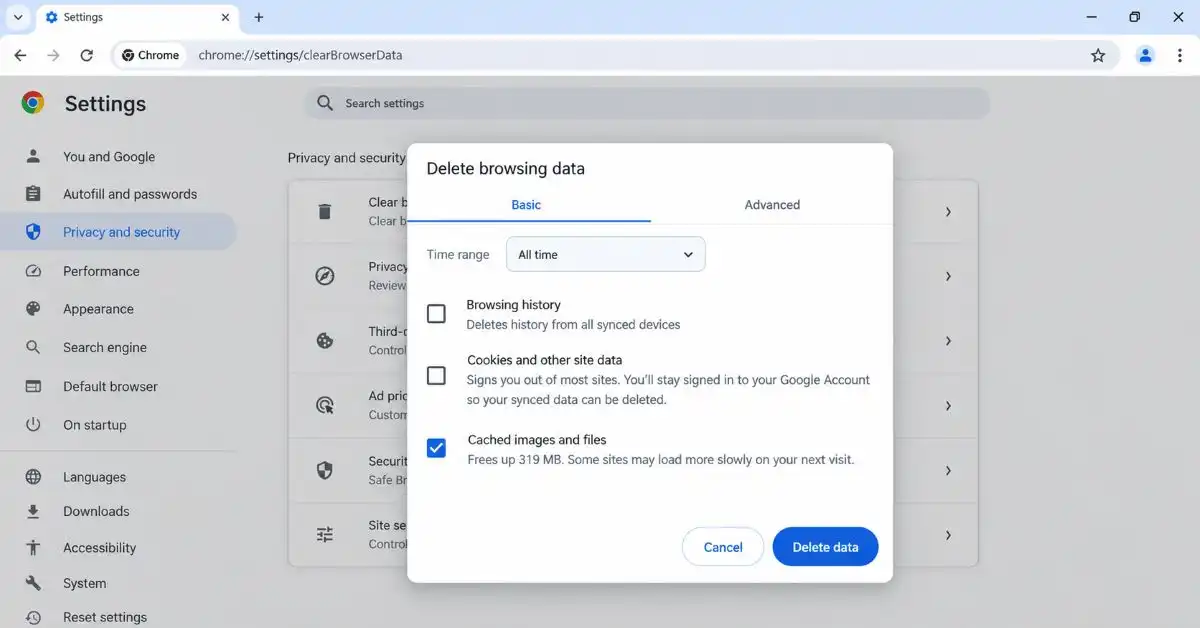
Chrome creates temporary files including images, website contents, and more to allow websites to be loaded quickly.
Yet, the data stored in the cache may sometimes be out of date or corrupted. This can be useful in case Chrome doesn’t behave normally.
Steps to Clear Cache in Chrome:
- Open chrome
- Click on the three-dot menu.
- Click on Delete browsing data.
- Set the proper time period, for example, All time.
- Choose to clear Cached images and files.
- Click Delete data.
There is no need to delete passwords and browsing history in order to clear the cache.
Once you clear the cache, try to reload some websites after restarting Chrome.
5. Update Google Chrome
Older versions of Google Chrome may cause some issues related to performance or compatibility.
Chrome will update automatically; however, you can check for updates manually.
How to check for Chrome update:
- Launch Chrome.
- Tap on the menu button (three dots).
- Go to Help.
- Choose About Google Chrome.
- Chrome will automatically check for updates.
- If there is an update, let Chrome install it.
- Tap Relaunch.
After reboot check Chrome once again.
Browser updates are also very important because updates include bug fixes and security enhancements.
6. Turn Off Hardware Acceleration
Hardware acceleration allows Google Chrome to utilize the graphics hardware of your PC for some specific tasks.
This is an advantage for many people. On the other hand, in certain computers, it may cause issues such as lagging, flickering, freezing, or even slow scrolling.
If Chrome became slower after the graphics driver or Windows update, then testing this option will be helpful.
How to Disable Hardware Acceleration:
- Open Chrome.
- Press the three dots button.
- Navigate to Settings.
- Select the System tab.
- Click on “Use graphics acceleration when available.”
- Turn it off.
- Press Relaunch.
Run Chrome as normal for a while after that.
When Chrome becomes slow, you can enable hardware acceleration. This is done to try and determine if this feature affects your specific issue.
7. Restart Chrome and Windows 11
The answer sometimes is much simpler than you think.
Both Chrome and Windows are likely to have background programs running during a long session. Other programs will also use up memory and processing power.
A full system reboot can help you start from scratch.
Restart Chrome first:
- Close all Chrome windows.
- Please wait a couple of seconds.
- Open Chrome.
- Try different websites.
If nothing works, then you may need to restart Windows 11:
- Go to Start.
- Choose Power.
- Click Restart.
- Wait for Windows 11 to restart.
- Reopen Chrome.
If Chrome gets faster after restarting the computer, then there may be some other program running in the background using the computer’s resources.
8. Check Windows 11 for High CPU or RAM Usage
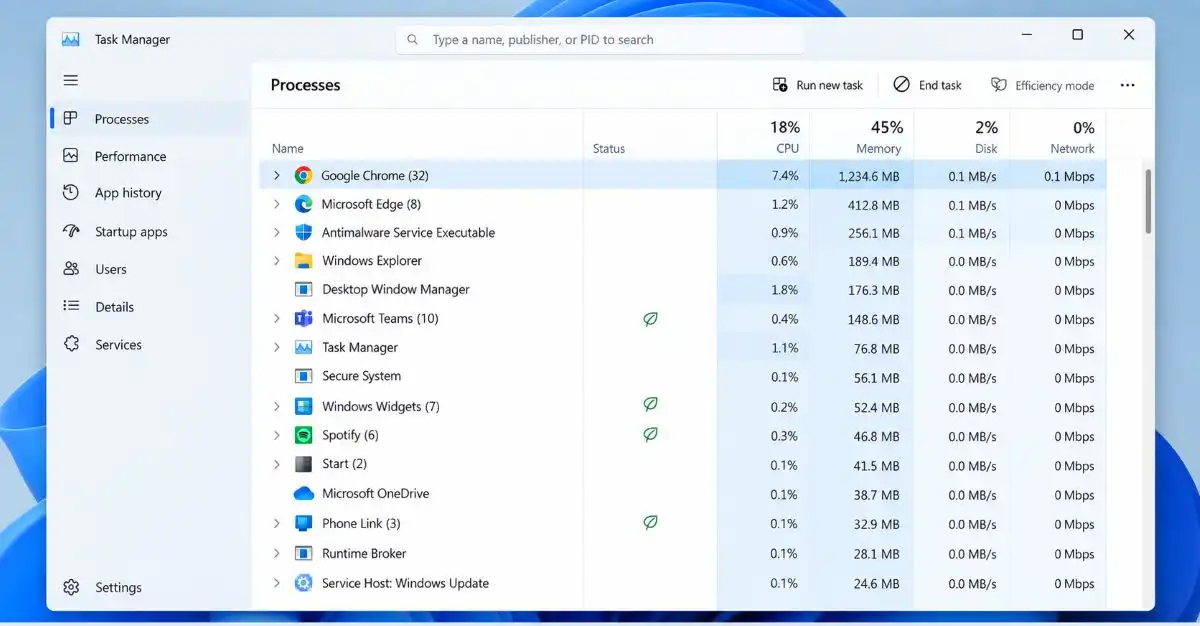
Chrome may not be the real cause of your computer’s slowness.
Other programs running on the operating system use a lot of memory or CPU resources, leaving only limited resources for Chrome.
This can be checked by using Task Manager of Windows.
How to view resource consumption:
- Use Ctrl+Shift+Esc keys.
- Click on the Processes tab.
- Check the CPU, Memory, and Disk columns.
- Identify programs using unusually high resource consumption.
- Close unnecessary programs.
Do not terminate Windows processes unless you know their function.
If you have very little RAM available on your computer, then the performance of Chrome will be severely affected when multiple applications and tabs are open.
Before opening Chrome, you should close any unnecessary applications..
9. Check Chrome for Unwanted Software
If Google Chrome starts to act extremely slowly, redirects you to unknown websites, shows you strange popups or changes settings on its own, there may be some malicious software involved.
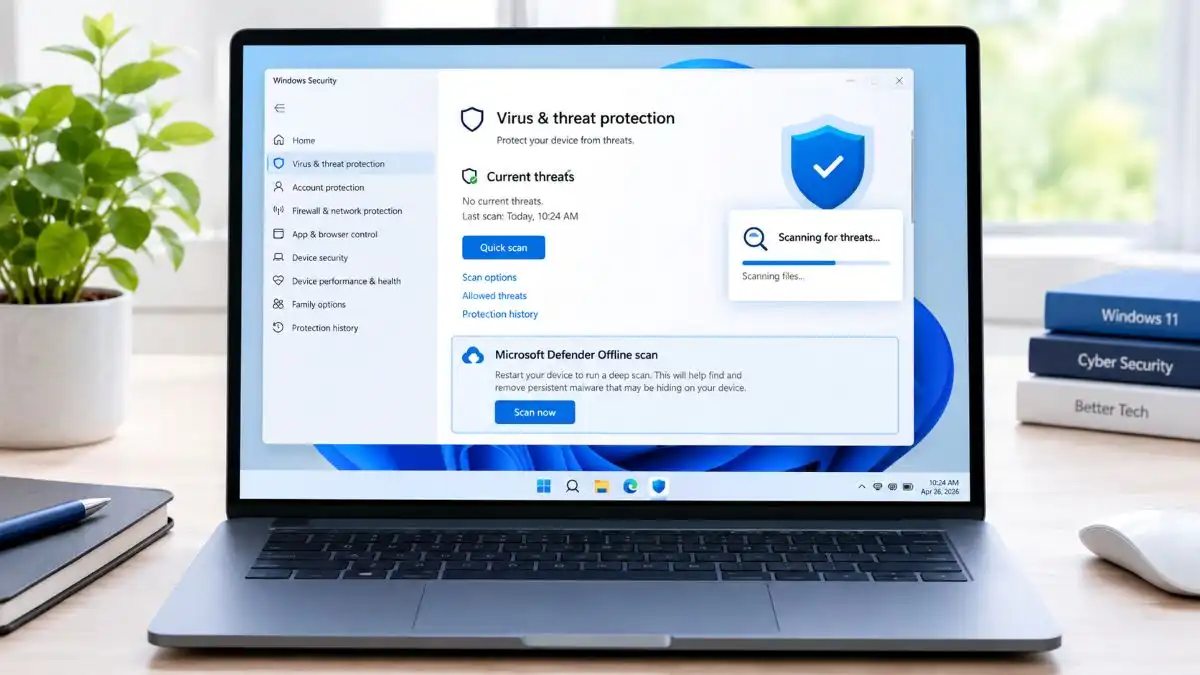
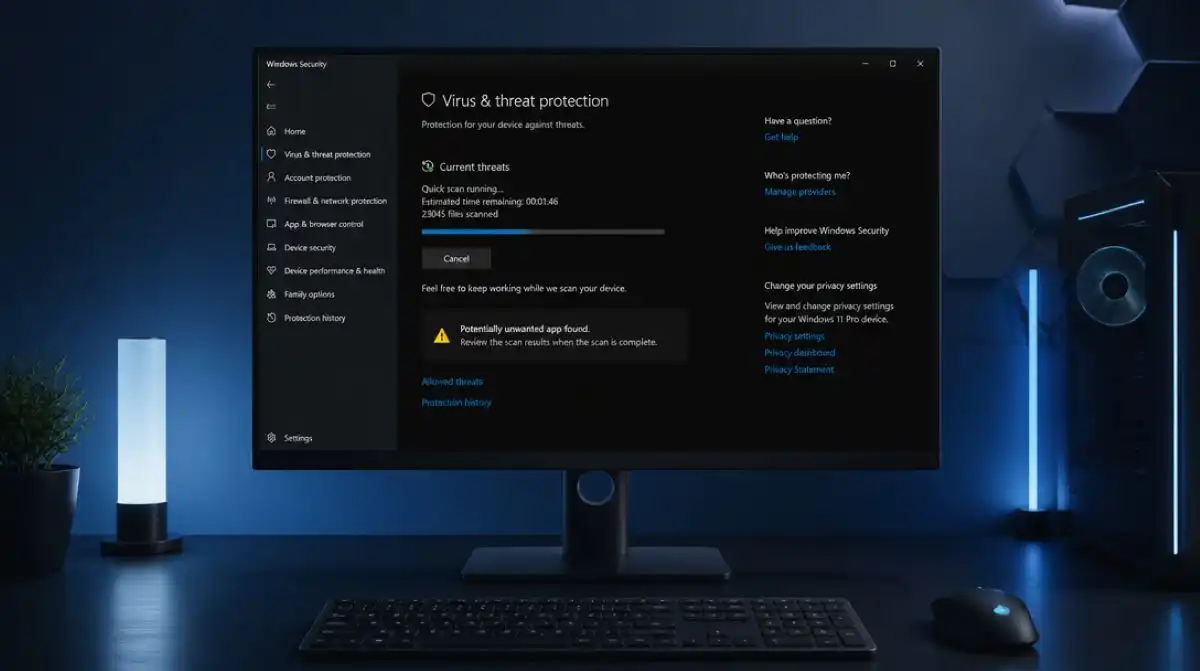
In Windows 11, it’s possible to perform a scan using Windows Security.
Run a Windows Security Scan:
- Launch Windows Security from the Start menu.
- Click on Virus & threat protection.
- Click on Quick scan.
- Let the scan complete.
- Follow Windows Security’s instructions in case of detected threat.
For further testing purposes, you can also use the complete scan option which is provided in Windows Security.
Do not install any random “Chrome speed booster”. These kinds of programs can cause even more trouble for your computer.
When you notice that your browser acts suspiciously, pay attention to uninstalling some unwanted software.
10. Reset Chrome Settings
If the other solutions have failed and Chrome is still running slowly, then resetting Chrome performance settings might resolve your issues related to configurations.
This is very helpful if you find Chrome behaving abnormally after adding extensions, changing its settings or using third-party software.
How to reset Chrome:
- Open Chrome.
- Go to the three-dot menu.
- Choose Settings.
- Choose Reset settings.
- Choose Restore settings to their original defaults.
- See what Chrome tells you about it.
- Confirm the reset.
The Chrome settings reset will allow you to revert several browser settings to their default.
But do not choose this option as your first step in trying to solve a problem.
What If Chrome Is Still Slow?
If your Google Chrome browser remains slow after using all 10 methods, and refuses to launch, follow our guide on how to fix Chrome not opening in Windows 11.
Your Windows 11 computer might have low memory space, high usage of background processes, storage issues, old drivers, or any other system-level issue.
Try these additional checks:
- Install pending Windows 11 updates.
- Make sure your system has enough free storage.
- Restart your PC regularly.
- Remove programs you no longer use.
- Check whether other browsers are also slow.
- Scan Windows for malware.
- Test Chrome with extensions disabled.
If all browsers are slow, the problem is probably caused by Windows, your network, or your computer’s hardware and not by Chrome itself.
Frequently Asked Questions
Q1. Why is Chrome so slow on Windows 11?
Ans. Chrome can get slow due to many reasons including too many tabs, extensions, excessive use of memory, cached data, outdated browser, background processes, or problems with hardware acceleration. Close unnecessary tabs and check Chrome Task Manager first.
Q2. How do I make Chrome faster on Windows 11?
Ans. Close inactive tabs, turn off unnecessary extensions, clear cache, update Chrome browser, and check Windows Task Manager for excessive CPU and RAM utilization.
Q3. Does clearing Chrome cache make it faster?
Ans. Clearing cache files may be useful if Chrome contains outdated or corrupted temporary files. However, this is not always needed, as it will not solve all possible problems.
Q4. Can Chrome extensions slow down my computer?
Ans. Yes. Extensions use memory and CPU power, and there may be conflicts with some sites and other extensions. Deactivating the extensions that are not necessary could help to find the issues.
Q5. Should I reinstall Chrome if it is running slow?
Ans. No. Reinstallation of Chrome must be a last option. First you need to close tabs, disable extensions, clear cache, update Chrome, and reset your settings.
Conclusion
If you have a slow Chrome browser but all other things on your Windows 11 PC are functioning well, it could drive you crazy. But the good news is that you can fix most issues with Chrome performance even without any technical skills.
There is a whole range of solutions starting from easy ones such as closing tabs you do not use, checking Chrome Task Manager, disabling extensions, clearing cache data, and updating Chrome. In case none of these solutions works, you need to check Windows resources usage, test hardware acceleration, look for unwanted software, and reset Chrome settings.
What matters here is testing solutions separately so that you can understand what really slows down Chrome on Windows 11.
Google’s official help center covers Chrome troubleshooting, extensions, browsing data, performance, updates, and other browser settings.